top of page

Adding and managing apps

Upgrading an App from the Wix App Market

Many of the apps in the Wix App Market are completely free for you to use. Some apps offer a free version along with an upgrade option to a premium version to access the full range of features.

You can upgrade your apps in your site's editor or in your dashboard.

In this article, learn how to upgrade an app:

Upgrading an app in your site's Editor

  1. Click the app in your editor.

  2. Click Settings.

  3. Click Upgrade.

A screenshot showing the option to upgrade.

  1. Select your payment plan.

  2. Select your subscription period.

  3. Click Next.

  4. Enter your payment information.

  5. Click Submit Purchase.

Upgrading an app in your dashboard

  1. Go to Manage Apps in your site's dashboard.

  2. Click Upgrade next to the app you want to upgrade.
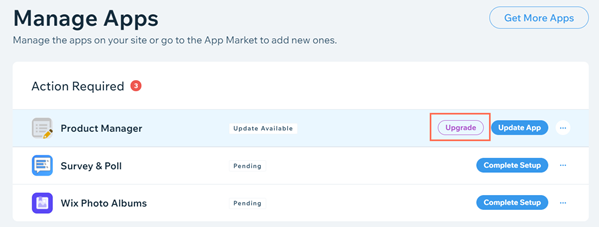
A screenshot showing the option to upgrade.

  1. Select your payment plan.

  2. Select your subscription period.

  3. Click Next.

  4. Enter your payment information.

  5. Click Submit Purchase.

Important:

After submitting your purchase, your bank may require you to verify your identity. If you're experiencing any issues with the authentication process, contact your bank directly.

FAQs

Click a question below to learn more about upgrading a third-party app.

How am I charged for an app upgrade?

Upgrading a third-party app is a subscription service that is renewed automatically, on a monthly basis.

You are charged for the app subscription each month, until you decide to cancel the service.

Are these upgrades included in my Premium plan?

No. Many of the apps in the Wix App Market have been developed by third-party developers. As such, the upgraded versions of these apps are not included in the Wix Premium plan offerings.

Need A Professional Website?
Contact Us 
Today!

Wix Automations: Adding and Sending a Coupon

Wix Automations: Sending Automated Emails to Contacts After Form Submissions

Wix Automations: Customizing Automated Emails

Wix Automations: Creating a New Automation

Wix Automations: An Overview

The New Automation Builder: Understanding Email Types

The New Automation Builder: Creating a Multi-Action Automation

The New Automation Builder: Sending Data via Webhook

The New Automation Builder: Adding and Sending a Coupon

The New Automation Builder: Troubleshooting Wix Automations

The New Automation Builder: Understanding Conditions Operators

The New Automation Builder: Setting Up a 'Scheduled Time' Trigger

The New Automation Builder: Sending Data to Google Sheets

The New Automation Builder: Using the Property Picker

The New Automation Builder: Viewing and Managing Automations Installed for You

The New Automation Builder: Customizing Automated Emails

The New Automation Builder: Managing Your Automations

The New Automation Builder: Creating an Automation

The New Automation Builder: Overview

Microsoft Office 365 Mailbox Limits

Resetting the Password for Additional Office 365 Mailboxes

Resetting Your Admin Password for Your Office 365 Mailbox

Accessing Your Microsoft Office 365 Mailbox Through Your Wix Account

Accessing Your Microsoft Office 365 Mailbox Through Your Wix Account

Accessing the Microsoft Office 365 Admin Center

Activating Your Microsoft Office 365 Mailbox Purchased from Wix

Google Workspace: Troubleshooting Login Issues

Google Workspace: FAQs

Google Workspace: Contacting Google Support

Google Workspace Error Message: "You do not have access to Email"

wix experts
Graphic2Traffic web design
©
bottom of page