top of page

Adding and managing apps

Third-Party Apps: Accessing Your Apps

Wix offers over 250 great apps for you to try. Some apps are dashboard apps, meaning they are added to your site's dashboard. Other apps are editor apps, meaning they are located in your site's editor.

In this article, learn more about accessing your apps from:

Accessing your apps from your site's dashboard

You can access any of your site's apps from your dashboard. Opening a dashboard app takes you to the app's tab on your site's dashboard, whereas opening an editor app takes you to your site's editor in a new tab.

Note:

Some apps have both dashboard and editor elements. These apps open as a tab on your site's dashboard, but you can also view them in the editor by following the steps here.

To access your apps from your site's dashboard:

  1. Go to Manage Apps in your site's dashboard.

  2. Click Open next to any of your installed apps.
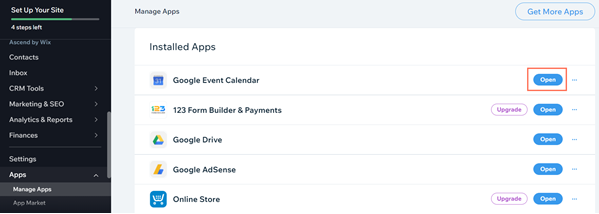
A screenshot showing the option to open an app from your dashboard.

Accessing your apps from your site's editor

You can access any of your site's apps from your site's editor. Dashboard apps open as a new tab in your browser, whereas editor apps switch to the page that the app is on.

Notes:

  • Some apps have both dashboard and editor elements.

  • The Settings panel usually includes a "Manage" button (e.g. Manage Posts to manage your blog, Manage Products to manage Wix Stores, etc.) This button redirects you to the app's tab in the dashboard.

To access your apps from your site's editor:

  1. Go to your editor.

  2. Click Add Apps  on the left side of the editor.

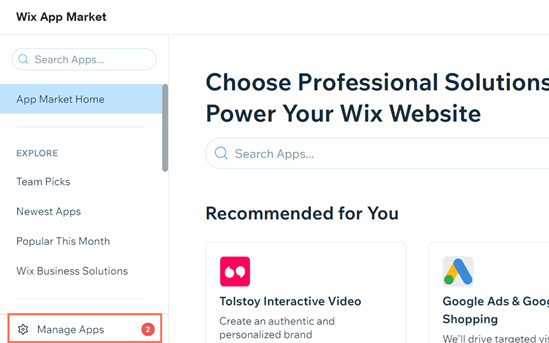
  3. Click Manage apps at the bottom left.

A screenshot showing the option to manage apps.

  1. Click Open next to any of your installed apps.
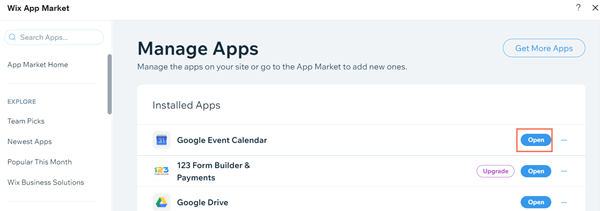
A screenshot showing the option to open an app from the App Market in the editor.

Tip:

In Manage Apps, you can also upgrade any app that has a Premium Plan, or click the More actions icon to delete the app. Learn more about deleting apps

Need A Professional Website?
Contact Us 
Today!

Wix Automations: Adding and Sending a Coupon

Wix Automations: Sending Automated Emails to Contacts After Form Submissions

Wix Automations: Customizing Automated Emails

Wix Automations: Creating a New Automation

Wix Automations: An Overview

The New Automation Builder: Understanding Email Types

The New Automation Builder: Creating a Multi-Action Automation

The New Automation Builder: Sending Data via Webhook

The New Automation Builder: Adding and Sending a Coupon

The New Automation Builder: Troubleshooting Wix Automations

The New Automation Builder: Understanding Conditions Operators

The New Automation Builder: Setting Up a 'Scheduled Time' Trigger

The New Automation Builder: Sending Data to Google Sheets

The New Automation Builder: Using the Property Picker

The New Automation Builder: Viewing and Managing Automations Installed for You

The New Automation Builder: Customizing Automated Emails

The New Automation Builder: Managing Your Automations

The New Automation Builder: Creating an Automation

The New Automation Builder: Overview

Microsoft Office 365 Mailbox Limits

Resetting the Password for Additional Office 365 Mailboxes

Resetting Your Admin Password for Your Office 365 Mailbox

Accessing Your Microsoft Office 365 Mailbox Through Your Wix Account

Accessing Your Microsoft Office 365 Mailbox Through Your Wix Account

Accessing the Microsoft Office 365 Admin Center

Activating Your Microsoft Office 365 Mailbox Purchased from Wix

Google Workspace: Troubleshooting Login Issues

Google Workspace: FAQs

Google Workspace: Contacting Google Support

Google Workspace Error Message: "You do not have access to Email"

wix experts
Graphic2Traffic web design
©
bottom of page