


Creating your plans
Pricing Plans: Offering Your Clients a Free Trial Period
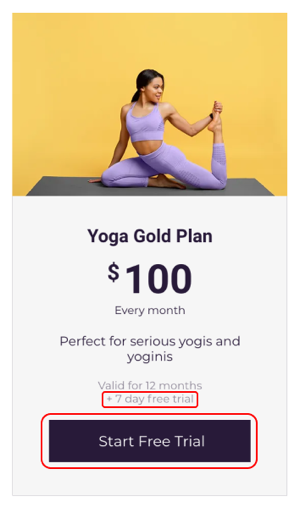
Let potential customers get to know your products, services and content by offering them a free trial period at the beginning of their plan or package. You can choose the length of the free trial period to suit the plan or package.
In this article, learn about:
Tip:
Instead of offering a trial period at the start of a regular pricing plan, you can create a promotional trial plan that customers can book only once.
Creating a plan with a free trial period
You can create free trial periods for plans that include recurring payments (e.g. a monthly gym membership or a coffee subscription). This is a great way for customers to get to know your business before making a commitment.
To create a plan with a free trial period:
Go to Pricing Plans in your site's dashboard.
Click + Create Plan.
Enter the details of the plan, such as the name and benefits.
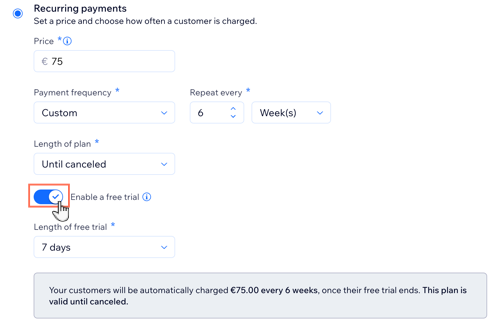
In the Pricing options section, select Recurring Payments.
Enter the Price.
Set how often you take payment from Payment frequency in the drop-down.
Click the Length of plan drop-down and choose from the following options:Choose a set length: Choose from the available options.
Until canceled: This option allows the plan to continue until you or the client cancels it.
Custom: Choose the number of months you want the plan to last for.
Click the Enable Free Trial toggle.
Select the duration of the free trial in the Length of Free Trial drop-down:Select a time: Choose 7, 14, or 30 days.
Set a custom time:Click Custom.
Enter the number of days.
Finish creating your plan and click Save.
FAQs
How do free trials work for Pricing Plans?
When clients purchase a plan with a free trial, they enter their payment details as they do for other plans. Details about the free trial period automatically appear in the order summary.

When the free trial is over, the client's first billing period begins. For example, if they book a monthly membership plan with a 14-day free trial period, their billing period for the first month starts after 14 days.
How do free trials work with packages?
Membership Plans: If you create a monthly plan with a 7-day free trial, clients can access your services for 7 days before they are charged.
Packages: If you create a 5-session package that renews monthly and has a 7-day free trial, clients can use the sessions any time during the 5 weeks (a month + 7 days). Clients are charged after the 7-day period ends.
Can the same client book multiple free trials?
Clients can book the same plan again, but they do not receive another free trial period.

What happens if a client cancels a plan during their trial period?
Clients who cancel a plan during the trial period can continue to enjoy plan benefits until the free trial ends.
How do I track plans with free trial periods?
In the Subscriptions tab, you can identify plans that are currently in their free trial period by their label:

Click the plan to see exactly when the free trial expires. To let clients know that their free trial period is nearing the end, they are automatically sent a reminder email three days before the trial runs out.