


Using the Wix app for Pricing Plans
Pricing Plans: Managing Purchased Plans in the Wix App
The subscriptions area in the Wix app is the place to manage and keep track of the pricing plans you've sold.
Note that any product subscriptions (from Wix Stores) or recurring invoices you've sent to customers (from Wix Invoices) also appear here.
In this article, learn more about:
Accessing plans that customers purchased
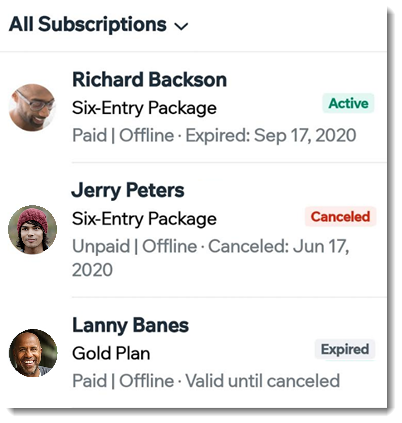
On the subscription page, you can view each of your subscriptions and see their current status at a glance.
To access the subscriptions tab:
Go to your site in the Wix app.
Tap Manage
 at the bottom.
Tap Subscriptions.
Tap the relevant subscription to view more details such as the subscription status, or to contact your customer.
Show me a list of subscription statuses
Each subscription you sell has a status to indicate what's been done so far.
Active: Your customer can use the plan.
Pending activation: The plan has a future start date and is not yet active.
Suspended: The plan has been temporarily suspended.
Canceled: The plan was canceled, and the customer cannot use it.
Expired: The plan has ended.
Grace Period: Filter for customer whose payment failed for their recurring subscriptions.
Pending Cancelation: The plan can be used by the customer until the end of the billing period they paid for and then will change to "Canceled" status.
Note: You can undo cancelations for plans with the "Pending cancelation" status. If you undo the cancelation, the status of the plan returns to "Active".Free Trial: The recurring plan has a free trial and is in its free trial period.
Extending a plan
You can extend the duration of a customer's plan. This can happen, for example, when a customer was sick and wasn't able to make use of the plan. Extending a plan does not charge customers any additional fees.
To extend a plan:
Go to your site in the Wix app.
Tap Manage
at the bottom.Tap Subscriptions.
Tap the relevant subscription you want to extend.
Tap the More Actions icon
 at the top.
Tap Extend Subscription.
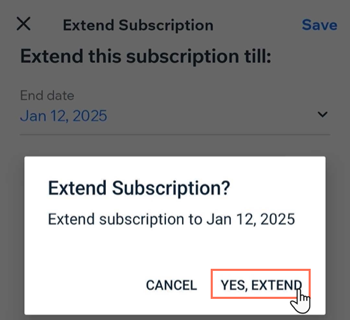
Tap the Extend this subscription till drop-down and select the relevant date.
Tap Save.
Tap Yes, extend to confirm.
Suspending a plan
You can suspend a plan whenever you or your customer need to. This is useful if your customer cannot use their plan temporarily through injury, travel or for other reasons.
To suspend a plan:
Go to your site in the Wix app.
Tap Manage
at the bottom.Tap Subscriptions.
Tap the relevant subscription you want to extend.
Tap the More Actions icon
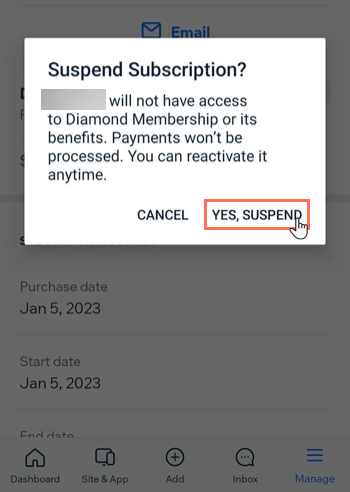
at the top.Tap Suspend Subscription.
Tap Yes, suspend to confirm.
Reactivating suspended plans
You can reactivate a suspended plan at any time. Your customer regains access to the subscription and all associated benefits, and you start collecting upcoming payments again.
To reactivate a suspended plan:
Go to your site in the Wix app.
Tap Manage
at the bottom.Tap Subscriptions.
Tap the relevant subscription you want to reactivate.
Tap the More Actions icon
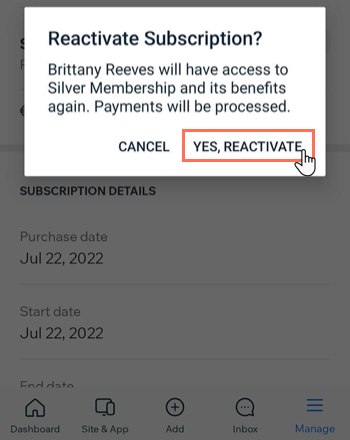
at the top.Tap Reactivate.
Tap Yes, reactivate to confirm.
Canceling plans
If a customer no longer wants to continue a subscription or you haven't received payment, you can manually cancel a subscription.
To cancel a subscription:
Go to your site in the Wix app.
Tap Manage
at the bottom.Tap Subscriptions under Business.
Tap the plan you want to cancel.
Tap the More Actions icon
 .
.Tap Cancel Subscription.
Tap Yes, cancel to confirm.
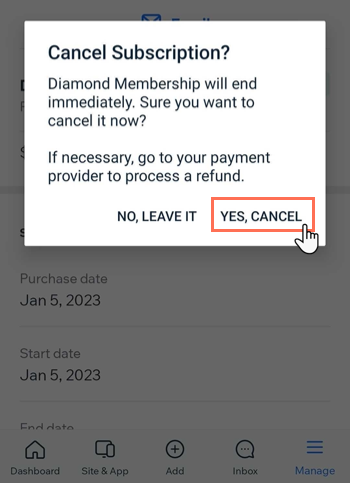
Issuing refunds:
To refund a plan with a one-time payment: To issue a refund, contact your payment provider (e.g. PayPal, Stripe).
To refund a plan with a recurring payment: When you cancel a recurring payment, the purchased plan and payment will not continue for the next cycle. For example, if you cancel a monthly plan in the middle of January, the plan continues until the end for January, but does not recur in the following months. During January, in this example, the Plan Status will be "Pending Cancelation".