


Selling Pricing Plans
Pricing Plans: Creating Discount Coupons
Discount coupons are a great way to encourage your clients to buy one of your pricing plans. You can choose to offer a price discount or a percentage discount coupon.
You can also choose whether your discount coupons apply to a specific plan or to all your pricing plans. Your clients redeem the coupon at checkout to take advantage of the discounted plans.
Note:
Discount coupons for Pricing Plans cover the plans themselves, but not any setup fees you may have enabled.
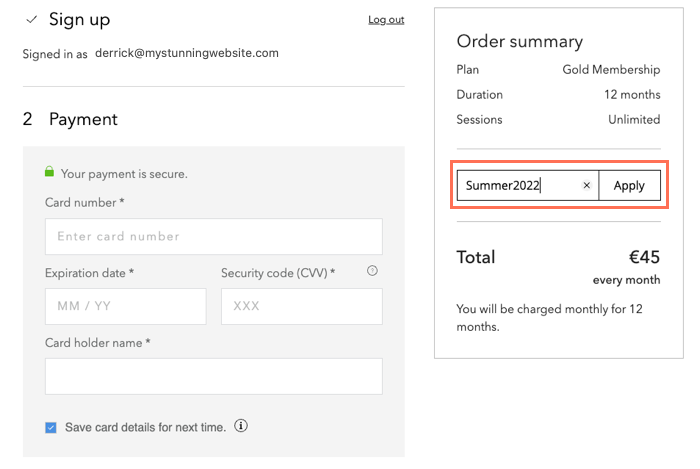
To create discount coupons for your pricing plans:
Go to Pricing Plans in your site's dashboard.
Click the More Actions icon
 at the top.
Click Create a coupon.
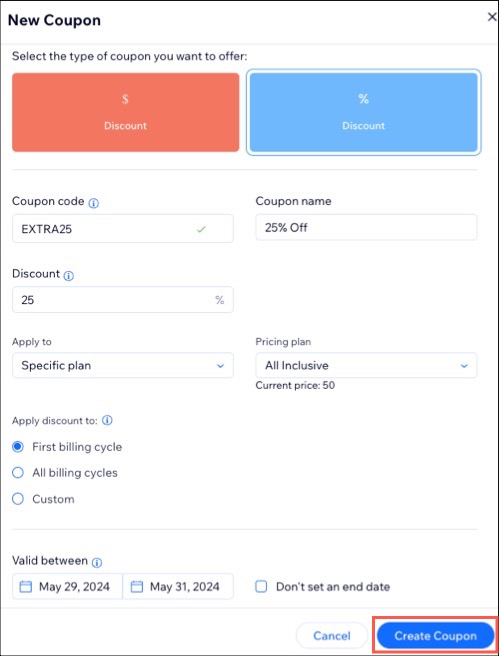
Select the type of coupon you want to offer:$ Discount: Offer a fixed monetary discount amount.
% Discount: Offer a percentage discount.
Enter the Coupon code clients use to redeem the coupon.
Enter the Coupon name for your own records.
Click the Apply to drop-down and choose the relevant pricing plan(s):All plans: This is applied to all your available pricing plans.
Specific plan: Click the Pricing plan drop-down and select the relevant plan.
Tip: You can enter the name of a plan if it doesn't appear right away.
Choose how the coupon works with your pricing plans:First billing cycle: The coupon offers a one-time discount at the start of the pricing plan.
All billing cycles: The coupon offers a recurring discount, every time your client is charged.
Custom: You choose how your coupons work with recurring payments (e.g. give a discount for the first 4 billing cycles).
Note: If you set your pricing plan to one-time payment, all of these options work as a single discount.
Select the dates the coupon is valid between.
(Optional) Select the Limit the total number of uses for this coupon checkbox and enter the number of times the coupon can be used.
(Optional) Select the Limit to one use per customer checkbox if you want clients to be able to use the coupon only one time.
Click Create Coupon.
What's next?
Click Coupons in Marketing & SEO in your site's dashboard to view all discount coupons you have created. You can share new coupons with clients by:
Sending an email campaign with your coupon code.
Sending coupons to clients directly from your Wix Inbox.