top of page

Using the Wix app for Pricing Plans

Pricing Plans: Creating Coupons Using the Wix App

Grow your list of recurring clients by creating discount coupons they can use on membership plans and packages. You can offer a fixed amount coupon ($20 off) or a percentage discount coupon (20% off).

Notes:

  • You can also create coupons for Wix Stores, Wix Bookings, and Wix Events.

  • Discount coupons for Pricing Plans cover the plans themselves, but not any setup fees you may have enabled.

To create a Pricing Plans coupon:

  1. Go to your site in the Wix app.

  2. Tap Manage  at the bottom.

  3. Tap Coupons under Marketing.

  4. Tap Add a Coupon.

  5. Select an option:
    Create a $ Discount coupon:Tap $ Discount.
    Enter the amount that will be taken off the price.
    Tap Next.

    Create a % Discount coupon:Tap % Discount.
    Enter the percentage of the discount you want to offer.
    Tap Next.
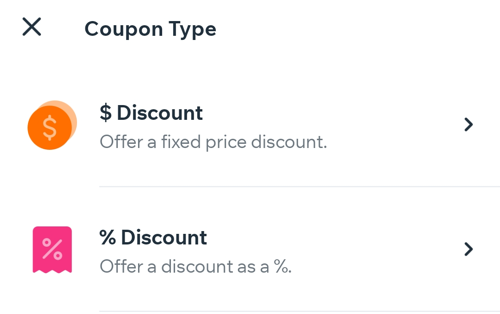
A screenshot showing how to choose which type of discount coupon you want to create on the Wix owner app.

  1. Enter the Coupon Code your clients enter to get the discount.

  2. Enter the coupon name for your own records.
    Note: This name appears in your coupons list.

  3. Tap Next.

  4. Choose which plans the coupon applies to:All plans: The coupon can apply to any available plans you offer.

    Specific plan: The coupon can apply to one specific plan you offer.Click the Service drop-down menu and select a service.
    Tip: If your site has Wix Stores or Bookings, you see additional options.

  5. Choose the billing cycle that the discount applies to:First billing cycle: Choose this option to only apply a discount to the first billing cycle of a plan.
    All billing cycles: Choose this option to apply a discount to all future billing cycles of a plan until the coupon expires.

    Custom: Choose how many billing cycle you want the coupon to last for.Enter the number of first billing cycles the coupon applies to.

  6. Set the coupon's start and end date:Tap the date under Dates Valid.
    Select the start date from the calendar.
    (Optional) Tap to select an end date.
    Tap Save.

  7. (Optional) Enable the toggle under Usage Limits and enter the total number of times the coupon can be used.

  8. Tap Done.

  9. (Optional) Tap Share to share your new coupon.
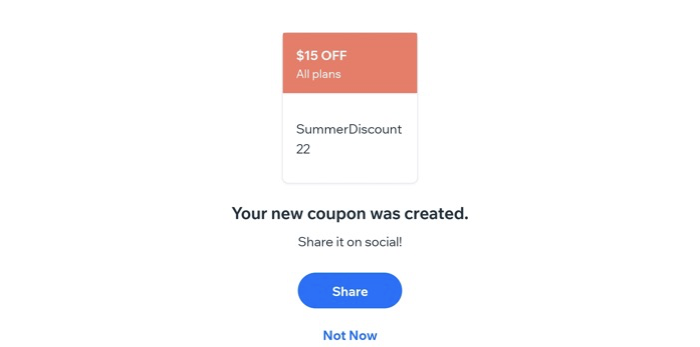
A screenshot showing a newly-created discount coupon on the Wix owner app.

Need A Professional Website?
Contact Us 
Today!

Wix Automations: Adding and Sending a Coupon

Wix Automations: Sending Automated Emails to Contacts After Form Submissions

Wix Automations: Customizing Automated Emails

Wix Automations: Creating a New Automation

Wix Automations: An Overview

The New Automation Builder: Understanding Email Types

The New Automation Builder: Creating a Multi-Action Automation

The New Automation Builder: Sending Data via Webhook

The New Automation Builder: Adding and Sending a Coupon

The New Automation Builder: Troubleshooting Wix Automations

The New Automation Builder: Understanding Conditions Operators

The New Automation Builder: Setting Up a 'Scheduled Time' Trigger

The New Automation Builder: Sending Data to Google Sheets

The New Automation Builder: Using the Property Picker

The New Automation Builder: Viewing and Managing Automations Installed for You

The New Automation Builder: Customizing Automated Emails

The New Automation Builder: Managing Your Automations

The New Automation Builder: Creating an Automation

The New Automation Builder: Overview

Microsoft Office 365 Mailbox Limits

Resetting the Password for Additional Office 365 Mailboxes

Resetting Your Admin Password for Your Office 365 Mailbox

Accessing Your Microsoft Office 365 Mailbox Through Your Wix Account

Accessing Your Microsoft Office 365 Mailbox Through Your Wix Account

Accessing the Microsoft Office 365 Admin Center

Activating Your Microsoft Office 365 Mailbox Purchased from Wix

Google Workspace: Troubleshooting Login Issues

Google Workspace: FAQs

Google Workspace: Contacting Google Support

Google Workspace Error Message: "You do not have access to Email"

wix experts
Graphic2Traffic web design
©
bottom of page