


Customizing Online Programs
Online Programs: Reordering and Hiding Your Programs from the Program List
Optimizing your program order is key to highlighting recent or popular offerings first, showcasing the most relevant content upfront. You can also hide programs temporarily to keep your list focused and impactful for visitors.
Tip:
Reordering or hiding programs on the Program List page only affects its display there; use the Program List Add-on to display programs on different pages throughout your site.
In this article, learn how to:
Reordering your programs in the Program List
Arrange your programs to emphasize key features. By reordering your programs, you can showcase new additions, prioritize popular programs, or feature seasonal promotions.
Wix Editor
Studio Editor
Click Pages & Menu
 on the left side of the editor.
Click Program Pages.
Click your Program List page.
Click the Program List element on your page.
Click Settings.
Click Programs.
(For categorized programs) Click the Category drop-down and select the relevant one.
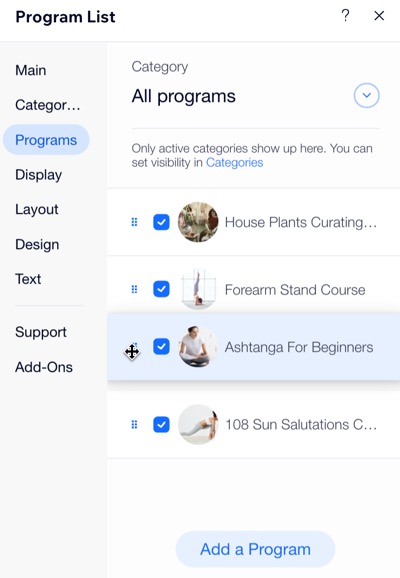
Click and drag a program to reorder it in the list.
Hiding programs in the Program List
Hide a program when you no longer want it to appear as an active offering, ensuring that visitors see only current and relevant offerings.
Wix Editor
Studio Editor
Click Pages & Menu
on the left side of the editor.Click Program Pages.
Click your Program List page.
Click the Program List element on your page.
Click Settings.
Click Programs.
(For categorized programs) Click the Category drop-down and select the relevant one.
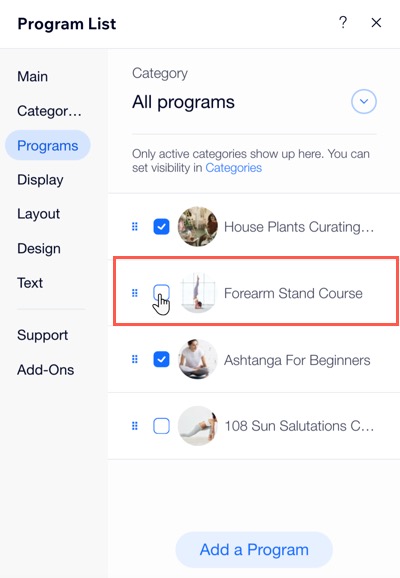
Deselect the checkbox next to the program(s) you want to hide.
Want to display a program again?
Follow steps 1-8, then select the checkbox next to the relevant program(s) you want to show.