top of page

Using the Wix app for Online Programs

Online Programs: Connecting a Group to Your Program in the Wix App

Connect a group to your program using the Wix app. This gives participants a place to discuss their progress and share updates to motivate each other to complete the program. You can connect an existing group or create a new one straight from the app.

To connect a group to your program in the Wix app:

  1. Go to your site in the Wix app.

  2. Tap Manage  at the bottom.

  3. Tap Online Programs.

  4. Tap the More Actions icon  next to the relevant program.

  5. Tap the Edit.

  6. Scroll down to Group and tap Connect a Group.

  7. Choose what you want to do:Connect an existing group to the program: Select a group from the list and tap Done.
    Note: Once a group is linked to the program, anyone who joins your program automatically joins the group.

    Create a new group for the program:Tap Create New Group.
    Enter the group details including the name, cover image, and privacy setting. Learn more about creating a group using the Wix app.
    Tap Done.

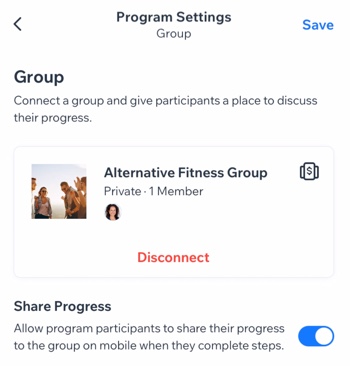
  8. (Optional) Enable the Share Progress toggle to allow participants to share their progress to the group when they complete steps.

  9. Tap Save.

A screenshot of the Program Settings panel with a connected group.

Want to disconnect the group?

If the group is no longer relevant to your program (e.g. the program has ended or you want to add different one), you can remove the group from your program. Tap Disconnect under the group.

Need A Professional Website?
Contact Us 
Today!

Wix Bookings: Blocking Off Time in Your Calendar

Wix Bookings: Managing Clients with Appointments Through your Booking Calendar

Wix Bookings: Manually Scheduling an Appointment

Wix Bookings: Rescheduling a Session

Wix Bookings: Canceling and Refunding Sessions

Wix Bookings: Refunding Clients

Wix Bookings: Adding and Setting up Waitlists

Wix Bookings: Marking Attendance for Classes

Wix Bookings: Managing the Participant List for a Course

Wix Bookings: Managing the Participant List for Your Classes

Wix Bookings: Changing the Assigned Staff Member of Scheduled Sessions

Wix Bookings: Scheduling Your Classes

Wix Bookings: About the Wix Booking Calendar

Wix Bookings: Adding and Setting up the Connecteam Integration

Wix Bookings: Adding and Setting Up the Payroll Calculator

Wix Bookings: Deleting a Staff Member

Wix Bookings: Syncing Staff Members' Personal Calendars with the Bookings Calendar

Wix Bookings: Assigning a Staff Member to an Appointment

Wix Bookings: Adding Staff Permissions

Wix Bookings: Editing Your Staff Members' Working Hours

Wix Bookings: Adding Staff Members

Wix Bookings: About Bookings Staff Members

Wix Bookings: Scheduling Recurring Appointments

Wix Bookings: Deleting a Service

Wix Bookings: Managing Services and Categories

Wix Bookings: Managing Services and Categories

Wix Bookings: Guidelines for Uploading Service Images

Wix Bookings: Allowing Clients to Book Multiple Participants for a Service

Wix Bookings: Creating View-Only Services

Wix Bookings: Making Services Unbookable

wix experts
Graphic2Traffic web design
©
bottom of page