top of page

Setting up Online Programs

Online Programs: Adding and Setting Up Online Programs

Online programs allow you to offer courses, workshops, or training sessions directly on your website. This helps you expand your reach, engage your audience, and generate additional revenue. By adding Online Programs, you can develop a community of learners and help them achieve their goals.

For instance, if you run a fitness blog, you can create a series of workout videos and meal plans, offering a complete fitness program to your audience.
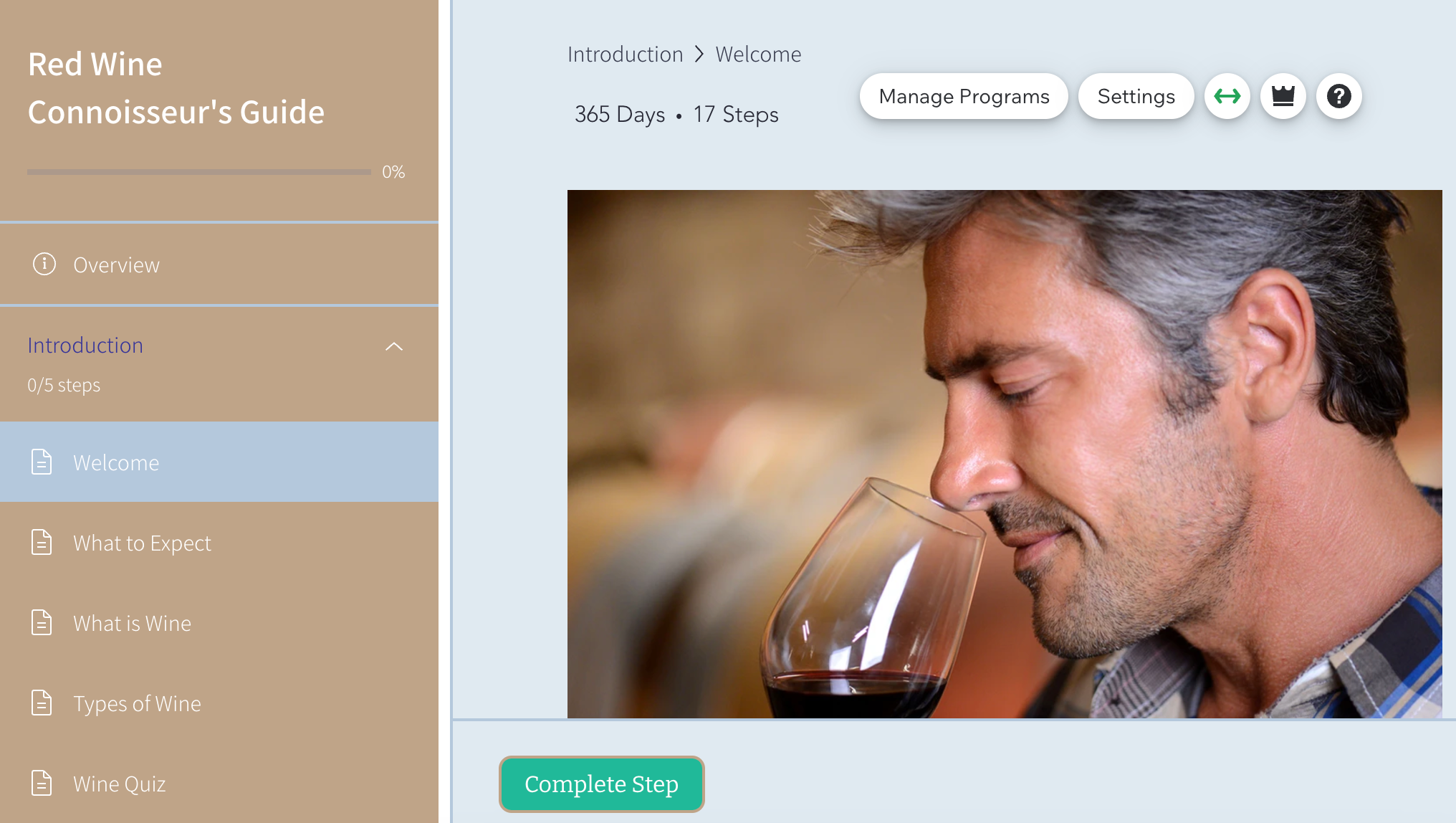
A screenshot of Wix Online Programs in the site editor

Step 1 | Add the Online Program app to your site

Get started by adding the Online Programs app to your site from the Wix App Market. You can add Wix Online Programs from the editor or the Apps tab in your site's dashboard.

Tip:

Some Wix templates already include Online Programs, making it easier for you to get started.

Wix Editor

Studio Editor

Dashboard

  1. Go to your editor.

  2. Click Add Apps  on the left side of the editor.

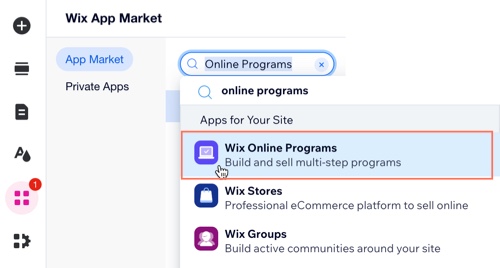
  3. Search for the Wix Online Programs app in the search bar.

  4. Click Add to Site.

A screenshot of the Wix App Market panel when searching for Online Programs.

Step 2 | Create your first program

After you've added Online Programs to your site, you're ready to create your first program. You can use an existing template for courses, fitness challenges or personal coaching plans. Alternatively, you can create your own design from scratch.
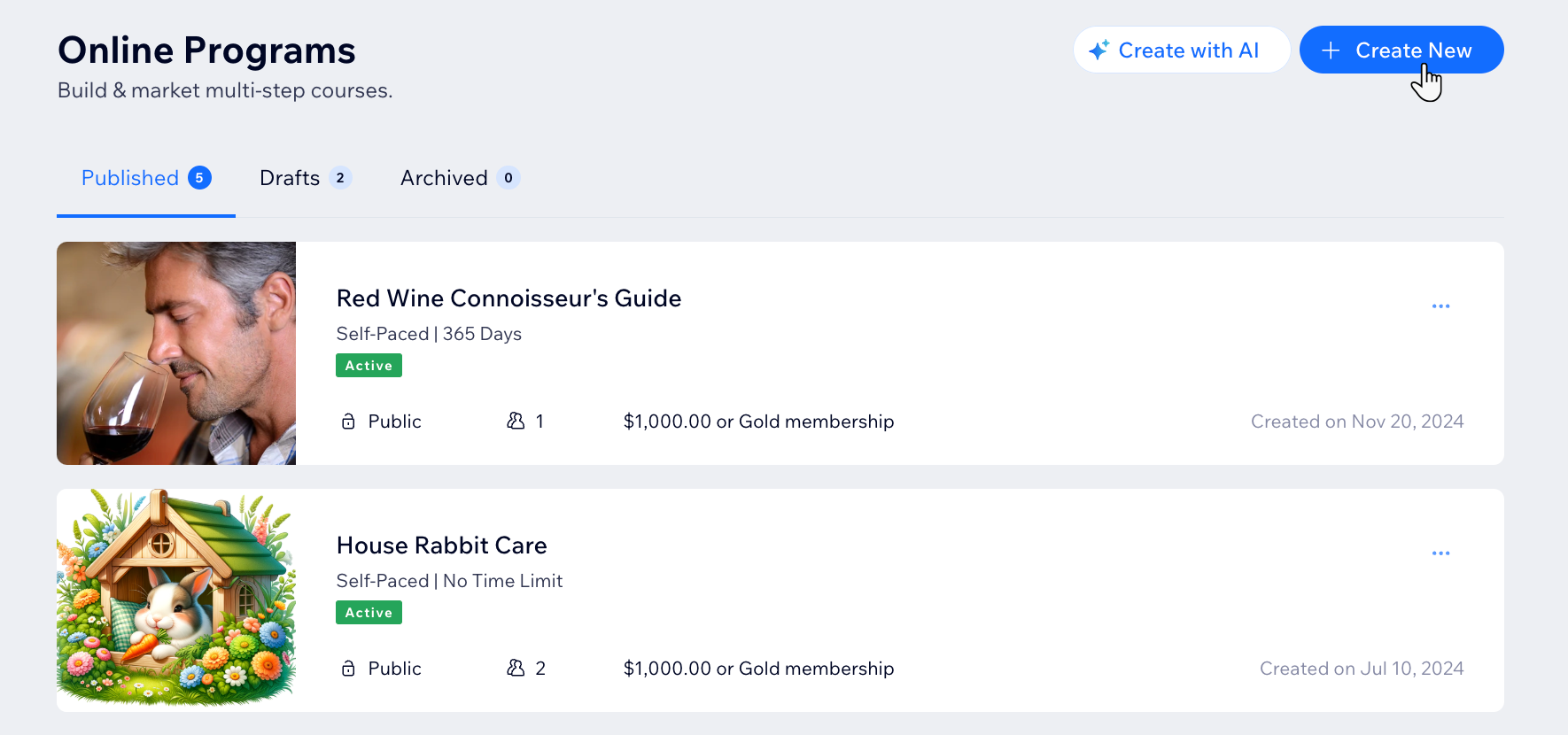
A screenshot of clicking Create New program from a site's dashboard.

Step 3 | Design your program pages

Your program pages include 3 customizable pages: The Program List page, Visitor page, and Participant page. You can choose to display different details on each page.

Customize the page's layout, design and information based on whether a site visitor or current participant is viewing the page.
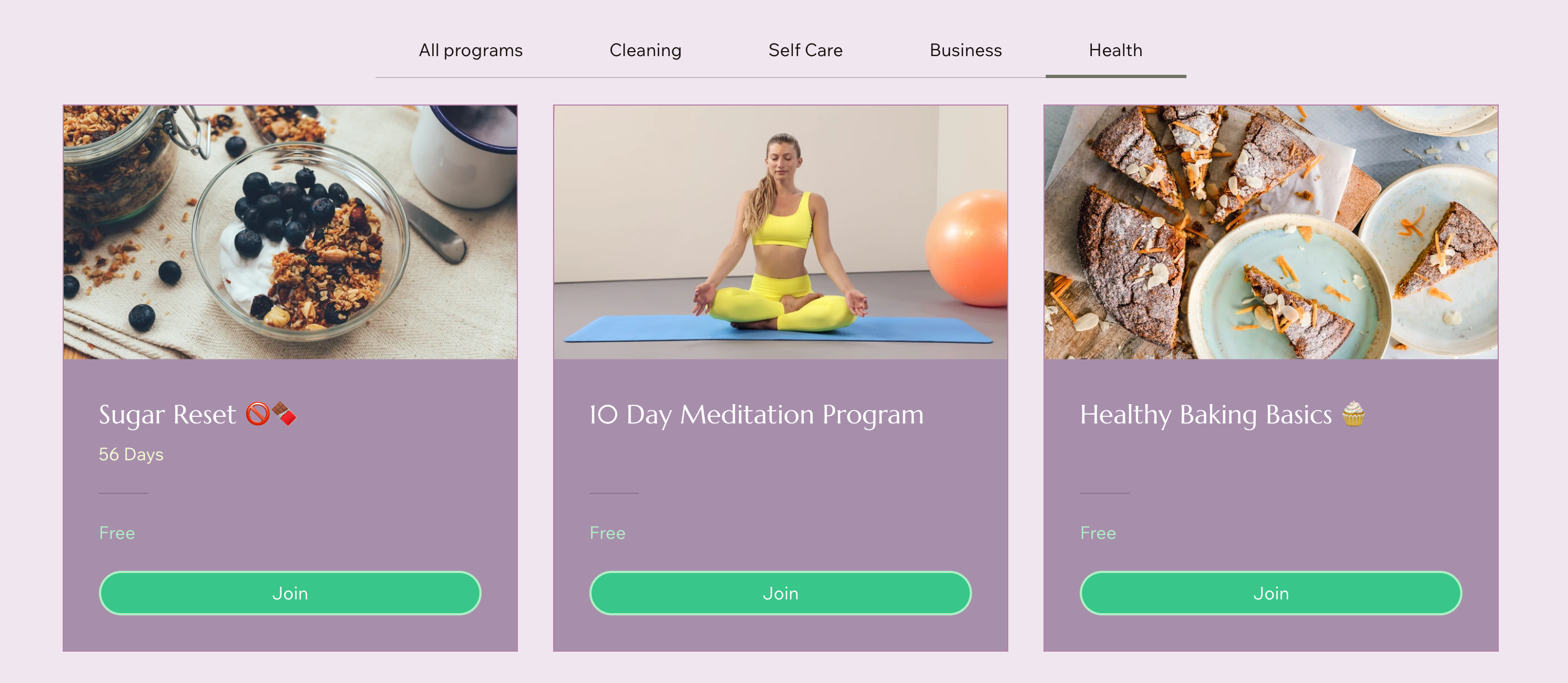
A screenshot of a Wix site page with the Online Programs - Programs List element displayed

Need A Professional Website?
Contact Us 
Today!

Wix Automations: Adding and Sending a Coupon

Wix Automations: Sending Automated Emails to Contacts After Form Submissions

Wix Automations: Customizing Automated Emails

Wix Automations: Creating a New Automation

Wix Automations: An Overview

The New Automation Builder: Understanding Email Types

The New Automation Builder: Creating a Multi-Action Automation

The New Automation Builder: Sending Data via Webhook

The New Automation Builder: Adding and Sending a Coupon

The New Automation Builder: Troubleshooting Wix Automations

The New Automation Builder: Understanding Conditions Operators

The New Automation Builder: Setting Up a 'Scheduled Time' Trigger

The New Automation Builder: Sending Data to Google Sheets

The New Automation Builder: Using the Property Picker

The New Automation Builder: Viewing and Managing Automations Installed for You

The New Automation Builder: Customizing Automated Emails

The New Automation Builder: Managing Your Automations

The New Automation Builder: Creating an Automation

The New Automation Builder: Overview

Microsoft Office 365 Mailbox Limits

Resetting the Password for Additional Office 365 Mailboxes

Resetting Your Admin Password for Your Office 365 Mailbox

Accessing Your Microsoft Office 365 Mailbox Through Your Wix Account

Accessing Your Microsoft Office 365 Mailbox Through Your Wix Account

Accessing the Microsoft Office 365 Admin Center

Activating Your Microsoft Office 365 Mailbox Purchased from Wix

Google Workspace: Troubleshooting Login Issues

Google Workspace: FAQs

Google Workspace: Contacting Google Support

Google Workspace Error Message: "You do not have access to Email"

wix experts
Graphic2Traffic web design
©
bottom of page