


Setting up Online Programs
Online Programs: Adding a Video Step to a Program
Add a video as a dedicated step in your program to boost participant engagement and add variety to your content. You can set a required percentage participants must watch, and enable autoplay for a smooth transition between video steps.
Additionally, you have the option to customize the cover photo of each video to enhance visual appeal and professionalism.
In this article, learn more about:
Adding a video step
Adding a video step is easy to do right from your site's dashboard or the Wix app.
Dashboard
Wix app
Go to Online Programs in your site's dashboard.
Click the relevant program.
Click + Add next to Content / Schedule on the program page.
Click Video.
Enter the Basic info:Step name: Provide a name for your step.
(For self-paced programs) Click the Section drop-down and choose the relevant section to add the step.
(For scheduled programs) Select the date for this step.
Add a video:Click the Add icon
 under Video.
Select either to upload a video from your device / cloud storage using the Media Manager or add a video from the Video Library.
Click Continue and select a video.
(Optional) Add a cover image.
Enter an informative description of your step, explaining how to complete it.
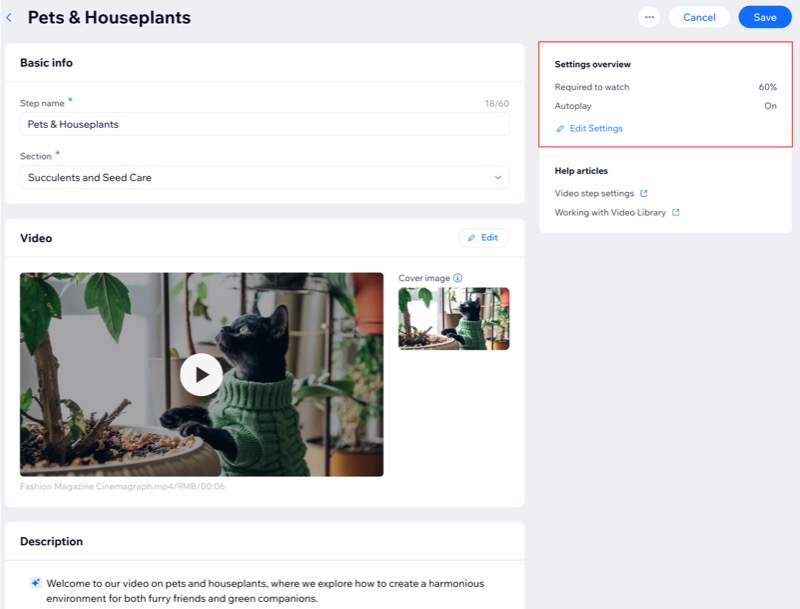
(Optional) Adjust the Settings overview to customize the viewing experience:Click Edit Settings.
Enable the relevant toggles:Require to watch videos: Set a required percentage participants must watch to complete the step, then click Save.
Autoplay next video step: Automatically play the next video after the current one ends, then click Save.
Note: These settings apply to all video steps in your program.
Click Save.
FAQs
Click a question to learn more about adding a video step to your program.
How does a Video step look to my participants?
Having a dedicated video step allows participants to see the title, description, cover photo and video length. If the 'Autoplay next video step' is enabled, they'll also see an "Up next" prompt for the next video.

What's the difference between including a video in an Article step and adding a Video step?
While you can add videos to an article, the features are limited. Using the Video step, however, offers exclusive features such as adding a cover photo, setting a required viewing percentage, and enabling automatic playback for subsequent video steps.
What happens if a participant exits the video and returns at a later time?
If a participant exits the video and returns at a later time, they will need to start watching from the beginning.
Can I view Video step stats for my participants?
Currently, it is not possible to view Video step stats for participants. However, you can require them to watch a set percentage of each video step to ensure engagement, even without specific stats.
Can my participants download the video?
No. Program participants cannot download the video. They can only view it within the program step.