top of page

Setting up Online Programs

Online Programs: About Automations for Your Program

Boost your site's success with minimal effort by creating automations to manage your program. Automations streamline repetitive tasks and help you hit your marketing targets. Think of them as a combination of triggers and actions—like sending a welcome email when someone joins your program. You can use built-in triggers and actions, or customize your own.

Ready to create automations for your program?

Go to Automations in your site's dashboard.
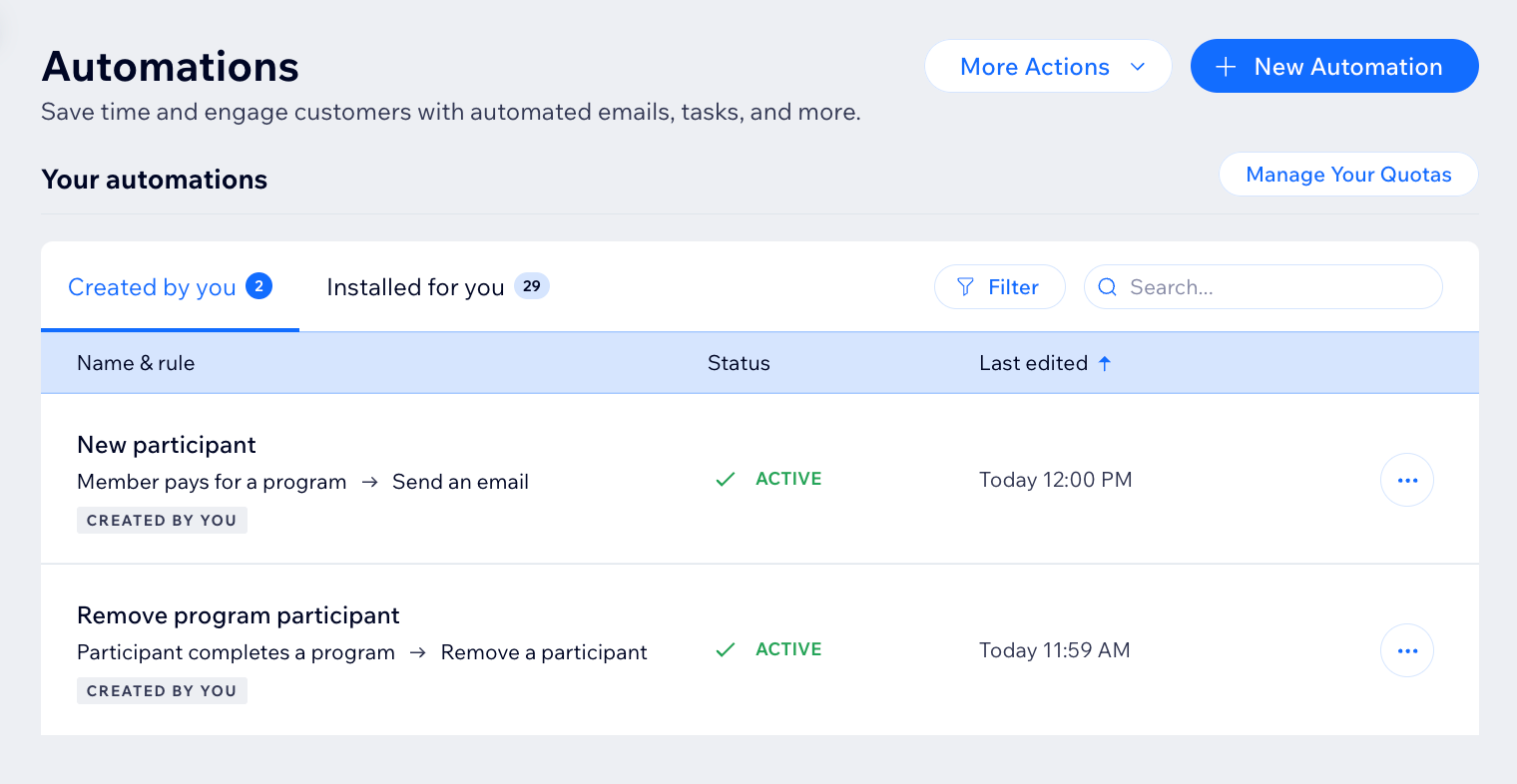
A screenshot of the Online Programs app in the automation flow

Choose a trigger

Select the Online Programs app in the automation flow to see its triggers. A trigger is an event that a member or participant does involving your program. This event initiates an automatic response. You can choose from a list of available triggers and select specific programs.

For example, you can remove a participant when they complete a self-paced program. To do so, use the trigger "Participant completes the program". Add a delay of 3 days, and the action "Remove participant", for a specific program.

The built-in triggers for Online Programs are:

  • Member pays for a program

  • Member joins a program

  • Participant completes a step

  • Participant leaves a program

  • Participant completes a program

  • Program end date has passed

A screenshot of the Online Programs app in the automation flow

Choose an action

Select actions that respond to your trigger. You can choose general actions like sending an email or updating Google Sheets. You can also use the specific Online Programs action: Remove a participant. For example: Combine "Program end date has passed" with the action "Remove participant". This will remove participants from a program when it ends.

A screenshot of the Online Programs app in the automation flow

Participants that are removed by an automation are labeled as Auto-Removed.
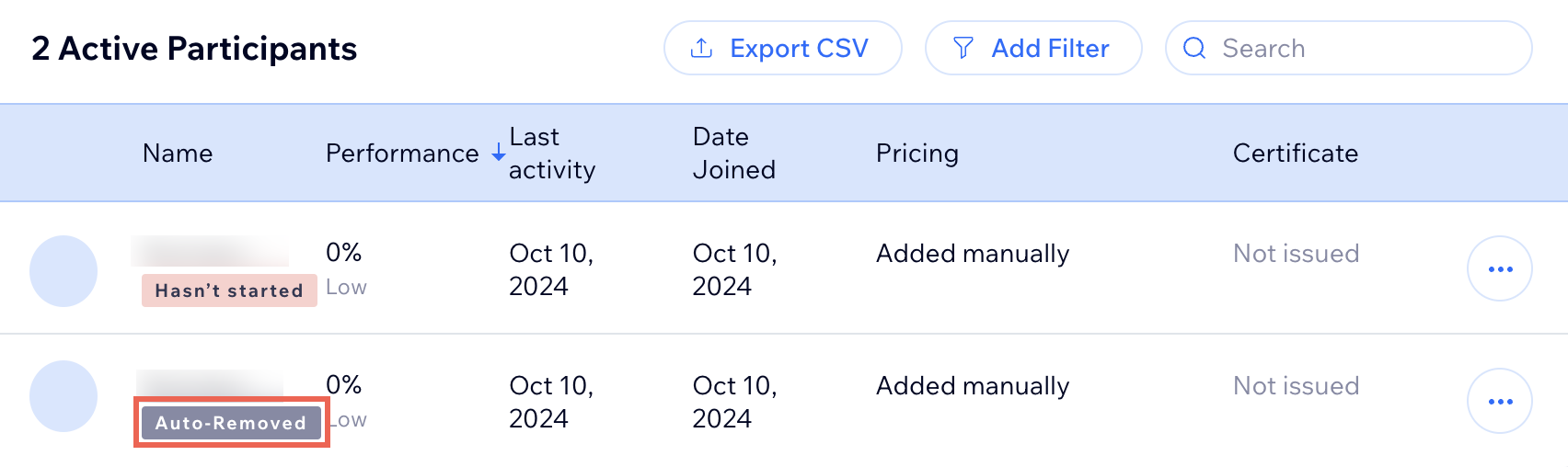
A screenshot of the Online Programs app participants list

Need A Professional Website?
Contact Us 
Today!

Wix Bookings: Blocking Off Time in Your Calendar

Wix Bookings: Managing Clients with Appointments Through your Booking Calendar

Wix Bookings: Manually Scheduling an Appointment

Wix Bookings: Rescheduling a Session

Wix Bookings: Canceling and Refunding Sessions

Wix Bookings: Refunding Clients

Wix Bookings: Adding and Setting up Waitlists

Wix Bookings: Marking Attendance for Classes

Wix Bookings: Managing the Participant List for a Course

Wix Bookings: Managing the Participant List for Your Classes

Wix Bookings: Changing the Assigned Staff Member of Scheduled Sessions

Wix Bookings: Scheduling Your Classes

Wix Bookings: About the Wix Booking Calendar

Wix Bookings: Adding and Setting up the Connecteam Integration

Wix Bookings: Adding and Setting Up the Payroll Calculator

Wix Bookings: Deleting a Staff Member

Wix Bookings: Syncing Staff Members' Personal Calendars with the Bookings Calendar

Wix Bookings: Assigning a Staff Member to an Appointment

Wix Bookings: Adding Staff Permissions

Wix Bookings: Editing Your Staff Members' Working Hours

Wix Bookings: Adding Staff Members

Wix Bookings: About Bookings Staff Members

Wix Bookings: Scheduling Recurring Appointments

Wix Bookings: Deleting a Service

Wix Bookings: Managing Services and Categories

Wix Bookings: Managing Services and Categories

Wix Bookings: Guidelines for Uploading Service Images

Wix Bookings: Allowing Clients to Book Multiple Participants for a Service

Wix Bookings: Creating View-Only Services

Wix Bookings: Making Services Unbookable

wix experts
Graphic2Traffic web design
©
bottom of page