


Other music apps
Music Apps: Adding and Setting Up the Bandsintown App
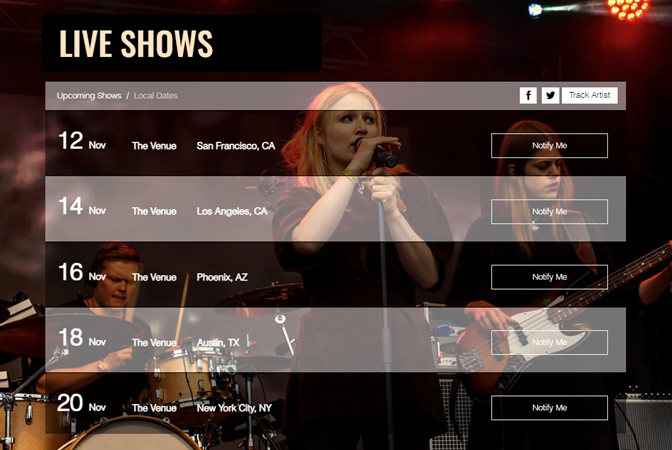
With the Bandsintown app, fans can RSVP and buy tickets to your upcoming shows directly from your site. The app automatically displays upcoming events and direct ticket links from your Bandsintown profile. Visitors can also share their interest in your shows on their social media.
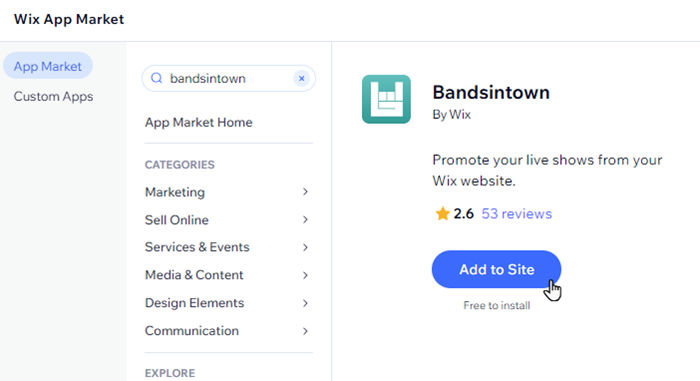
Step 1 | Add the Bandsintown app to your site
Wix Editor
Studio Editor
Dashboard
Click Add Apps
 on the left side of the editor.
Search for the Bandsintown app in the search bar.
Click Add to Site.
Step 2 | Set up the app
Next, connect your Bandsintown account to the app. Choose what information and social icons to display.
To set up the app:
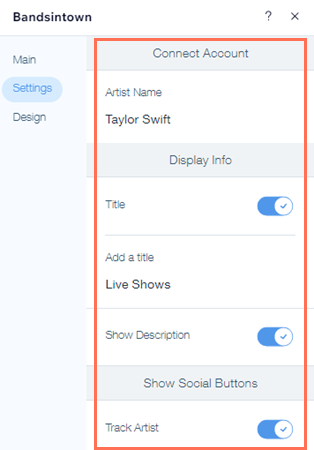
Click the app in your editor and click Settings.
Connect your Bandsintown account:Click Connect Account.
Note: If you don't yet have an account, click Create a Free account and return to this panel once you've created one.
Enter your Bandsintown name in the Artist Name field.
Click the toggles to choose what info you want to display on the app:
Display Info:Title: Display a title at the top of your list. (If necessary) Edit the title in the Add a title field.
Show Description: The description of the show taken from your Bandsintown account.
Show Social Buttons:Track Artist: Include a link to the artist's page on Bandsintown.
Facebook & Twitter: Include a link to the artist's Facebook and Twitter accounts.
Step 3 | Customize the app's design
Lastly, customize the design of the app's text, background and buttons to complement your site's style.
To customize the app's design:
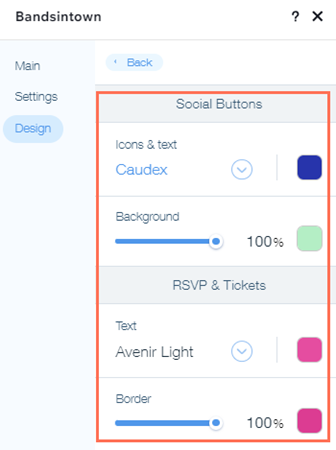
Click the app in your editor and click Design.
Choose what you'd like to customize:
Text
Top Bar: Choose a font and color for the app's title and menu.
Tour Dates: Choose a font and color for the app's info and description.
Background
Title Background: Select a color and adjust the opacity background behind the artist's name.
Menu background: Select a color and adjust the opacity background behind the menu.
Strip No. 1: Select a color and adjust the opacity of the background of every other tour date.
Strip No. 2: Select a color and adjust the opacity of the background of the rest of the tour dates.
Strip Margins: Increase or decrease the space between each tour date.
Show dividers: Click the toggle to show or hide dividers between tour dates.
Divider Color: Select a divider color and adjust the opacity.
Show Border: Click the toggle to show or hide a border around the Bandsintown app.Opacity & color: Select a border color and adjust the opacity.
Width: Adjust the border width.
Buttons
Social Buttons: Choose a font, color and background color of the social icons and text.
RSVP & Tickets: Choose a font, text color and border color for the RSVP and Tickets buttons.
Troubleshooting Bandsintown issues
If the Bandsintown app is showing a "No Upcoming Shows" error after you connected your band’s account, please check the following:
You've got shows in the future and not in the past, as the app only displays upcoming shows.
You connected the right band and not another one with the same or similar name.
Still need help?
If the problem persists, contact us and we will be happy to help. Please include the following information:
The artist's name whose account you're connecting to.
The name and version of the web browser you're using.
The name and version of your computer's operating system.
A screenshot of your console view using the steps below:Open an incognito window in Google Chrome (Ctrl + Shift + N).
Sign in to Wix and try to open your Editor.
Use the keyboard shortcut Ctrl + Shift + J (on PC) or Cmd + Option + J (on Mac).
Click the Console tab at the top of the panel and refresh the page (F5).
Take a screenshot of this tab.