top of page

Other music apps

Music Apps: Adding and Setting Up an iTunes button

Important:

iTunes button is not yet available in Studio Editor.

Have music on iTunes? Add a button that takes your site visitors to listen, download or buy it. You can add the button anywhere on your site, and choose which song, album or playlist it links to.
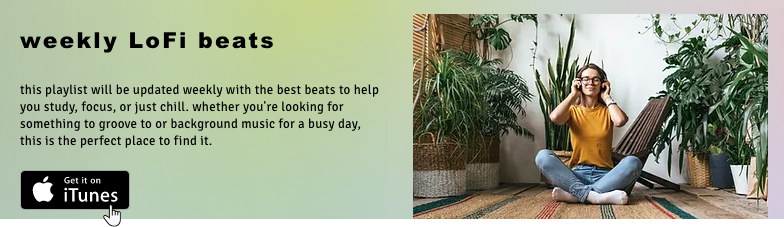
Example of an iTunes button on a live Wix site

Step 1 | Add the iTunes button to your site

Adding an iTunes button is a great way to showcase your audio to your visitors. You can add it anywhere on your site.

To add the iTunes button:

  1. Click Add on the left side of your Editor.

  2. Click Video & Music.

  3. Scroll down to iTunes Button.

  4. Click the iTunes Button to add it, or drag it to the relevant location.
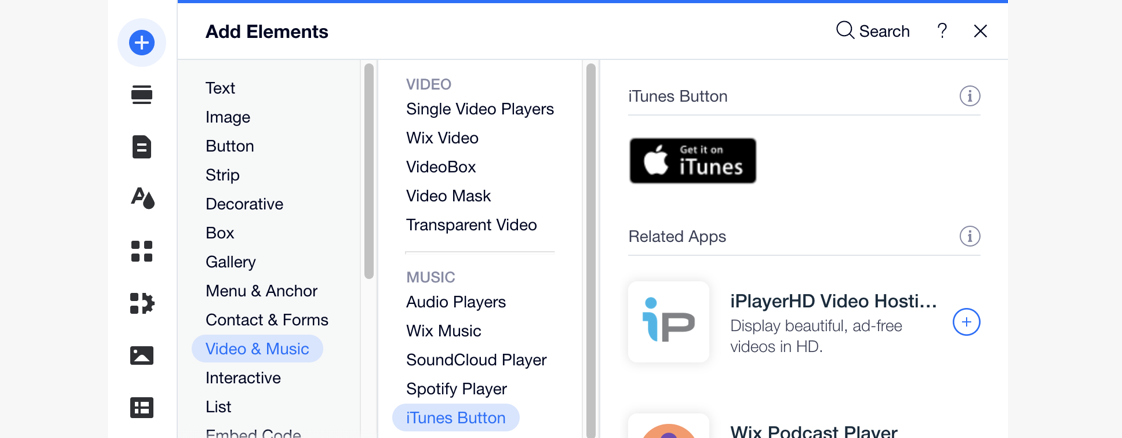
A screenshot showing how to add an iTunes button in the Add panel.

Step 2 | Choose your music from iTunes

After adding an iTunes button, connect it to your music by entering its direct link. Once visitors click the button, it takes them to the song, album, playlist or music video you chose on iTunes.

To add music to your iTunes button:

  1. Click the iTunes button in your Editor.

  2. Click Enter Link.

  3. Choose what to do next:Paste an iTunes link: Enter the URL under What's the iTunes direct link?.

    Find music on iTunes:Click Search iTunes to go to iTunes.
    Enter a search phrase for the music you want to add.
    Click the relevant music item.
    Scroll to Content Link and click Copy Link.
    (In the Editor) Paste the link you just copied under What's the iTunes direct link?.
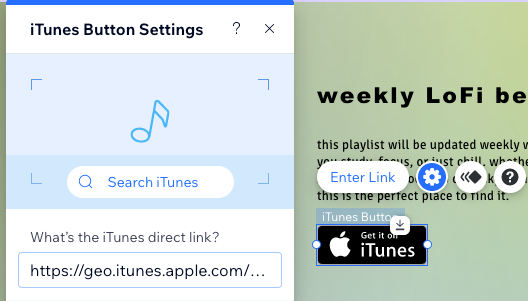
A screenshot of the iTunes button settings panel, where you can enter the iTunes link to your music

Step 3 | Set up your iTunes button

Now that your button is linked to the right place on iTunes, make sure it appears in the right language. You can also choose if you want your music to open in a new window or the same window as your site.

To set up your iTunes button:

  1. Click the iTunes button in your Editor.

  2. Click the Settings icon .

  3. Select the relevant language from the drop-down under This button is in:.

  4. Choose an option under How does the player open?:In a new window: Opens in a new tab on the browser.
    In the same window: Opens in the same window as the site page.
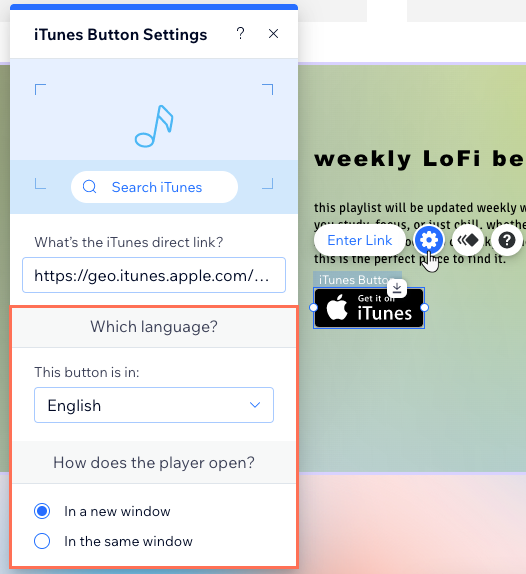
A screenshot of the iTunes Button Settings panel where you set up the language and where the link opens

Need A Professional Website?
Contact Us 
Today!

Wix Automations: Adding and Sending a Coupon

Wix Automations: Sending Automated Emails to Contacts After Form Submissions

Wix Automations: Customizing Automated Emails

Wix Automations: Creating a New Automation

Wix Automations: An Overview

The New Automation Builder: Understanding Email Types

The New Automation Builder: Creating a Multi-Action Automation

The New Automation Builder: Sending Data via Webhook

The New Automation Builder: Adding and Sending a Coupon

The New Automation Builder: Troubleshooting Wix Automations

The New Automation Builder: Understanding Conditions Operators

The New Automation Builder: Setting Up a 'Scheduled Time' Trigger

The New Automation Builder: Sending Data to Google Sheets

The New Automation Builder: Using the Property Picker

The New Automation Builder: Viewing and Managing Automations Installed for You

The New Automation Builder: Customizing Automated Emails

The New Automation Builder: Managing Your Automations

The New Automation Builder: Creating an Automation

The New Automation Builder: Overview

Microsoft Office 365 Mailbox Limits

Resetting the Password for Additional Office 365 Mailboxes

Resetting Your Admin Password for Your Office 365 Mailbox

Accessing Your Microsoft Office 365 Mailbox Through Your Wix Account

Accessing Your Microsoft Office 365 Mailbox Through Your Wix Account

Accessing the Microsoft Office 365 Admin Center

Activating Your Microsoft Office 365 Mailbox Purchased from Wix

Google Workspace: Troubleshooting Login Issues

Google Workspace: FAQs

Google Workspace: Contacting Google Support

Google Workspace Error Message: "You do not have access to Email"

wix experts
Graphic2Traffic web design
©
bottom of page