top of page

Managing reservations

Manually Adding Reservations in Wix Hotels

Important:

This article refers to the original Wix Hotels. If you are using the new Wix Hotels by HotelRunner, which is not yet available to all users, please read the information here. Learn how to check which version of Wix Hotels you are using.

Wix Hotels allows you to manually add reservations received offline (phone, email, etc.).

You can also update a reservation status when your guests have checked in or out.

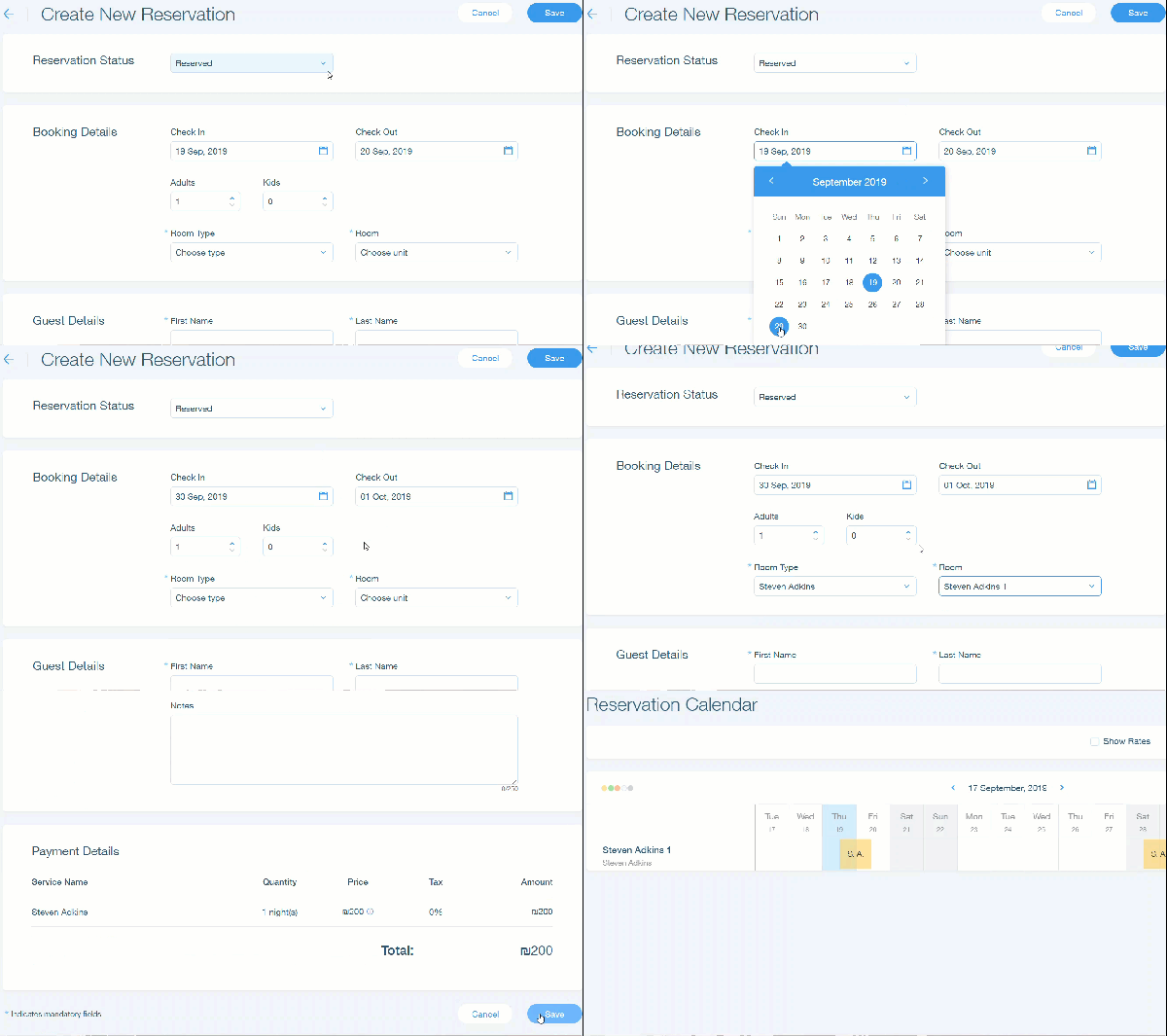
To manually add reservations:

  1. Go to your dashboard.

  2. Click the Hotels tab.

  3. Click the Reservations tab.

  4. Click New Reservation.

  5. Click the Reservation Status drop-down menu and select a reservation type.Reserved: This booking is to reserve a room.
    Checked In: The guests have checked in.
    Checked Out: The guests have checked out.
    Not Available: This room is not available.

  6. Enter the booking details (Check in, Check Out, etc.)

  7. Enter the guest details (First Name, Last Name, Phone Number, etc.).                                        Note: Payment details will display after selecting your Room and Room Type.

  8. Click Save.

Note:

To accept payments for manual reservations, you must have a payment processor which accepts offline payments. After your guest pays for the reservation, you can update the reservation status and notes.
Tip:

You can also manually add a reservation by selecting dates on the calendar and clicking Create Reservation.

Need A Professional Website?
Contact Us 
Today!

Google Workspace: Purchasing and Setting up a Business Email

Resolving Email Issues

Changing the Priority of Your MX Records

Connecting Email Purchased Outside of Wix

Google Workspace: Adding a DKIM Record to your Business Email

Google Workspace: Adding an SPF Record to your Business Email

Adding a DKIM (TXT) Record

Adding or Updating SPF Records in Your Wix Account

Business Email: General Troubleshooting

Connecting Email Accounts from Different Email Providers for the Same Domain

Increasing Email Deliverability of Emails Sent from Your Business Email

Top Reasons for Using a Personalized Business Email

Business Email: An Overview

Wix Pay Links: Creating and Managing Pay Links in the Wix App

Wix Pay Links: Creating and Managing Pay Links

Wix Proposals: Managing Your Proposals on the Wix App

Wix Proposals by Prospero: Saving and Managing Proposal Templates

Wix Proposals by Prospero: Adding and Setting up Proposals

Wix Price Quotes: Managing Your Price Quotes in the Wix App

Wix Invoices & Price Quotes: Adding Default Notes

Wix Invoices & Price Quotes: Managing Your Settings

Wix Invoices & Price Quotes: Searching, Filtering, and Sorting

Wix Invoices & Price Quotes: Changing Your Initial Document Number

Wix Invoices & Price Quotes: Adding Tax Types

Wix Invoices & Price Quotes: Adding Your Items and Services

Wix Invoices & Price Quotes: Changing Your Currency and Payment Terms

Wix Invoices & Price Quotes: Adding Your Business Info

Wix Invoices: Managing Your Invoices

Wix Invoices: Creating and Managing Recurring Invoices

Wix Invoices: Creating and Managing Recurring Invoices

wix experts
Graphic2Traffic web design
©
bottom of page