


Connecting external services
Connecting Your Hotel to Booking Channels Using the Channel Manager
The following article is designed to walk you through the process of connecting your hotel to booking channels such as Booking.com and Expedia using the Wix Channel Manager.
Important:
This article refers to the original Wix Hotels. If you are using the new Wix Hotels by HotelRunner, which is not yet available to all users, please read the information here. Learn how to check which version of Wix Hotels you are using.
Wix works with HotelRunner to provide hotel integration. This service costs $15 per month and comes with a 14-day free trial.
If you have an issue connecting please contact HotelRunner. There are some channels including Booking.com which require you to contact them to complete set up (you can do this via the chat bubble in the Channel Manager tab).
Any changes you make to the Channel Manager must be done through your Wix account. Do not sign in from Hotelrunner.com to try to make updates, as it may cause discrepancies with rates and availability to external channels.
Click the Hotels tab.
Click the Reservations tab on the left side of the Wix Hotels dashboard to expand the options.
Click Channel Manager.
Click Start Now.
Select the first channel you want to connect.
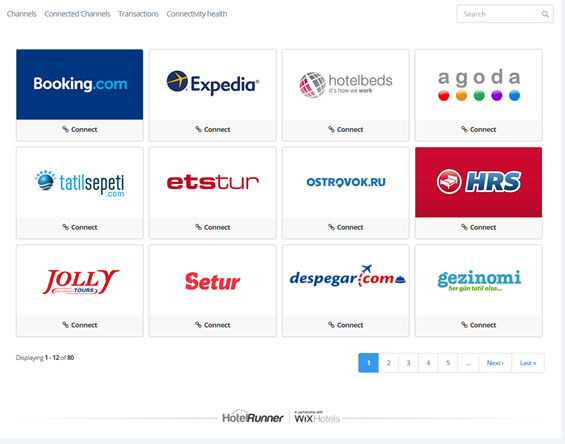
Do one of the following:If you have an account with the selected channel: Enter the required information (e.g. ID, username and password). Information on how to access the information is provided.
If you do not yet have an account with the selected channel: Click the link provided to create an account, then enter the required information.
Click Next.
Note: If you selected Channels and Room Types and Rate Types do not appear on the Room Type Mapping page, contact HotelRunner.Match the first room type (e.g. single room) to make sure the information entered in Wix Hotels matches the channel information.Map Availability (when the room is booked) for each room type, including room and price options.
Map room rates.
Note: The mapping process is different for each channel.
Click Next Room Type and repeat the mapping process for each room type.
After all room types are correctly mapped, click Complete & Send Room Mapping.
Complete any additional steps required by the selected channel.
Click Activate.

After completing this process, reservations made in other channels appear in your Wix Hotels Reservation Calendar.