


Wix domains
Connecting a Subdomain to Your Wix Site
Use subdomains to group your webpages under one main, recognizable domain. You can set any Wix site in your account as a subdomain of another site you own, whether it's on Wix or a different platform.
For instance, if you have a separate Wix site for your blog, you can create a subdomain for it at "blog.example.com" – "example.com" is your main domain, and "blog" is the subdomain you chose.

In this article, learn more about:
Before you begin:
You must upgrade your site to a Premium plan in order to connect a subdomain.
Connecting a subdomain to your Wix site
First, decide which Wix site in your account you want to repackage as a subdomain. Then, enter the new URL you want to assign to this site.
The URL you enter is based on:
The subdomain of your choice (e.g. blog.mywebsite.com)
The main domain you want to link to (e.g. blog.mywebsite.com) – this is the domain you already own.
Connecting a subdomain to an external site?
Learn how to connect a subdomain to an external resource (e.g. a WordPress blog).
To connect a subdomain to your Wix site:
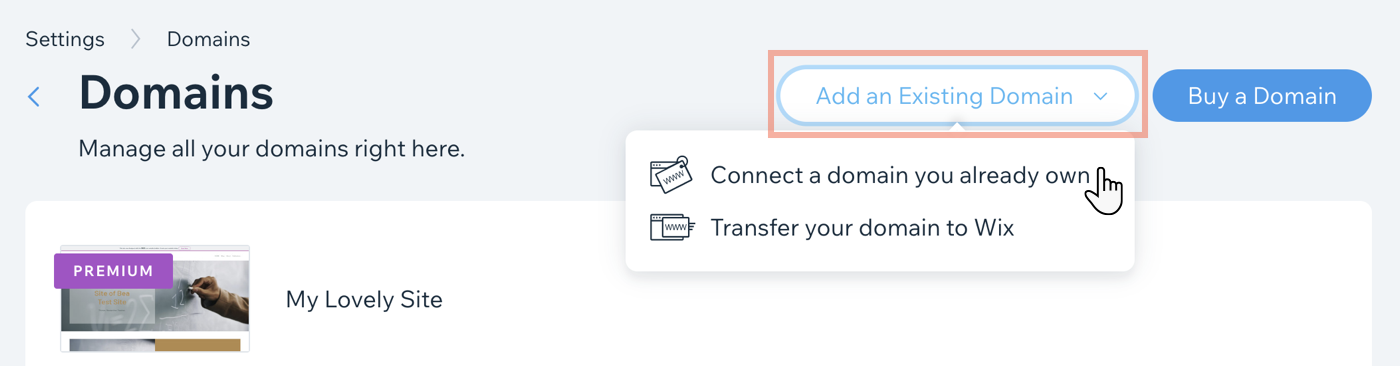
Go to Domains in your Wix account.
Click Add an Existing Domain.
Select Connect a domain you already own.
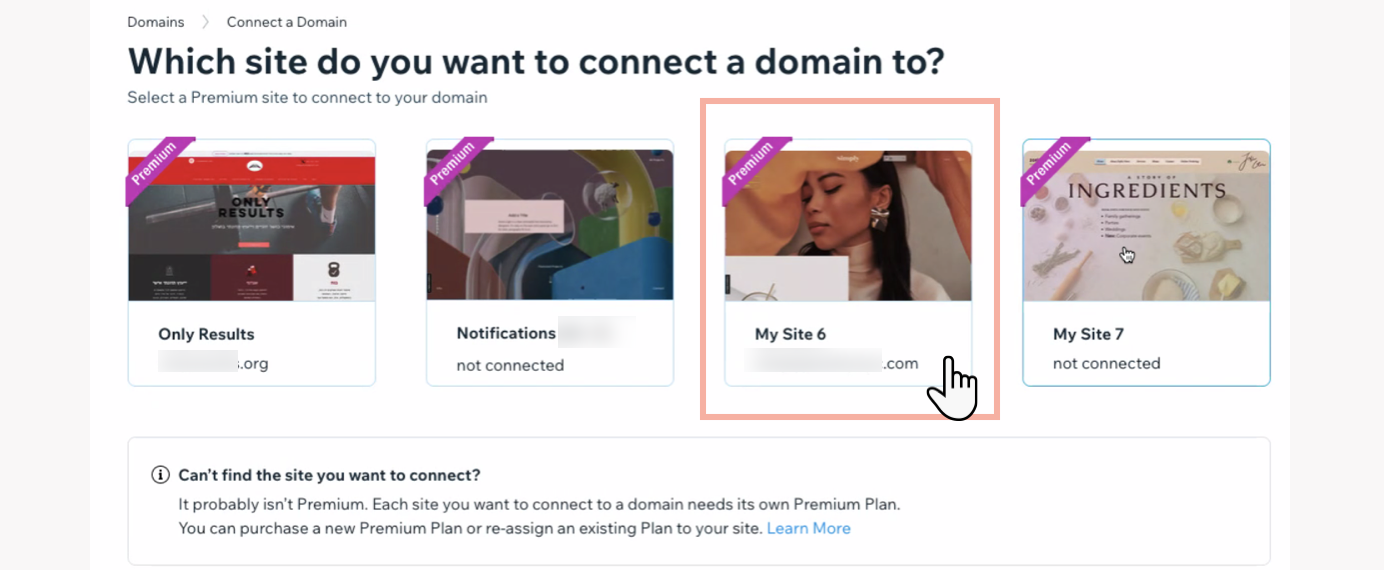
Select the site you want to repackage as a subdomain.
Click Next.
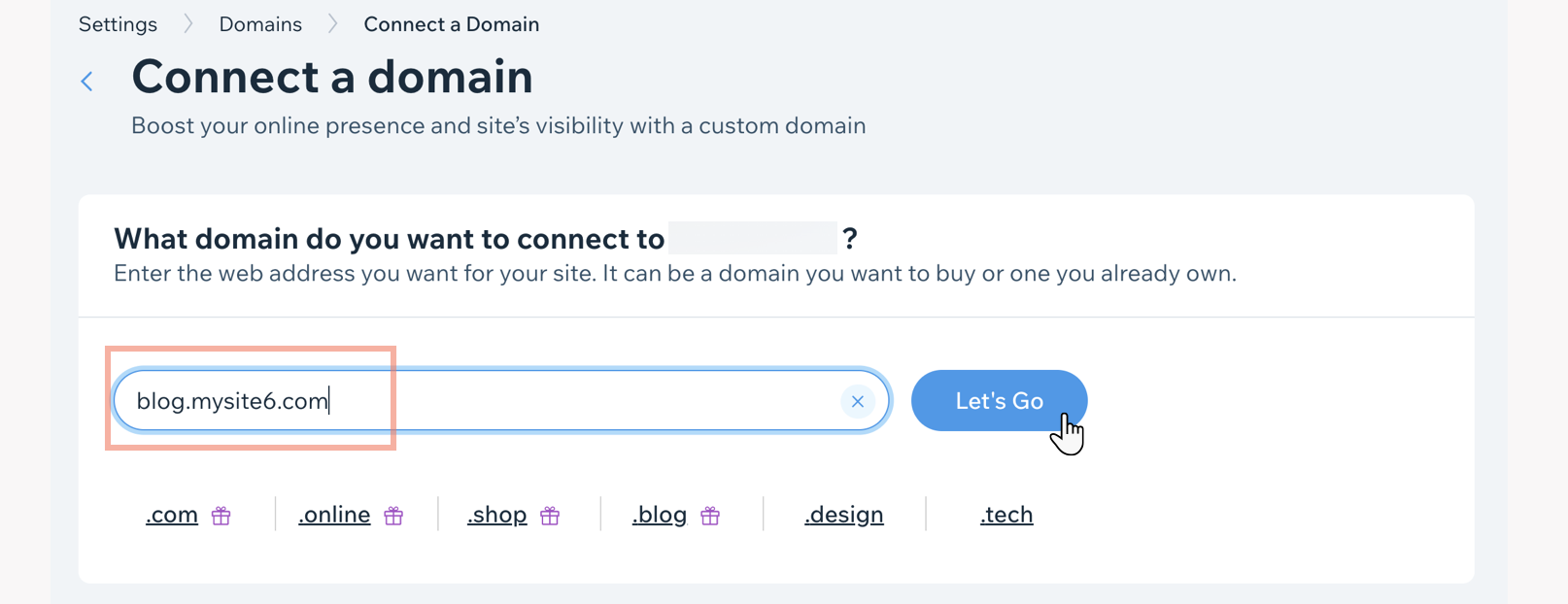
Enter the new subdomain URL for the site you chose (e.g. "blog.mysite6.com").
Tip: The URL should be a combination of your main domain (e.g. "mysite6.com") and a subdomain of your choice (e.g. "blog.")Click Let's Go.
Follow the steps, according to your main domain connection type:If the main domain is a Wix domain / connected by name servers: No action is needed. The subdomain will be in the same Wix account and any DNS records are automatically added.
If the domain is connected by pointing / not connected to Wix: Follow the on-screen instructions to add CNAME details at the domain host.
Note: Be sure to add both sets of CNAME records to your DNS records.
Note:
It may take up to 48 hours for your subdomain to be visible worldwide. We’ll send you an email when your subdomain connection is live. Learn more about domain propagation.
FAQs
Click on a question below to learn more about this topic.
What is a subdomain?
A subdomain is a domain that is a part of your main domain (i.e. your custom site). It brings visitors to a website. It is written (as a web address) as a prefix that comes before the root domain - e.g. a blog subdomain of your site would be written like this: blog.yourdomainname.com
This is useful if you want to give a webpage a separate identity in search results, while keeping it related to your site.
How can I add a subdomain with a country code prefix? (e.g. www.fr.example.com)
To add a subdomain with a country code prefix (e.g. fr.mystunningwebsite.com), you must use Wix Multilingual, which automatically creates the subdomain for you. Learn more about multilingual subdomains.
Can I connect a subdomain to a specific page on my Wix site (other than the homepage)?
Currently, it is only possible to connect a subdomain to your site's home page using the methods mentioned above. If this is something you would like to see Wix offer in the future, you can vote for this feature.
Can I connect a business email to a subdomain?
Currently, it is not possible to connect a business email (add MX records) to a subdomain in Wix. If this is something you would like to see Wix offer in the future, you can vote for this feature.