


Setting up Wix Hotels
Adding Languages in Wix Hotels
Important:
This article refers to the original Wix Hotels. If you are using the new Wix Hotels by HotelRunner, which is not yet available to all users, please read the information here. Learn how to check which version of Wix Hotels you are using.
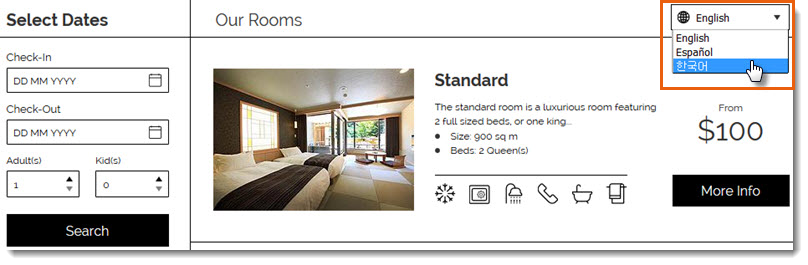
You can add up to 14 languages in your Wix Hotels app to make it easier for people all over the world to book your property. Your guests can choose their language from a drop-down menu at the top of your Rooms List.
Note:
Wix Hotels currently supports the following languages: English, Spanish, French, German, Italian, Portuguese, Korean, Japanese, Dutch, Danish, Norwegian, Polish, Russian, Swedish and Turkish.
Adding languages to Wix Hotels is a premium feature only available when you upgrade Wix Hotels.
To add a language in Wix Hotels:
Go to your site's dashboard.
Click the Hotels tab on the left.
Click the Languages tab.
Click Create New.
Click the Translate to drop-down menu and select a language.
Do one of the following:
Auto Translate:Click Auto Translate to instantly translate your text with Google Translate.
(Optional) Manually edit the text. Click See Current Text to view original text for each field.
Translate the texts yourself: Enter the translated text in the relevant fields. Click See Current Text to view original text for each field.
Click Save.
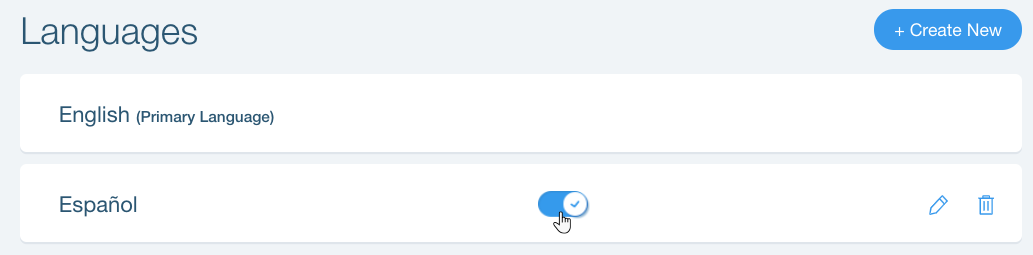
After you've added a language, you can enable or disable it at any time by clicking the toggle next to the relevant language on the Languages tab.
Tips:
You can only use Auto Translate when adding a new language. To use auto translate for an existing language, first delete the language then add it again.