


Wix AI Site-Chat FAQ
Your AI Site-Chat Conversations Quota
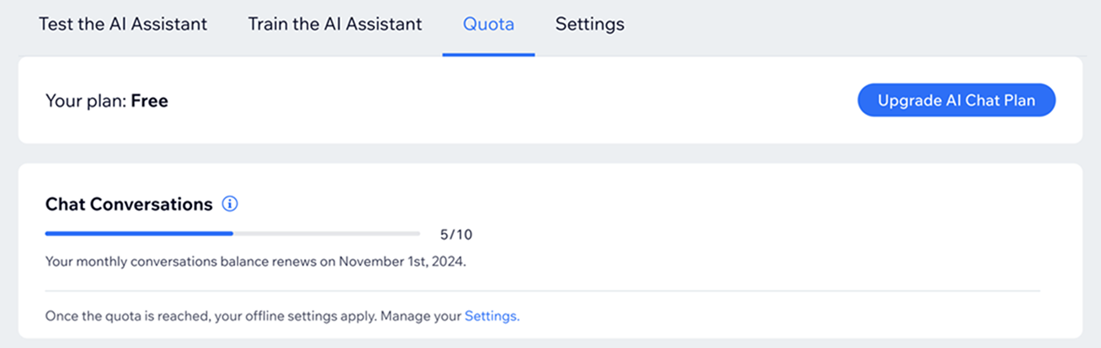
Your AI Site-Chat has a conversation quota, which determines how many interactions it can handle each month. The quota varies depending on the package you have purchased. If you are using the free version, you have a limit of 5 conversations per month. If you exceed this limit, the AI Chat will switch to offline mode.
Checking your conversation quota
Keep track of your conversation usage in your AI Site-Chat dashboard. Check how many conversations you have used, and how many are remaining for the month.
To check your conversation quota:
Go to Manage AI Site-Chat in your site's dashboard.
Click the Quota tab.
Check your remaining conversations for the month under Chat Conversations.
Managing conversations when your quota is reached
When your AI Site-Chat reaches its conversation quota, it will switch to offline mode. You can decide what happens next by adjusting the settings in your dashboard.
To manage conversations when your quota is reached:
Go to Manage AI Site-Chat in your site's dashboard.
Click the Settings tab.
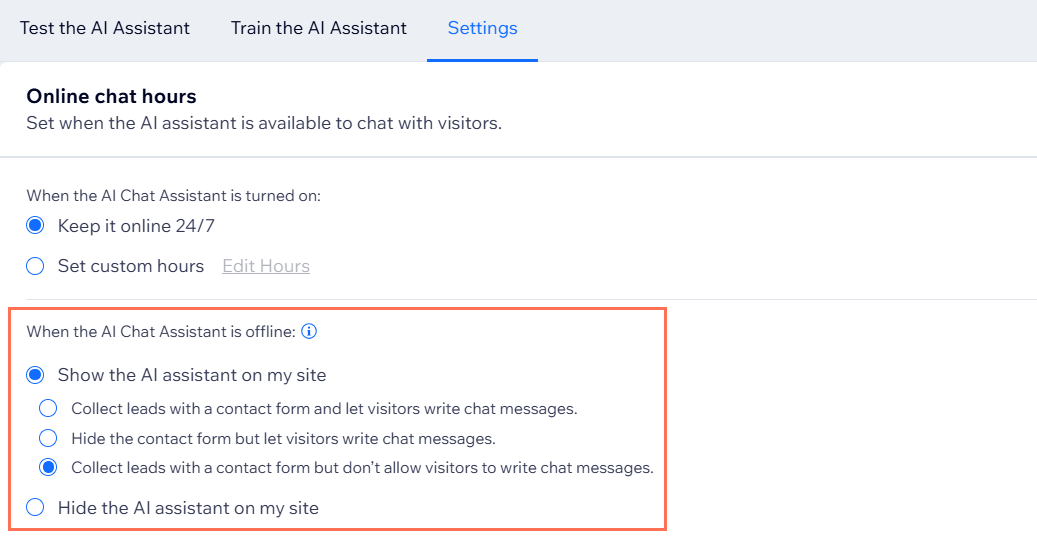
Choose what you want to happen when the AI Site-Chat is offline:
Show the AI chat on my site: Select the relevant option:Collect leads with a contact form and let visitors write chat messages.
Hide the contact form but let visitors write chat messages.
Collect leads with a contact form but don’t allow visitors to write chat messages.
Hide the AI chat on my site: The AI Site-Chat does not appear when chat is offline.
Upgrading your AI Site-Chat plan
Upgrading your AI Site-Chat plan increases your conversation quota. Choose from plans tailored for occasional conversations, frequent communications, and larger businesses.
To upgrade your AI Site-Chat plan:
Go to Manage AI Site-Chat in your site's dashboard.
Click the Quota tab.
Click Upgrade Plan.
Click Select under the plan you want to purchase.
Select a subscription period and click Continue to Checkout.
Enter your payment details.
Click Submit Purchase.
Important:
Your plan will auto-renew at the start of the next billing period.
FAQs
Click a question below to learn more about your AI Site-Chat quota.
What is a conversation unit?
A conversation unit is counted each time a visitor interacts with the AI Chat, regardless of the length or duration of the conversation. A conversation ends when there is no interaction for 10 minutes. This means that even lengthy conversations with multiple messages are considered as one unit.
What happens when I run out of conversations?
When you use up all your conversation quota, the AI Chat will switch to offline mode. You can choose to enable manual chat or hide the chat option from your site.
Can I upgrade my conversation quota?
Yes, you can upgrade your plan to increase your conversation quota. Click Upgrade Plan on the Quota tab of the AI Site-Chat dashboard to upgrade.
What is the free monthly quota for conversations?
The free monthly quota allows for 5 conversations per month. If you feel you need more than this, consider upgrading your package.
Do unused conversations carry over to the next month?
No, unused conversations do not carry over. Each month, the quota resets based on your plan.
Can I cancel my plan?
Yes, you can cancel your plan at any time. Your subscription will remain active until the end of the billing period.
To cancel your plan:
Go to Premium Subscriptions in your Wix account.
Click the More Actions icon
 next to AI-Site Chat.
Select Cancel Plan.
Select Cancel auto renew.
Click Cancel now.
Is there a refund policy for plans?
Plans that add conversation units to the AI Site-Chat are non-refundable.
Can I test the AI Site-Chat without using my quota?
Yes, you can test the AI Site-Chat in the dashboard without affecting your conversation quota.
How often does the AI crawl my site?
The AI system is updated whenever you add, delete or make any changes to your site's content.