


Live streaming your videos
Wix Video: Scheduling a Live Stream
Schedule your live stream in advance and generate more buzz around your event.
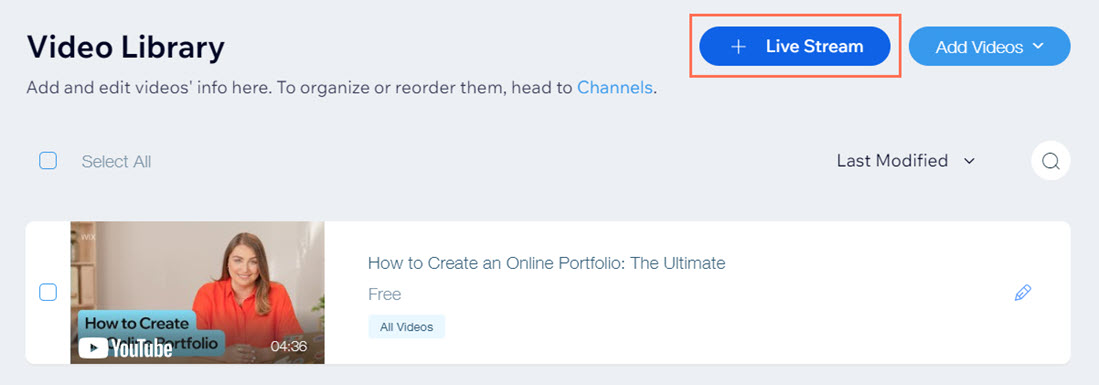
To schedule a live stream in advance:
Go to Video Library in your site's dashboard.
Click Live Stream at the top right.
Click Schedule Event.
Click the Channel drop-down and select which channel your stream will appear in.
Set when you want your stream to go live under Schedule a Live Stream:Go live on: Select the date from the calendar.
Go live at: Select the time of day.
Fill in the Video Info section:Cover Image: Choose a cover image or video for your live stream so that your viewers do not see a blank placeholder before the live stream begins.
Title: The name of the video. This is required.
Publisher: The name of the publisher.
Categories: The category your live stream will appear in.
Tags: Tags that help viewers find your live stream.
Description: Information about what your live stream is about.
Select an option under Video Pricing:
Free: Viewers do not need to pay to watch your video. Click the Viewer options drop-down and select an option:Anyone can watch: Allow anyone to watch.
Sign up only: Viewers must sign up as site members before they can watch the video.
Paid: Viewers need to pay to watch your video. Use the checkboxes and drop-down options to:Rent or sell your video.
Set the price.
Set the availability (applies to renting only).
Click the Show Trailer toggle to display a trailer of your video and then click upload to add it (applies only if you are selling videos).
Fill in additional information under More About This Video:Click the drop-down to enter any additional information about your video.
Click the Let Viewers Embed this Video toggle to enable or disable the option (Premium feature):Enabled: Your viewers can embed the video. Select the checkboxes next to the information you want to display on the embedded video. You can see what your video will look like in the preview on the right side.
Disabled: Your viewers cannot embed the video.
Click Save.
What happens until I go live?
A countdown timer appears within the Wix Video player on your site.
Visitors can add your stream to their calendars.
You can set up pricing to watch your stream.
Your site automatically refreshes as your stream approaches so that your viewers won't need to manually reload the page.
You can send an email campaign telling your viewers about your event. Learn more about creating email marketing campaigns.