


Using the Wix app for Wix Stores
Wix Stores: Creating and Managing Categories Using the Wix App
Make it easy for customers to navigate your store. You can use the Wix app to create any product categories you need and add products to them. It's up to you whether you want to show these categories, or only use them internally.

In this article, learn more how to:
Creating a new product category
By default, all your products belong to the "All Products" category. You can create additional categories to help organize your store and make it easier for customers to find the products they are looking for.
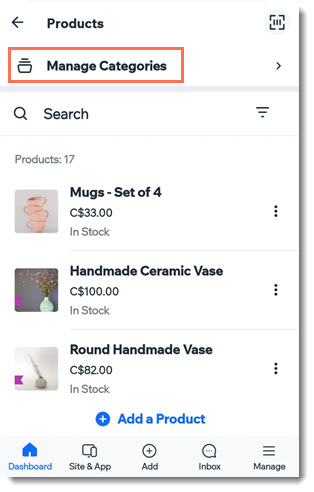
To create a new product category from the Wix app:
Go to your site in the Wix app.
Tap Manage
 at the bottom.
Tap Store Products, or tap Catalog and select Store Products.
Tap Manage Categories at the top.
Tap Create Category.
(Optional) Upload a category image.
Enter a category name.
Tap +Add Products.
Select the products you want to add to the category and tap Add.
Tip: A product can belong to more than one category.Tap Save.
Important:
After you create a category, it's not yet visible in your mobile app or online store.
Learn how to customize your store in the Spaces by Wix (and other member apps) so that your categories are displayed in separate tabs.
Adding or removing products from an existing category
Keep your storefront organized by assigning new products to the right categories.
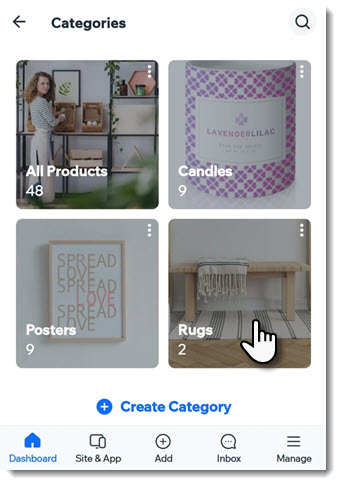
To add or remove products from a category:
Go to your site in the Wix app.
Tap Manage
at the bottom.Tap Store Products, or tap Catalog and select Store Products.
Tap Manage Categories at the top.
Tap to select the category.
Add or remove products:
Add products:Tap + Add Products.
Select the products you want to add to the category.
Tip: A product can belong to more than one category.
Tap Add.
Tap Save.
Remove products:Tap the Delete icon next to the product you want to remove.
Tap Save.
Deleting a product category
You can delete any categories that you no longer need. Deleting a category does not delete the products in it. They will be in your "All Products" category and any other category you added them to.
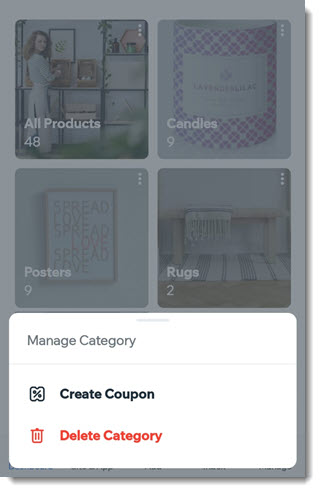
To delete a category:
Go to your site in the Wix app.
Tap Manage
at the bottom.Tap Store Products, or tap Catalog and select Store Products.
Tap Manage Categories at the top.
Tap the More Actions icon
 at the top right corner of the relevant category.
Tap Delete category.
Note: The category products won't be deleted.Tap Delete to confirm.