top of page

Setting up your store

Wix Stores: Displaying Tax and Shipping Info with Product Prices

Make sure customers understand how your site calculates tax and how you charge for shipping by adding a brief message. The messages appear everywhere your product prices are displayed. You can choose whether to display tax info, shipping info, or both.

Screenshot of sample product in a Wix store with the shipping & tax info outlined

You can show or hide tax and shipping info from the Item price settings.

Show me how to access the Item price settings

  1. Go to your site's dashboard.

  2. Click Settings.

  3. Select Products & Inventory.

  4. Scroll down to the Price and shipping display.

In this article, learn more about:

Displaying tax messages next to product prices

In some countries, tax is included in the product price while in others, it's added at checkout. Make sure your customers understand when tax is added by displaying a "Sales Tax Included" or "Excluding Sales Tax" message.

  1. Go to the price and shipping settings in your site's dashboard.

  2. Enable the Show if tax is included or not toggle.
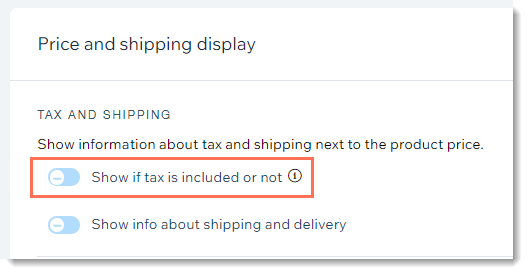
Screenshot of store settings in the dashboard with the tax display toggle outlined

Displaying shipping messages next to product prices

To let customers know your shipping policy, you can either display a short message (e.g. Free Shipping) or create a message that appears in a pop-up.

GIF showing what customers see on a Wix site when you display shipping and tax info

To display shipping info next to product prices:

  1. Go to the price and shipping settings in your site's dashboard.

  2. Enable the Show info about shipping and delivery toggle.
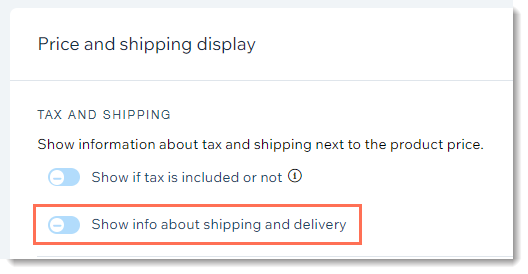
Screenshot of store settings in the dashboard with the shipping & delivery display toggle outlined

  1. Enter a shipping message (maximum 23 characters). This is the text customers see next to product prices.

  2. (Optional) Link the message to a pop-up:Select the Let customers click this text to open a pop-up with more information checkbox.
    Enter a title.
    Enter the shipping and delivery information.

Need A Professional Website?
Contact Us 
Today!

Wix Restaurants: Customizing and Designing Your Menu

Wix Restaurants: Setting the Availability of Menus, Sections and Dishes

Wix Restaurants: Creating a Combo Meal

Wix Restaurants: Managing Dish Options

Wix Restaurants: Adding Images to Your Menus

Wix Restaurants: Creating Your Menus

Wix Restaurants: Setting Up Your Availability for Online Reservations

Wix Restaurants: Managing Your Reservation Schedule

Wix Restaurants: Customizing Your Table Reservations Form

Wix Restaurants: Managing Table Reservations and Walk-ins

Wix Restaurants: Managing Your Notifications for Table Reservations

Wix Restaurants: Sending Reservation Notifications to Guests

Wix Restaurants: Setting Up Prepayment for Table Reservations

Wix Restaurants: Adding a Reservation Widget to a Page

Wix Restaurants: Viewing Guest Stats in Wix Table Reservations

Wix Restaurants: Exporting Your Table Reservations

Wix Restaurants: Translating Your Restaurant Reservations

Wix Restaurants: Deleting the Table Reservations App

Wix Restaurants: Creating and Managing your Restaurant Floor Plan

Wix Restaurants: Adding and Setting Up Wix Table Reservations

Wix Restaurants: Creating Another Online Ordering Page

Wix Restaurants: Setting Up Order with Google

Wix Restaurants: Managing Notifications for Online Orders

Wix Restaurants: Saving and Charging Customers' Credit Cards

Wix Restaurants: Managing Orders With DoorDash Drive

Wix Restaurants: Setting Up DoorDash Drive for Your Restaurant

Wix Restaurants: Manually Creating an Order

Wix Restaurants: Manually Printing Online Orders from the Wix App

Wix Restaurants: Troubleshooting Thermal Printing of Online Orders (new) from the Wix App

Wix Restaurants: Printing Online Orders from the Wix App

wix experts
Graphic2Traffic web design
©
bottom of page