top of page

Setting up Retail POS sales

Wix Retail POS: Setting Up Text Receipts

Important:

  • This article is about Wix Retail POS tablet for brick & mortar businesses.

  • For info on using POS on a mobile device, click here.

Save paper by providing customers with receipts via text message (SMS). After you enable this option, you'll be able to select it at checkout.
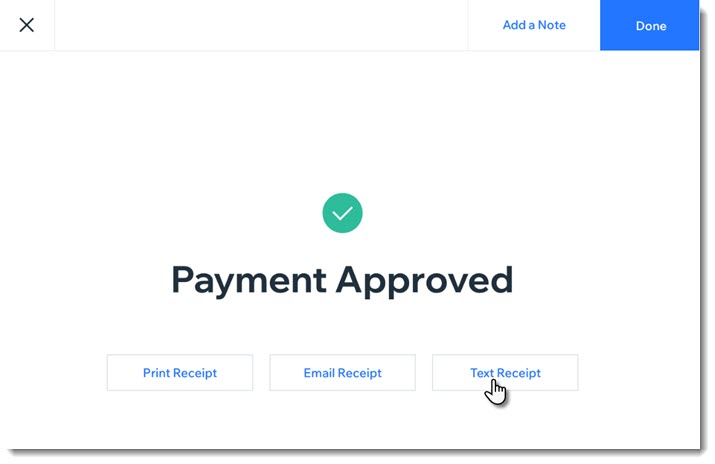
Screenshot of the screen you see after payment for a sale was approved. The screen show a text receipt option

Enabling text receipts

To display the text message receipt option at checkout, you must first enable text receipts.

To enable text receipts:

  1. Open the POS tablet.

  2. Tap the Menu icon  at the bottom left.

  3. Tap Settings.

  4. Tap Receipt on the left menu.

  5. Enable the Enable text receipts toggle.

FAQs

Click a question below to learn more about text receipts.

How do I enter phone numbers correctly?

Enter your customer's phone number, starting with the country code, then the area code, and the actual number. For US and Canadian numbers, enter 1 as the country code, as in the example below:

Screenshot of the field where you enter the phone number and the Text Receipt button

How can I send or resend a text receipt at a later date?

  1. Open the POS tablet.

  2. Tap Sales History from the bottom bar.

  3. Tap the relevant sale to select it.

  4. Tap Actions.

  5. Select Text Receipt.

  6. Enter the phone number and tap Text Receipt.

Need A Professional Website?
Contact Us 
Today!

Wix Restaurants: Printing Online Orders from Your Dashboard

Wix Restaurants: Compatible Thermal Printers for Online Orders (New)

Wix Restaurants: About Printing Online Orders (New)

Wix Restaurants: Creating Automatic Discounts

Wix Restaurants: Creating a Coupon

Wix Restaurants: Automatically Creating Invoices for Paid Orders

Wix Restaurants: Managing Incoming Orders with the New Wix Restaurants Orders App

Wix Restaurants: Adding a Service Fee to Online Orders

Wix Restaurants: Adding Modifiers

Wix Restaurants: About the Orders Tab

Wix Restaurants: Setting Up Pickup and Delivery in Wix Restaurant Orders (New)

Wix Restaurants: Setting Up Order Scheduling in Wix Restaurant Orders (New)

Wix Restaurants: Preparing Your Menus for Online Ordering

Wix Restaurants: Adding and Setting Up Wix Restaurant Orders (New)

Wix Restaurants: Setting SEO for Wix Menus (New)

Wix Restaurants: Duplicating Your Menu

Wix Restaurants: Translating Your Restaurant Menu

Wix Restaurants: Printing Your Menu

Wix Restaurants: Understanding Prices on Your Menu

Wix Restaurants: Displaying Your Menus on Multiple Site Pages

Wix Restaurants: Customizing the Look of Wix Restaurants Menus (New)

Wix Restaurants: Managing Your Menus in the Wix Menus App (New)

Wix Restaurants: Importing Your Menus to the New Wix Menus App

Wix Restaurants: Setting Up Wix Restaurants Menus (New)

Wix Restaurants: Adding Wix Restaurants Menus

Wix Restaurants: Inviting People to Manage Your Restaurant

Wix Restaurants: Adding and Setting Up a Loyalty Program

Wix Restaurants: Upgrading Your Restaurant Site

Wix Restaurants: About the Differences Between the Old and New Menu Apps

Wix Restaurants: About the Differences Between the Old and New Online Ordering Apps

wix experts
Graphic2Traffic web design
©
bottom of page