top of page

Setting up Retail POS sales

Wix Retail POS: Organizing Your Favorites Screen

Important:

  • This article is about Wix Retail POS tablet for brick & mortar stores.

  • For info on using POS on a mobile device, click here.

Make sure your most popular products, discounts, and more are easily accessible by adding them to your Favorites. Your Favorites screen can include:

  • Products

  • Product categories

  • Discounts

  • Gift cards

When you're processing a sale, you can tap the Favorites tab and then add one of these items to the sale.
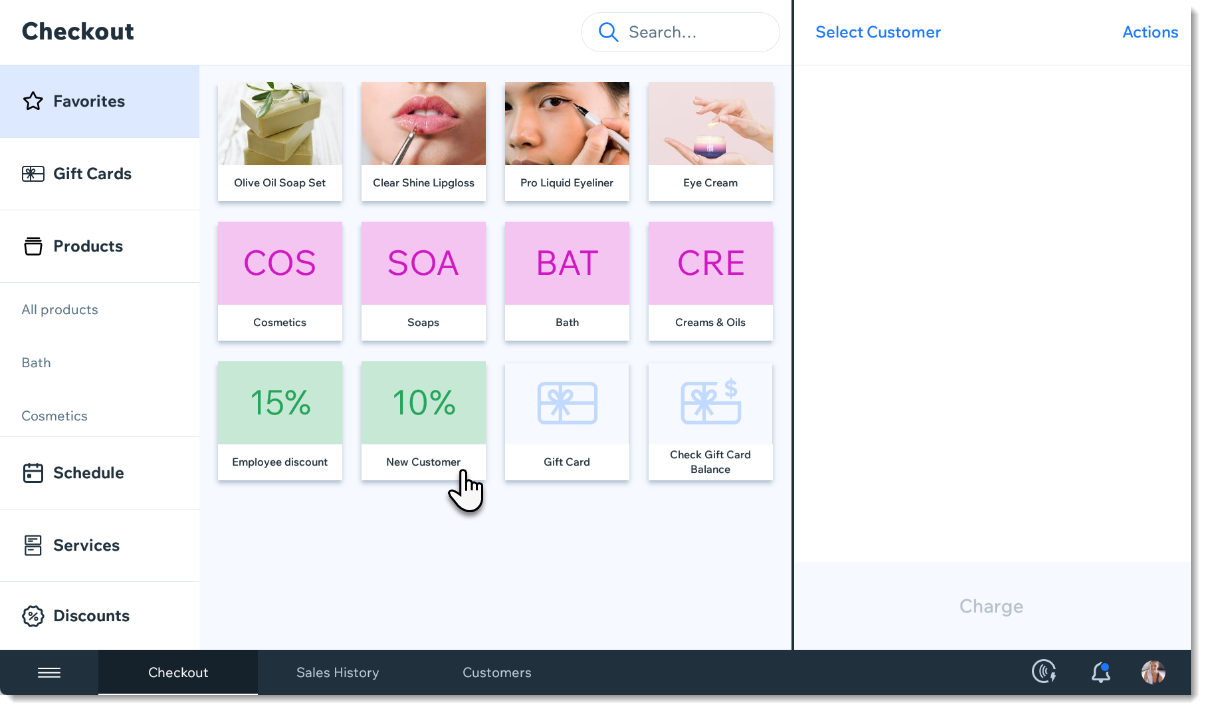
Screenshot of the Favorites tab in the checkout screen in the Wix Retail POS tablet

Adding items to your Favorites

  1. Open the POS tablet.

  2. Tap the Menu icon at the bottom left.

  3. Tap Settings.

  4. Tap Manage next to Favorites.

  5. Add an item to your Favorites.Tap the Add icon .
    Select Products, Categories, Discounts, or Gift Cards.
    Tap the item you want to add to your Favorites.

  6. (Optional) Drag items to reorder them.

  7. Tap Save.

FAQs

Click a question to learn more.

How can I remove an item from my Favorites?

To remove an item, go back to the Settings, tap Manage next to Favorites, then tap the X that appears in the top left corner of an item to delete it.

Screenshot of an item in the Favorites, in the Wix Retail POS system

Can I customize the color of the categories, discounts, and gift cards?

These colors cannot be customized.

Need A Professional Website?
Contact Us 
Today!

Wix Bookings: Selecting How You Charge for Bookings Services

Wix Bookings: Offering Packages

Wix Bookings: Creating a Membership Plan

Wix Bookings: About Memberships and Packages

Wix Bookings: About Getting Paid Online

Wix Bookings: Increasing Bookings with the Service Upsell Guru App

Wix Bookings: Adding and Setting Up an Appointment Waitlist

Wix Bookings: Charging a Cancellation or No-Show Fee

Wix Bookings: Editing an Existing Order

Wix Bookings: Adding and Setting Up the Map Plugin on the Service Page

Wix Bookings: Adding Internal Notes on the Bookings List App

Wix Bookings: Letting Clients Check In by Scanning a Chip, Card or Barcode

Wix Bookings: Blocking Off Time for Multiple Staff Members

Wix Bookings: Managing Your Business with the Booking Activity Panel

Wix Bookings: Installing and Setting up the Client Check in App

Wix Bookings: About the Orders Tab

Wix Bookings: Managing Bookings with the Booking List

Wix Bookings: Displaying Class Times on Your Site

Wix Bookings: Scheduling Your Courses

Wix Bookings: Viewing Booking Form Responses

Wix Bookings: Service Times on Live Site Differ from Service Times in Calendar

Wix Bookings: Exporting Reports on Bookings and Staff

Wix Bookings: Viewing a Client's Booking and Payment History

Wix Bookings: Viewing and Editing Client Info

Wix Bookings: Syncing Your Microsoft Calendar

Wix Bookings: Filtering Your Booking Calendar

Wix Bookings: Syncing Your Apple Calendar

Wix Bookings: Syncing Bookings and Google Calendars

Wix Bookings: About Syncing Personal Calendars with Wix Bookings

Wix Bookings: Adding a Note to a Specific Booking Session

wix experts
Graphic2Traffic web design
©
bottom of page