


Taking online orders (NEW)
Wix Restaurants: Creating Automatic Discounts
Important
This article is about the new Wix Online Orders app.
Create automatic discounts so customers can get price reductions without having to enter a coupon code. When customers order items that qualify for discounts, these automatically appear. You can create automatic discounts for all menu items, specific menu(s), specific menu section(s), and specific menu item(s).
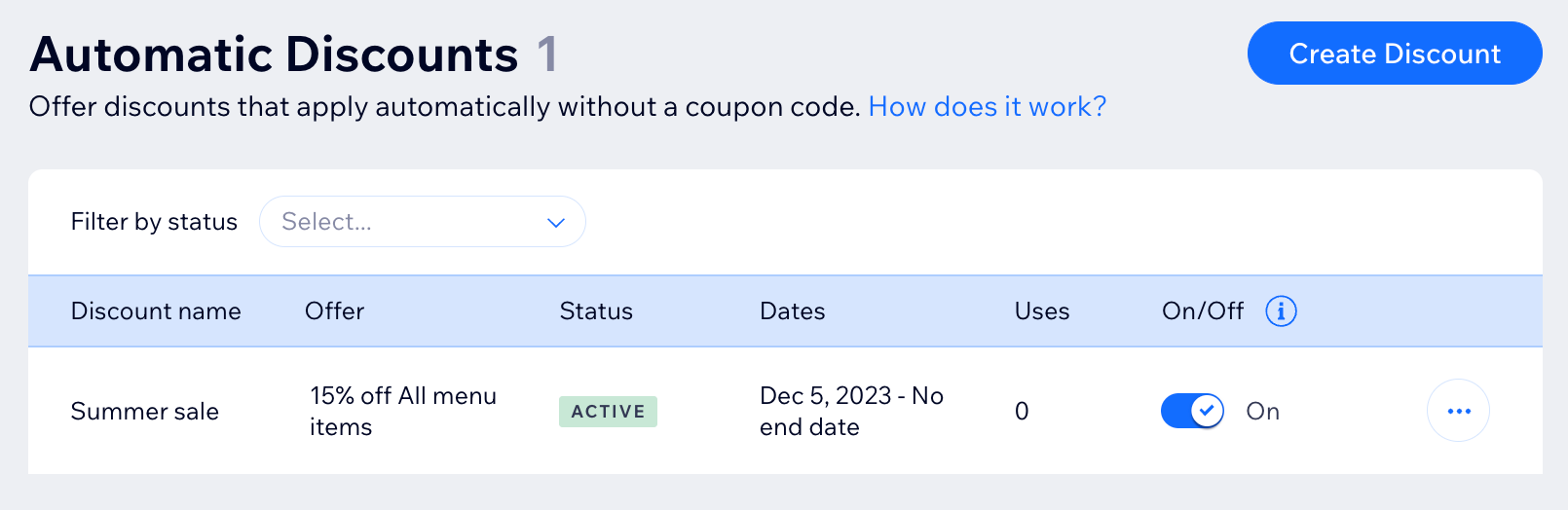
In this article, learn how to:
Creating automatic discounts
Create an automatic discount that applies to all menu items, specific menu(s), specific menu section(s), and specific menu item(s) you choose. You decide what the discount is and when it can be applied. Customers only see this discount in the cart and checkout.
To create automatic discounts:
Go to Automatic Discounts in your site's dashboard.
Click Create Discount.
Enter the discount name.
Tip: Customers see this name during checkout.Select what the discount applies to:All menu items: The discount applies to each item that a customer orders (i.e. applies to multiple menu items in the same order).
Specific menus: Select one or more menus that the discount can be applied to.
Specific sections: Select one or more sections that the discount can be applied to.
Specific menu items: Select one or more menu items that the discount can be applied to.
(Optional) Create minimum requirements for the discount to apply:
Minimum quantity (e.g. order 3 dishes get $10 off):Select the Minimum quantity of items checkbox.
Enter the number of items.
Minimum amount (e.g. spend $50 on salads and get $10 off):Select the Minimum order subtotal checkbox.
Enter the minimum amount.
Select the type of discount from the What is the discount? drop-down and enter the required percentage, amount, or price.
Note: If you offer an Amount off discount (e.g. $10 off), it's applied to every relevant item in an order.Select the date and time when the discount starts.
(Optional) Select the dates when the discount ends:
Note: By default, the discount starts immediately and doesn't have an end.Select the Set an end date and time checkbox.
Select the date and time when the discount ends.
Click Save.
Manually turning discounts on and off
When you create automatic discounts, you set a start time and optionally set an end time. You can override these times by manually turning a discount on or off at any time.
Just go to Automatic Discounts in your site's dashboard and click the toggle next to the relevant discount.
FAQs
Click a question below to learn more about automatic discounts.
How can I edit, duplicate, or delete an automatic discount I created?
Go to Automatic Discounts in your site's dashboard
Click the More Actions icon
 next to the relevant discount
Select what you want to do: Edit, Duplicate or Delete.

What are the best ways to let customers know about my discounts?
Discounts will be shown in the Cart Page and Checkout Page. Additionally, it can be helpful to display a banner, strip, or popup lightbox.
Does limiting the number of discounted items per order stop customers from ordering multiple times?
If you created a discount and limited the number of uses, the limit applies per order.
For example, if you created a discount of 50% all pizzas and limited it to 2, a customer isn't blocked from making more than one order and applying the discount to each order.
How do "amount off" discounts ($10 off) apply to a group of items?
If you created a $10 off discount and applied it to a group of items, your customer gets $10 off each item it applies to.
For example, if you applied this discount to your Desserts section, your customer gets $10 off each dessert they order.
If I set a minimum quantity or subtotal, what counts towards the minimum?
A discount on a certain section (e.g. soups), only applies to that same section.
In other words, if you offer a $50 discount to customers who order 3 or more soups, a customer who ordered 1 soup and 2 salads does not qualify for the discount.
Similarly, if you offer a discount on the pizza section and set a minimum of $100, customers need to spend $100 on pizzas to get the discount.
What if more than one automatic discount applies to the same item?
If more than one discount applies, the item gets whichever works out to be the highest discount.
What time zone is used to set when a discount begins and ends?
Times are calculated in your time zone.