


Taking online orders
Wix Restaurants: Choosing Which Menus, Sections, and Dishes to Display for Online Ordering
Important:
This article is about the original Restaurants Orders app.
We've released a new online ordering app. Learn how to add and set up the new Wix Restaurants Orders (New) app.
Show or hide specific dishes or menus when customers place an order online. Certain dishes might only be available for pickup and not delivery, or you might want to create a menu that's only visible for customers who order from the mobile app. You can also choose to allow customers to make special requests for certain dishes of your menu.
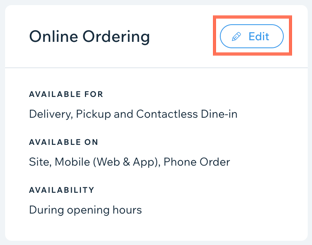
To choose which menus, sections, or dishes to display:
Go to Menus in your site's dashboard.
Navigate to the relevant menu, section, or dish.
Click Edit next to Online Ordering.
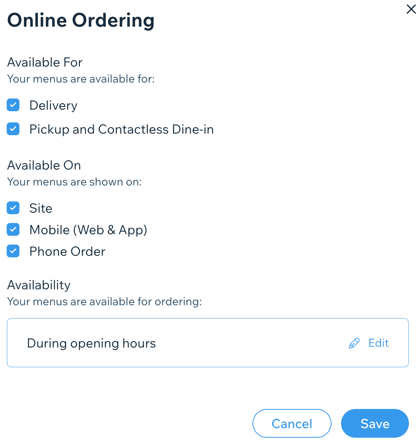
Choose the type of order your customers can place under Available for:Delivery: The items in this menu are available for restaurant delivery.
Pickup and Contactless Dine-in: The items in this menu are available for restaurant pickup and contactless dine-in.
Choose where the menu, section or dish is shown online under Available On:Site: The menu appears on your site for online ordering.
Mobile (Web & App): The menu appears on the mobile version of your site and in the member apps.
Phone Order: The menu is available for phone ordering.
Select the availability of the menu, selection or dish:
During opening hours:Click Edit under Availability.
Click Opening Hours.
Click Apply.
During custom hours:Click Edit under Availability.
Click Custom Hours.
Set your custom hours. Learn more
Click Apply.
(Optional) For each dish, select the Accept special requests for this dish checkbox to allow customers to ask for special requests or modifications to a dish.
Click Save.