


Wix Mobile POS
Wix Mobile POS: Setting Up Receipt Printing
Important:
This article is about Wix Mobile POS for mobile phones.
For info on Wix Retail POS for brick and mortar stores, click here.
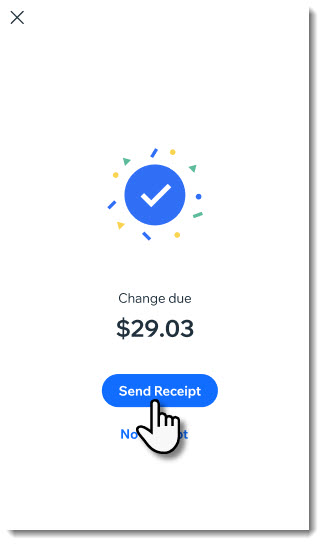
Wix mobile POS gives you the option of printing receipts instead of emailing them. Just tap Send Receipt at the end of a sale and you'll be able to choose how the receipt is sent.
Important:
Connecting a printer is only available for the US and Canada.
Printing receipts is currently available only for Wix Stores, Wix Bookings, and Wix Restaurants Orders (New).
Step 1 | Purchase a printer
Before you can start printing receipts, you need to acquire a compatible thermal printer. Choose from one of the Star Micronics or Epson thermal printers.
Important:
Before purchasing a printer, make sure it appears on the list of compatible printers and supports a Bluetooth, WiFi, or Ethernet connection.
Star Micronics thermal printers
All of the printers listed below are compatible with both IOS and Android mobile devices.
mC-Print2: Bluetooth, Ethernet
mC-Print3: Bluetooth, Ethernet
TSP100IIIW: WiFi
TSP100IIILAN: Ethernet
TSP100IIIBI: Bluetooth
TSP100LAN: Ethernet
TSP650II: Bluetooth, Ethernet
TSP700II: Bluetooth, Ethernet
TSP800II: Bluetooth, Ethernet
TSP143: Bluetooth
TSP654II: Bluetooth
TSP143IIIW: WiFi
Epson thermal printers
All of the printers listed below are compatible with both IOS and Android mobile devices except for the TM-T83II model.
Important: The TM-T83II model is compatible only with Android.
TM-m30: Ethernet, WiFi, Bluetooth
TM-m30II: Ethernet, WiFi, Bluetooth
TM-m30III: Ethernet, WiFi, Bluetooth
TM-P80: Bluetooth
TM-P80II: WiFi
TM-T100: LAN
TM-T20III: Ethernet
TM-T20IIIL: Ethernet
TM-T20X: Ethernet
TM-T81II: Ethernet, WiFi
TM-T81III: Ethernet
TM-T82II: Ethernet
TM-T82III: Ethernet
TM-T82IIIL: Ethernet
TM-T83II: Ethernet, WiFi
TM-T83III: Ethernet
TM-T88V: Ethernet
TM-T88V-i: Ethernet
TM-T88VI: Ethernet
TM-T88VI-iHUB: WiFi
TM-T88VII: Ethernet
TM-U220-i: Ethernet
TM-U330: Ethernet
TM30ii: Bluetooth
Step 2 | Pair the printer with your mobile device
Now that you have your printer, you can pair it to your mobile device.
To pair your printer and phone:
Go to your site in the Wix app.
Tap Manage
 at the bottom.
Under Get Paid, tap Point of Sale.
Tap the More Actions icon
 at the top right.
Select POS settings.
Note: If you don't see POS settings, check the FAQ below.Tap Connect next to Receipt printer.
Follow the manufacturer's instructions to turn on your printer's Bluetooth and tap Connect.
Bluetooth
Make sure you have allowed location and nearby devices discovery permissions on your mobile device.
Ensure your printer's Bluetooth is turned on.
Note: In some printers, you need to turn on pairing mode.In your phone, tap Connect next to the relevant printer.
Pair your mobile POS with your printer.
WiFi and Ethernet
Follow your thermal printer manufacturer instructions to connect it to the same network as your mobile device.
Important:
If you have any issues with pairing, contact the printer manufacturer's support for assistance. If you're having trouble connecting a printer, follow these troubleshooting steps.
Step 3 | Customize your receipt
With Wix POS, you can customize your receipt and decide what information you want to display. Note that changes you make affect both printed receipts and emailed receipts.
Learn how to customize Mobile POS receipts.
Step 4 | Print a receipt at a sale
Now that your printer is connected and your receipts are customized, you have the option of printing a receipt at a sale.
To print a receipt at a sale:
Process a sale and collect payment.
Tap Send Receipt.
Select Print receipt.
FAQs
Click a question below to learn more.
I don't see the POS settings option. How can I add it?
Normally, you should be able to access the POS Settings by clicking the More Actions icon  at the top right.

If the settings aren't displayed, you can access them by adding Wix Stores to your site.
Notes: Make sure you to hide store pages from your live site.
Can I print or reprint a receipt after the sale is completed?
Yes. You can access the receipt from your orders and print it from there.
How can I troubleshoot my thermal printer?
You can follow these troubleshooting steps.