top of page

3rd-Party POS Solutions

Wix Mobile POS: Setting Up a Point of Sale with SumUp

Important:

This article is about mobile POS with SumUp as your payment provider.

  • For information on Wix's own Wix Mobile POS, click here.

  • For info on the Wix Retail POS tablet solution for brick & mortar stores, click here.

Connect to the SumUp payment provider to turn your phone into a point of sale (POS). After setup, you can collect cash or credit card payments wherever you go.

POS with SumUp is available in Austria, Belgium, Bulgaria, Cyprus, France, Germany, Ireland, Italy, Latvia, Luxembourg, Malta, Netherlands, Norway, Poland, Slovakia, Slovenia, Spain, Switzerland, and the UK.

Tell me about other POS solutions

You can accept payment through the following methods:

  • Wix Mobile POS: Wix offers an integrated POS solution. Learn more

  • Square: Sell at a point of sale with the Square payment provider. Square is available in the US, Canada, UK, Australia, and Japan. Learn more

  • Cash: You can accept cash payment at a POS after downloading the Wix mobile app. No further setup is needed.

Step 1 | Download the Wix app

  1. Go to the Apple App Store (on iPhone) or Google Play (on Android).

  2. Type 'Wix' in the Search field.

  3. Click Get or Install to download the app.

Tip:

If you are accessing this article on your phone, you can click to download:

You are now ready to accept cash payments on your mobile device. Learn how

Step 2 | Set up SumUp as your payment provider

Go to Accept Payments in your site's dashboard and connect SumUp as your payment provider.

Note:

You can set up SumUp without an upgrade, but to start collecting payments, you'll need a Premium plan or Studio plan that supports payments.

Step 3 | Order a SumUp card reader

To accept credit card payments, you need one of SumUp's credit card readers.

SumUp card readers connect to your smartphone or tablet via Bluetooth. They can be used to swipe, tap or insert debit/credit cards.
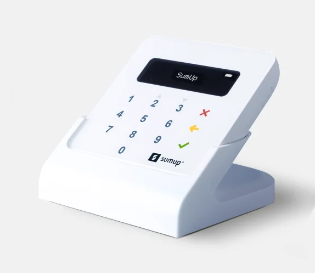
The SumUp card reader

Need A Professional Website?
Contact Us 
Today!

Wix Restaurants: Customizing and Designing Your Menu

Wix Restaurants: Setting the Availability of Menus, Sections and Dishes

Wix Restaurants: Creating a Combo Meal

Wix Restaurants: Managing Dish Options

Wix Restaurants: Adding Images to Your Menus

Wix Restaurants: Creating Your Menus

Wix Restaurants: Setting Up Your Availability for Online Reservations

Wix Restaurants: Managing Your Reservation Schedule

Wix Restaurants: Customizing Your Table Reservations Form

Wix Restaurants: Managing Table Reservations and Walk-ins

Wix Restaurants: Managing Your Notifications for Table Reservations

Wix Restaurants: Sending Reservation Notifications to Guests

Wix Restaurants: Setting Up Prepayment for Table Reservations

Wix Restaurants: Adding a Reservation Widget to a Page

Wix Restaurants: Viewing Guest Stats in Wix Table Reservations

Wix Restaurants: Exporting Your Table Reservations

Wix Restaurants: Translating Your Restaurant Reservations

Wix Restaurants: Deleting the Table Reservations App

Wix Restaurants: Creating and Managing your Restaurant Floor Plan

Wix Restaurants: Adding and Setting Up Wix Table Reservations

Wix Restaurants: Creating Another Online Ordering Page

Wix Restaurants: Setting Up Order with Google

Wix Restaurants: Managing Notifications for Online Orders

Wix Restaurants: Saving and Charging Customers' Credit Cards

Wix Restaurants: Managing Orders With DoorDash Drive

Wix Restaurants: Setting Up DoorDash Drive for Your Restaurant

Wix Restaurants: Manually Creating an Order

Wix Restaurants: Manually Printing Online Orders from the Wix App

Wix Restaurants: Troubleshooting Thermal Printing of Online Orders (new) from the Wix App

Wix Restaurants: Printing Online Orders from the Wix App

wix experts
Graphic2Traffic web design
©
bottom of page