top of page

Wix Mobile POS

Wix Mobile POS: Collecting Tips

Important:

  • This article is about Wix Mobile POS for mobile phones.

  • For info on Wix Retail POS for brick and mortar stores, click here.

Let clients who want to leave a tip do so right in your Mobile POS. You can display preset tip percentages or allow customers to decide on the tip.
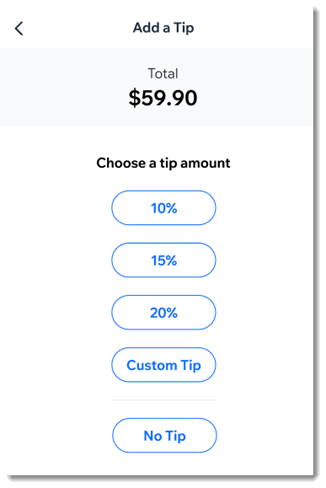
An example of the tip screen customers see on the mobile POS

After you enable tipping, you'll see the option to add a tip as part of the checkout.

Notes:

  • To collect tips, Wix Payments must be your payment provider.

  • It's not possible to collect tips for cash payment or when processing split payments.

  • Tips are available with Wix Stores, Wix Booking, and  Wix Restaurants Orders (New) .

To enable tipping:

  1. Go to your site in the Wix app.

  2. Tap Manage  at the bottom.

  3. Scroll down to the Get Paid section and tap Point of Sale.

  4. Tap the More Actions icon   at the top right.

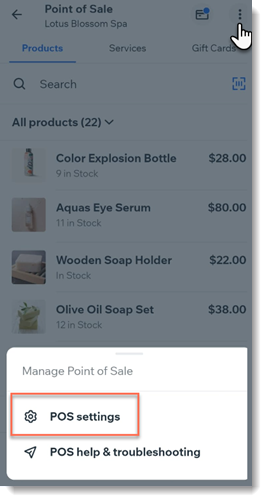
  5. Tap POS settings.
    Note: If you don't have the POS settings option, see the note below.

  6. Select Tips.

  7. Tap the Collect tips toggle to enable it.

  8. (Optional) Change the preset tip percentages:Tap the tip option you want to update.
    Enter a new percentage.

  9. (Optional) Tap the Allow a custom tip amount toggle to enable it.

  10. Tap Save.

Adding POS settings:

Normally, you should be able to access the POS Settings by clicking the More Actions icon  at the top right.
Screenshot of a Wix App point of sale page after clicking the More Actions button with POS settings outlined
If the settings aren't displayed, you can access them by adding Wix Stores to your site.
Note: Make sure you hide store pages from your live site.

Need A Professional Website?
Contact Us 
Today!

Wix Stores: Offering Rewards and Incentives

Wix Stores: Adding the Privy eComm Marketing App

Wix Stores: Receiving Confirmation Emails When Orders Are Placed

Wix Stores: Managing Emails Sent to Customers

Wix Stores: Sending Automated Emails to Customers

Wix Stores: Setting Up and Managing Abandoned Carts

Wix Stores: Creating and Sending an Email Marketing Campaign

Wix Stores: Creating Exclusive Store Pages for Site Members

Wix Stores: Enabling Guest Checkout for PayPal

Wix Stores: About Your Customers' Member Pages

Wix Stores: Receiving Inventory Ordered with a Purchase Order

Wix Stores: Creating and Sending Purchase Orders

Wix Stores: Updating Inventory for PayPal eCheck Orders in Wix Stores

Wix Stores: Notifying Customers when Products Are Back in Stock

Wix Stores: Displaying an 'Out of Stock' Notice on a Product

Wix Stores: Setting When Inventory Gets Updated

Wix Stores: Updating Inventory

Wix Stores: Setting How You Manage Inventory for a Product

Wix Stores: Saving and Charging Customers' Credit Cards

Wix Stores: Creating Invoices for Store Orders

Wix Stores: Creating Automated Responses for Product Purchases

Wix Stores: Delivering Digital Products

Wix Stores: Adding a Tracking Number to a Store Order

Wix Stores: Viewing and Fulfilling Local Delivery Orders

Wix Stores: Fulfilling Store Orders

Wix Stores: Customizing Your Customer's Journey to Checkout

Wix Stores: Linking a Button to a Specific Product Page

Wix Stores: Adding a Best Sellers Gallery

Wix Stores: Featuring a Single Product

Wix Stores: Customizing the Category Page

wix experts
Graphic2Traffic web design
©
bottom of page