Wix Forms FAQ
Wix Forms: Choosing Who Gets Notified About Form Submissions
Control who gets notified after a visitor fills out a form. Site collaborators can receive and respond to form submissions directly from Wix Inbox, the mobile apps, and from their personal emails. You can also notify external emails not connected with your site.
Note:
Site collaborators must be assigned Wix Inbox permissions. Go to Roles & Permissions in your dashboard to add or remove Wix Inbox permissions.
Types of notifications
There are different notification options, depending on which editor you are using.
New Forms
Old Forms
By default, when someone submits a form, an email is automatically sent to the site owner notifying them about the submission. This email notification is built using Wix Automations.
Additionally, you can set up Wix Automations to send a notification to your Wix Inbox when a submission comes through.
Click below to learn about the 2 options.
Email notifications
You can edit the automation to choose who gets notified – the site owner, or other email addresses. You can also edit this automation to add more emails, change the message title and body.

The email addresses you choose will receive an email from "no-reply@wix.com", notifying them of the submission.

Wix Inbox notifications
Using Wix Automations, once you have set up an automation trigger, you can choose Show in Inbox as an action.

The form name controls how the name of the form appears in your Wix Inbox. Enter a custom title or choose a dynamic value such as Submission Time.

The Mute Inbox notifications toggle allows you to mute notifications that pop up in your site's dashboard.
Choosing who gets notified about form submissions
Select recipients for form submission notifications. Choose if you want to send the notifications to yourself or your collaborators.
New Forms
Old Forms
Go to Forms & Submissions in the site's dashboard.
Click the More Actions icon
 next to a form.
Click Form notifications.
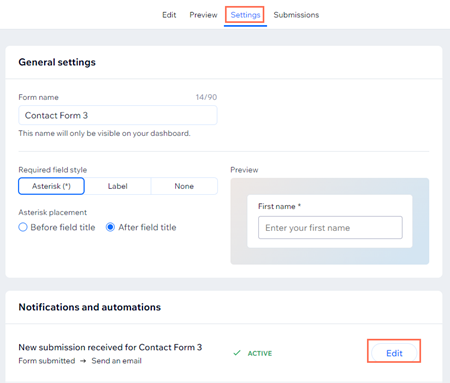
Click Edit under Notifications and Automations.
Note: You will be redirected to the Wix Automations dashboard. You can click Back to Forms to return to your Wix Forms dashboard at any time.Click Edit next to Action 1, Send an email.
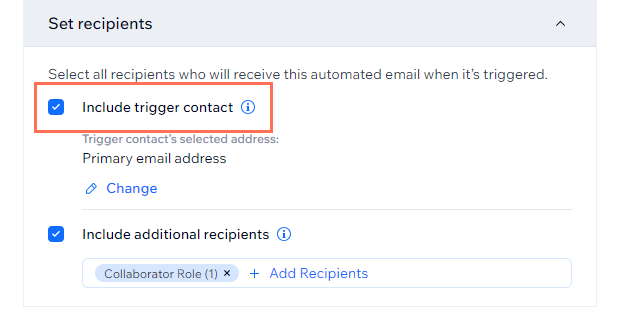
Scroll down to the automation action and click Set Recipients.
Select the Include Additional Recipients checkbox.
Note: This checkbox must be selected to receive notifications.Click Collaborator Roles.
Select the Collaborator roles you want to receive the form submission notifications.
Click Save.
Tip:
You can also access Notifications and Automations by selecting the Settings tab in the form builder.