top of page

Wix Bookings

Wix Bookings: Setting the Time Zone Display

Your customer may be in a different time zone than you when booking one of your services, especially if you offer online services. To avoid confusion or missed sessions, you have several options for how to display the service times on your site.

Before you begin:

Make sure to set your own time zone in the General section of your site's dashboard.

Notes:

The first calendar day of the week is determined by the business location you enter in your regional settings. Learn how to change your regional settings.

In this article, learn more about:

Display only your local time zone

This option is useful for businesses with local clients who visit in person, such as a hair salon.

Your regional settings define your time zone, and you can edit this at any time.

To display only your local time zone:

  1. Go to Booking Settings in your site's dashboard.

  2. Scroll down and select Calendar time zone.

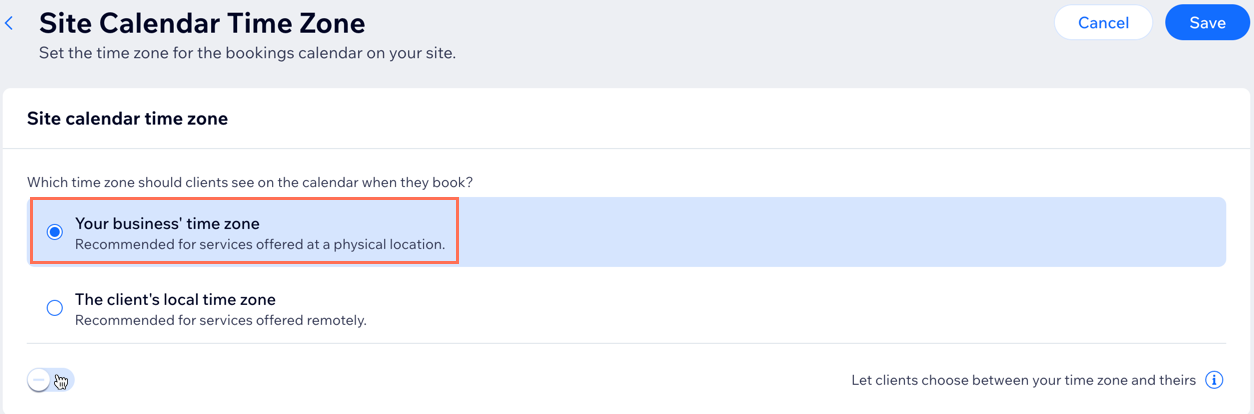
  3. Select Your business' time zone.

  4. Disable the Let clients choose between your time zone and theirs toggle.

  5. Click Save.

Setting the time zone display to your business time zone and deselecting the toggle to let clients choose time zones.

Display only the client's time zone

This option is useful for businesses that sell online sessions with clients around the world. The system detects where the customer is currently located and displays services in their local time zone.

To display only the client's time zone:

  1. Go to Booking Settings in your site's dashboard.

  2. Scroll down and select Calendar time zone.

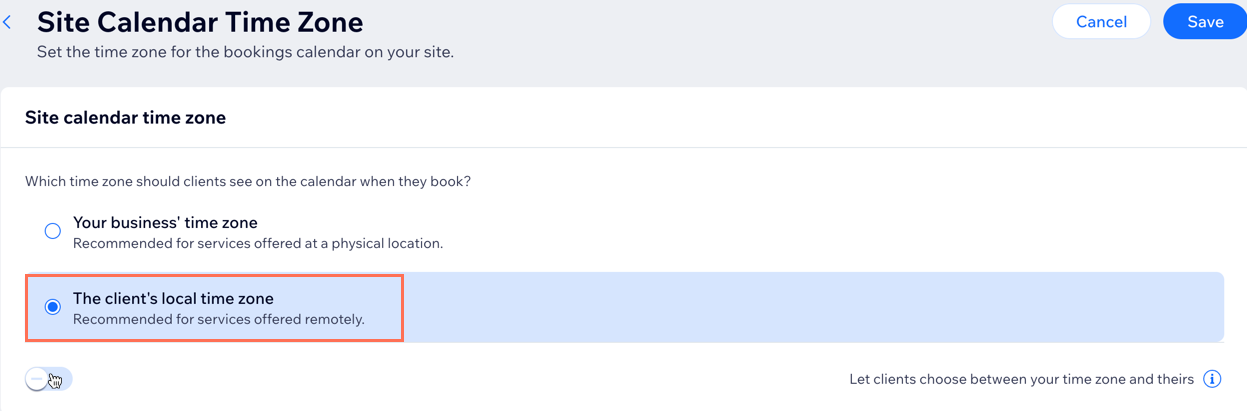
  3. Select The client's local time zone.

  4. Disable the Let clients choose between your time zone and theirs toggle.

  5. Click Save.

Setting the time zone display to the client's local time zone and disabling the toggle to let clients choose time zone.

Allow clients to choose which time zone they want to view

If you have both local and international bookings, you may want to select this option. Choose a default time zone display and then let clients decide if they want to change it.

Note

In the Wix member apps, clients are not able to choose which time zone they want to view. The calendar time zone you select in your Booking Settings determines which time zone clients see when they view services.
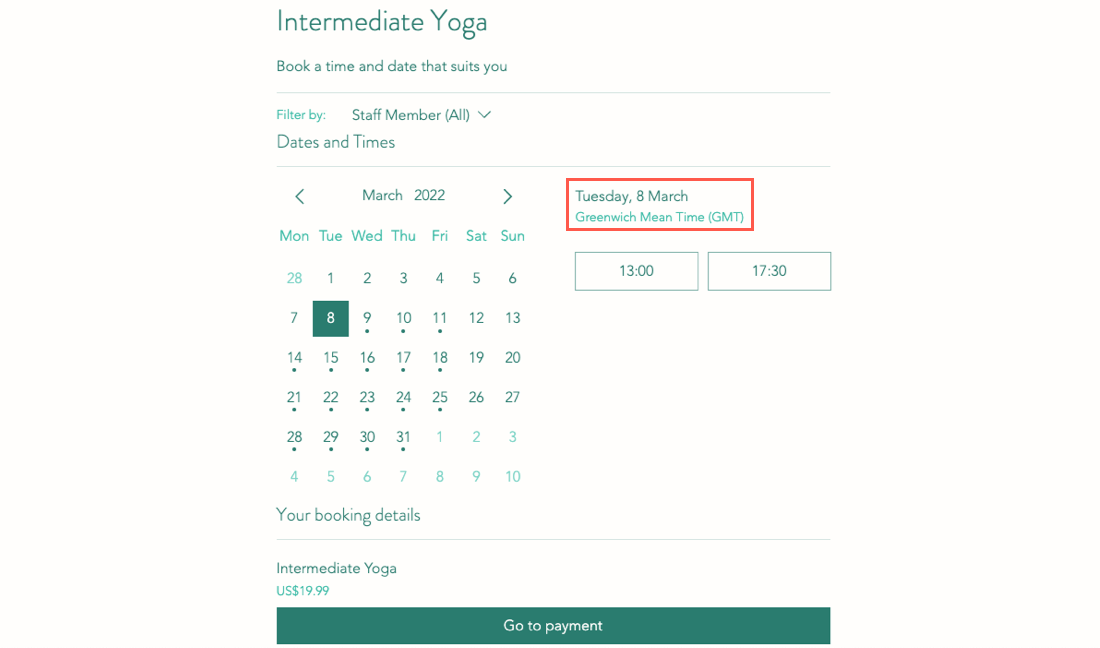
A screenshot showing where clients choose the time zone to be displayed in their booking details.

To allow clients to choose a time zone display:

  1. Go to Booking Settings in your site's dashboard.

  2. Scroll down and select Calendar time zone.

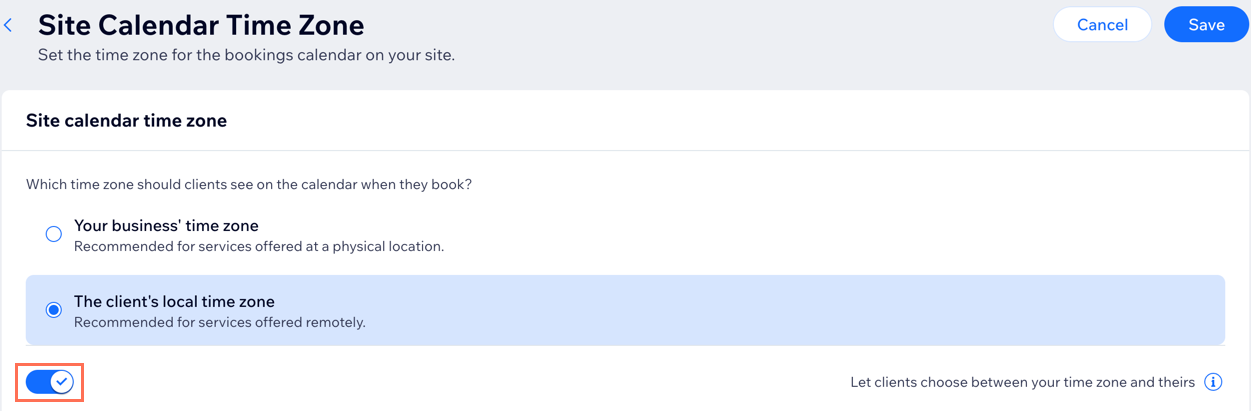
  3. Enable the Let clients choose between your time zone and theirs toggle.

  4. Click Save.

A screen shot showing enabling the toggle to let clients choose to view your site in your time zone or theirs.

Need A Professional Website?
Contact Us 
Today!

Wix Bookings: Managing Your Business Hours Using the Wix App

Wix Bookings: Promoting Your Services from the Wix App

Wix Bookings: Connecting Membership Plans and Packages Using the Wix App

Wix Bookings: Offering Waitlists Using the Wix App

Wix Bookings: Sending a Broadcast Message Using the Wix App

Wix Bookings: Viewing Your Upcoming Sessions in the Wix App

Wix Bookings: Managing Bookings in the Wix App

Wix Bookings: Marking Attendance for Classes and Courses Using the Wix App

Wix Bookings: Accessing the Details of a Class Session in the Wix App

Wix Bookings: Creating Classes Using the Wix Mobile Apps

Wix Bookings: Creating Appointments Using the Wix App

Wix Bookings: Marking a Session as "Paid" in the Wix App

Wix Bookings: Manually Scheduling Bookings for Clients Using the Wix App

Wix Bookings: Adding Wix Bookings from the Wix App

Wix Bookings: Creating and Managing Shareable Links

Wix Bookings: Managing Your Outbound Client Emails

Wix Bookings: Adding and Setting Up a Google 'Book' Button

Wix Bookings: Letting Clients Book Your Services With ClassPass

Wix Bookings: Adding a 'Book' Button to Instagram

Wix Bookings: Adding a 'Book' Button to Facebook

Wix Bookings: About Booking Integrations

Wix Bookings: Adding and Setting up a Loyalty Program for Your Business

Wix Bookings: Sending Custom SMS Messages with Omnisend

Wix Bookings: Creating Discount Coupons with Automations

Wix Bookings: Sending SMS Notifications to Clients

Wix Bookings Troubleshooting: Emails Not Received

Wix Bookings: Managing Email Notifications You Receive

Wix Bookings: Creating Bookings Automations

Wix Bookings: Creating Discount Coupons

Wix Bookings: Customizing Your Daily Agenda

wix experts
Graphic2Traffic web design
©
bottom of page