top of page

Wix Bookings

Wix Bookings: Setting the Time Zone Display

Your customer may be in a different time zone than you when booking one of your services, especially if you offer online services. To avoid confusion or missed sessions, you have several options for how to display the service times on your site.

Before you begin:

Make sure to set your own time zone in the General section of your site's dashboard.

Notes:

The first calendar day of the week is determined by the business location you enter in your regional settings. Learn how to change your regional settings.

In this article, learn more about:

Display only your local time zone

This option is useful for businesses with local clients who visit in person, such as a hair salon.

Your regional settings define your time zone, and you can edit this at any time.

To display only your local time zone:

  1. Go to Booking Settings in your site's dashboard.

  2. Scroll down and select Calendar time zone.

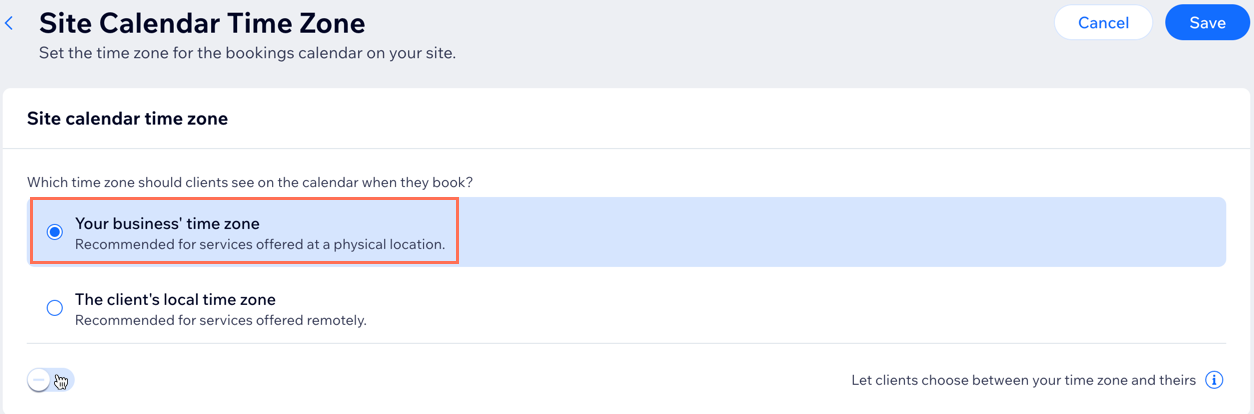
  3. Select Your business' time zone.

  4. Disable the Let clients choose between your time zone and theirs toggle.

  5. Click Save.

Setting the time zone display to your business time zone and deselecting the toggle to let clients choose time zones.

Display only the client's time zone

This option is useful for businesses that sell online sessions with clients around the world. The system detects where the customer is currently located and displays services in their local time zone.

To display only the client's time zone:

  1. Go to Booking Settings in your site's dashboard.

  2. Scroll down and select Calendar time zone.

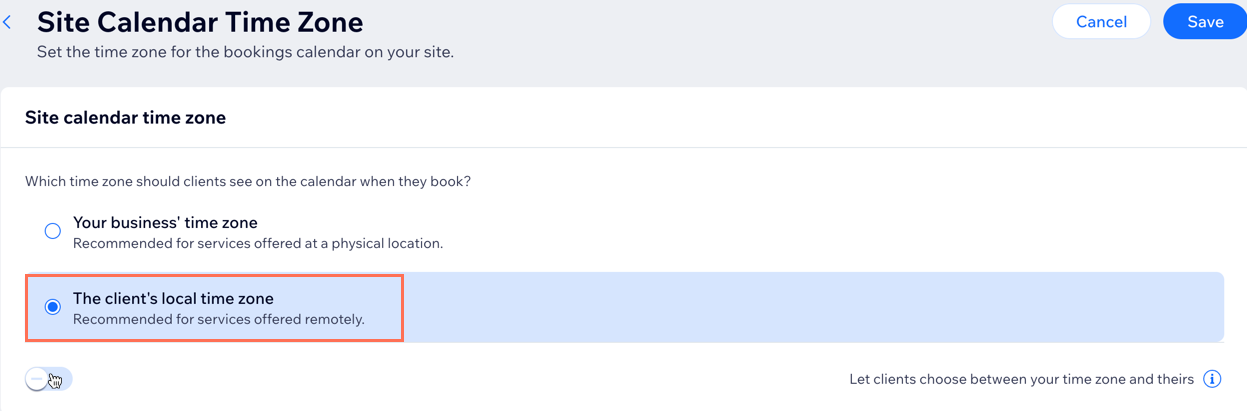
  3. Select The client's local time zone.

  4. Disable the Let clients choose between your time zone and theirs toggle.

  5. Click Save.

Setting the time zone display to the client's local time zone and disabling the toggle to let clients choose time zone.

Allow clients to choose which time zone they want to view

If you have both local and international bookings, you may want to select this option. Choose a default time zone display and then let clients decide if they want to change it.

Note

In the Wix member apps, clients are not able to choose which time zone they want to view. The calendar time zone you select in your Booking Settings determines which time zone clients see when they view services.
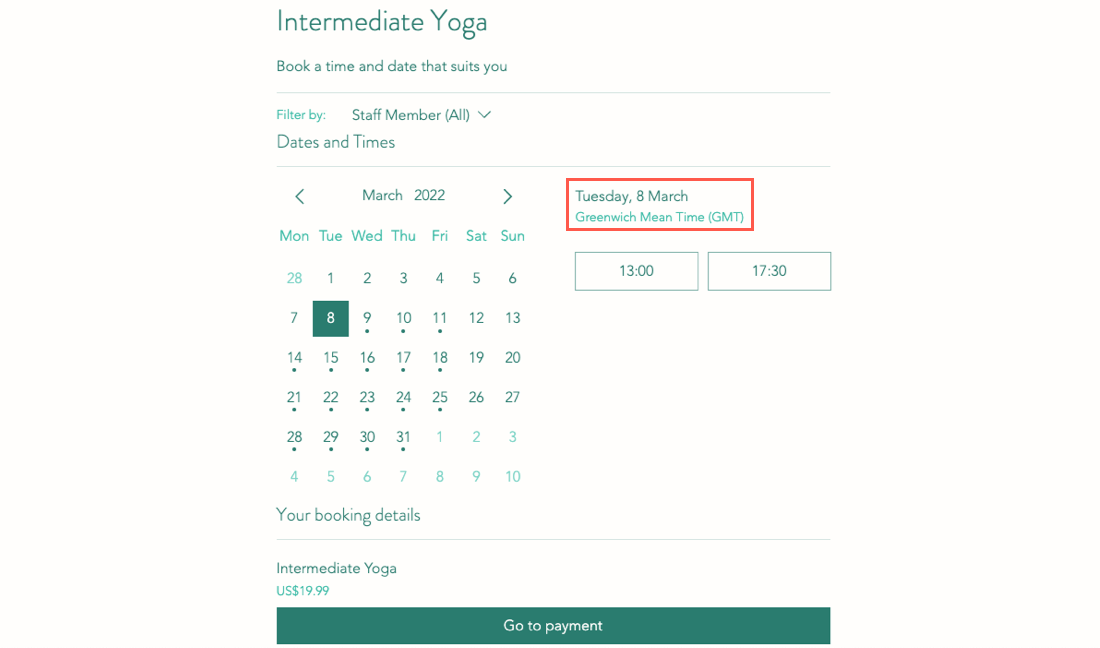
A screenshot showing where clients choose the time zone to be displayed in their booking details.

To allow clients to choose a time zone display:

  1. Go to Booking Settings in your site's dashboard.

  2. Scroll down and select Calendar time zone.

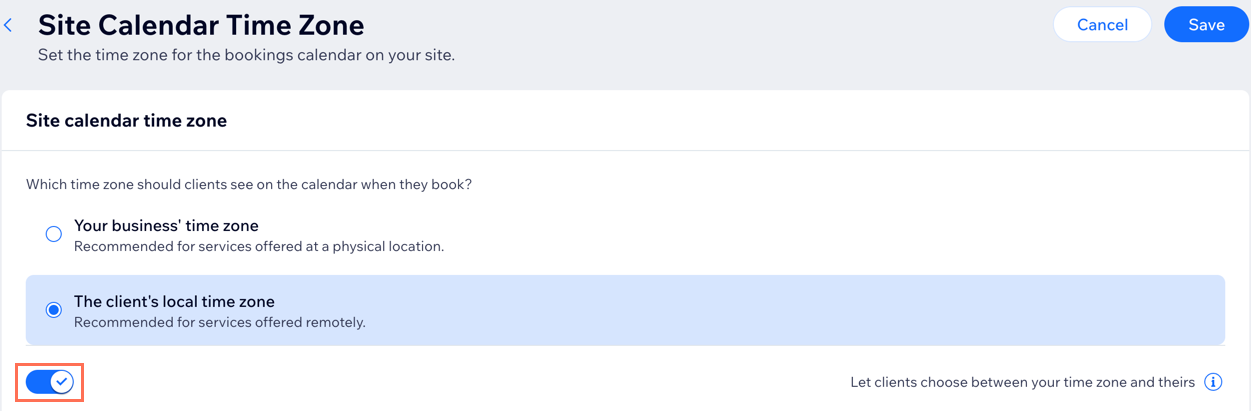
  3. Enable the Let clients choose between your time zone and theirs toggle.

  4. Click Save.

A screen shot showing enabling the toggle to let clients choose to view your site in your time zone or theirs.

Need A Professional Website?
Contact Us 
Today!

Wix Stores: Offering Rewards and Incentives

Wix Stores: Adding the Privy eComm Marketing App

Wix Stores: Receiving Confirmation Emails When Orders Are Placed

Wix Stores: Managing Emails Sent to Customers

Wix Stores: Sending Automated Emails to Customers

Wix Stores: Setting Up and Managing Abandoned Carts

Wix Stores: Creating and Sending an Email Marketing Campaign

Wix Stores: Creating Exclusive Store Pages for Site Members

Wix Stores: Enabling Guest Checkout for PayPal

Wix Stores: About Your Customers' Member Pages

Wix Stores: Receiving Inventory Ordered with a Purchase Order

Wix Stores: Creating and Sending Purchase Orders

Wix Stores: Updating Inventory for PayPal eCheck Orders in Wix Stores

Wix Stores: Notifying Customers when Products Are Back in Stock

Wix Stores: Displaying an 'Out of Stock' Notice on a Product

Wix Stores: Setting When Inventory Gets Updated

Wix Stores: Updating Inventory

Wix Stores: Setting How You Manage Inventory for a Product

Wix Stores: Saving and Charging Customers' Credit Cards

Wix Stores: Creating Invoices for Store Orders

Wix Stores: Creating Automated Responses for Product Purchases

Wix Stores: Delivering Digital Products

Wix Stores: Adding a Tracking Number to a Store Order

Wix Stores: Viewing and Fulfilling Local Delivery Orders

Wix Stores: Fulfilling Store Orders

Wix Stores: Customizing Your Customer's Journey to Checkout

Wix Stores: Linking a Button to a Specific Product Page

Wix Stores: Adding a Best Sellers Gallery

Wix Stores: Featuring a Single Product

Wix Stores: Customizing the Category Page

wix experts
Graphic2Traffic web design
©
bottom of page