top of page

Additional Wix Apps

Wix Apps: Design Guides

The Wix Design Guides add-on lets you create rows, columns or cells in your Studio Editor to help structure and design your site in a more organized manner.

The guide appears on your Editor as a colored grid, it does not appear on your live site. The purpose of this is to guide you as you place your elements on your site and make sure everything is aligned correctly.

Wix Design Guides is only available in the Wix Studio Editor.

A screenshot showing the Design Guides panels.

In this article, learn more about:

Adding Wix Design Guides to your site

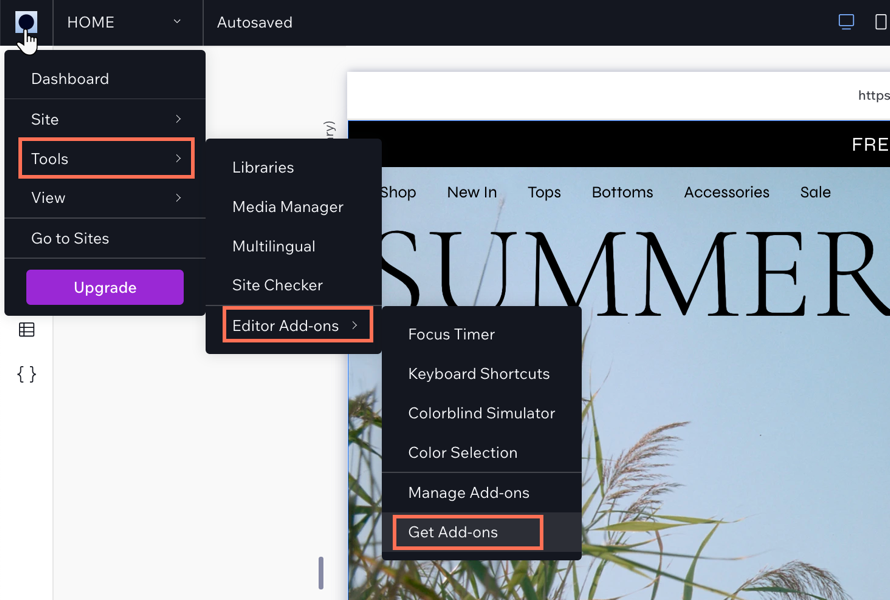
Add the Wix Design Guides add-on from the tools in your Studio Editor.

To add Wix Design Guides:

  1. Click the Wix Studio icon  at the top left.

  2. Click Tools.

  3. Click Editor Add-ons.

  4. Click Get Add-ons.

  5. Click Design Guides.

A screenshot showing the Wix Studio icon and the options to add Editor Add-ons to your site.

Customizing your Design Guide settings

Customize your grid to get the exact layout you want. You can make changes to the number of columns or rows in a grid, and change their size and spacing etc. The settings change depending on the grid type you choose.

To customize the settings:

  1. Click the Wix Studio icon  at the top left.

  2. Click Tools.

  3. Click Editor Add-ons.

  4. Click Design Guides.

  5. Click the drop-down icon  next to columns to display the settings.

  6. Choose what you want to customize:Type of guide: Click the drop-down icon  and choose a guide.
    Alignment: Set the alignment, stretch, left, right, or center.
    Columns: Enter the amount of columns you need for your guide.
    Margin width: Set the width of the margin.
    Gutter width: Set the gutter width. This is the space between the columns.
    Column width: Depending on your alignment, the column width maybe set to Auto.
    Opacity and Color: Set a color for your columns and the adjust the opacity.

  7. (Optional): Click Add Guide to add a new guide to your site.
    Note: This layers the guides on top of each other so the pink lines are more visible as you edit.
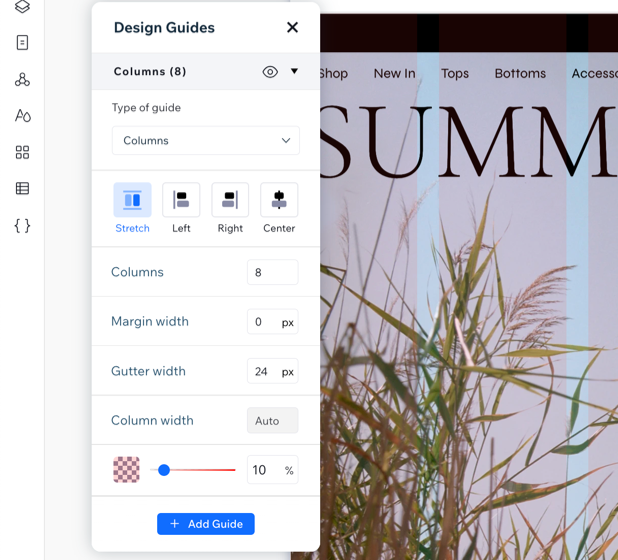
A screenshot showing the design settings for the Design Guides Add-on.

Need A Professional Website?
Contact Us 
Today!

Wix Stores: Offering Rewards and Incentives

Wix Stores: Adding the Privy eComm Marketing App

Wix Stores: Receiving Confirmation Emails When Orders Are Placed

Wix Stores: Managing Emails Sent to Customers

Wix Stores: Sending Automated Emails to Customers

Wix Stores: Setting Up and Managing Abandoned Carts

Wix Stores: Creating and Sending an Email Marketing Campaign

Wix Stores: Creating Exclusive Store Pages for Site Members

Wix Stores: Enabling Guest Checkout for PayPal

Wix Stores: About Your Customers' Member Pages

Wix Stores: Receiving Inventory Ordered with a Purchase Order

Wix Stores: Creating and Sending Purchase Orders

Wix Stores: Updating Inventory for PayPal eCheck Orders in Wix Stores

Wix Stores: Notifying Customers when Products Are Back in Stock

Wix Stores: Displaying an 'Out of Stock' Notice on a Product

Wix Stores: Setting When Inventory Gets Updated

Wix Stores: Updating Inventory

Wix Stores: Setting How You Manage Inventory for a Product

Wix Stores: Saving and Charging Customers' Credit Cards

Wix Stores: Creating Invoices for Store Orders

Wix Stores: Creating Automated Responses for Product Purchases

Wix Stores: Delivering Digital Products

Wix Stores: Adding a Tracking Number to a Store Order

Wix Stores: Viewing and Fulfilling Local Delivery Orders

Wix Stores: Fulfilling Store Orders

Wix Stores: Customizing Your Customer's Journey to Checkout

Wix Stores: Linking a Button to a Specific Product Page

Wix Stores: Adding a Best Sellers Gallery

Wix Stores: Featuring a Single Product

Wix Stores: Customizing the Category Page

wix experts
Graphic2Traffic web design
©
bottom of page