


Additional Wix Apps
Wix Apps: Colorblind Simulator
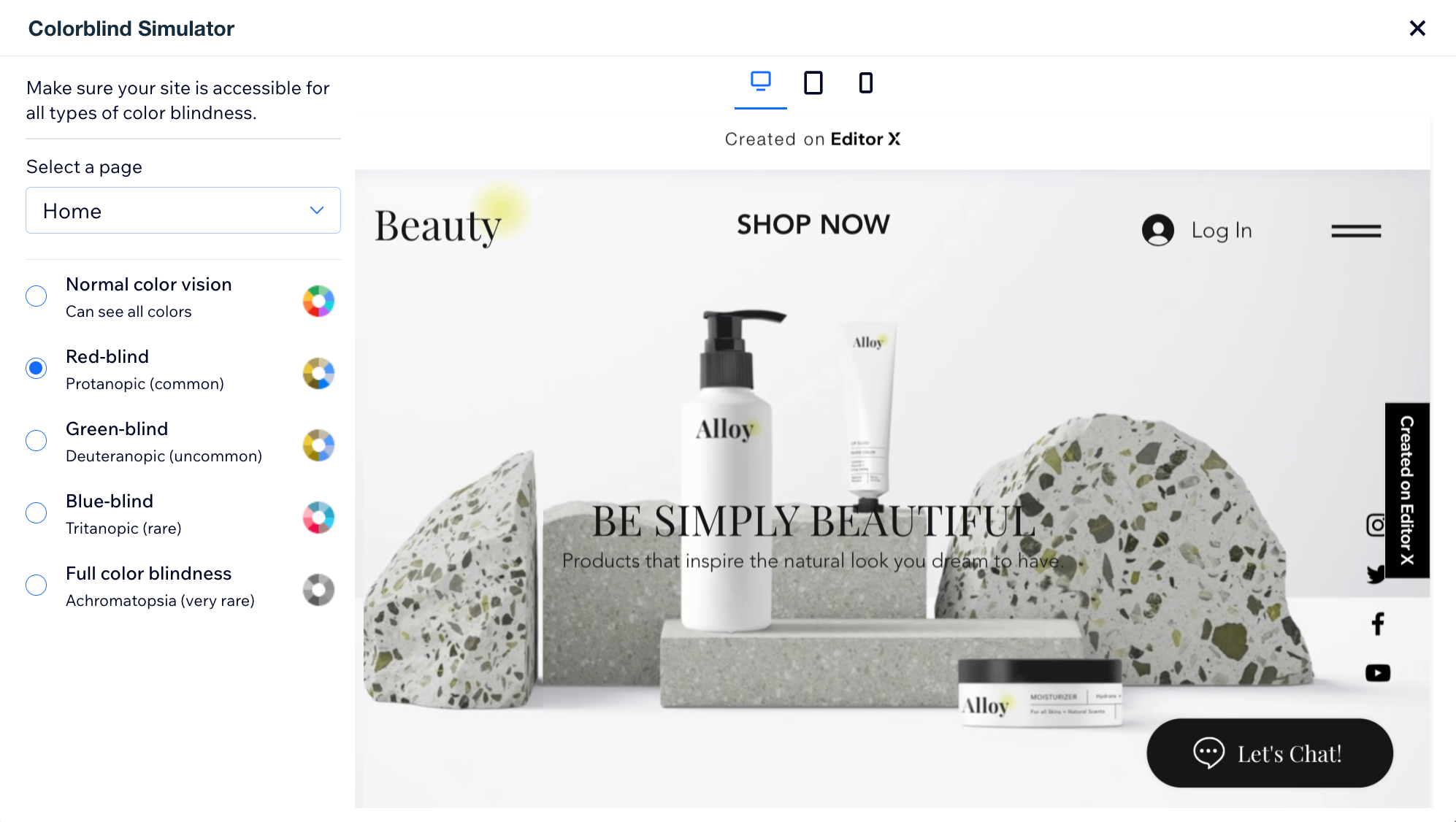
The Wix Colorblind Simulator is a valuable add-on that empowers you to experience your site's design from the perspective of visitors with different types of color blindness. This tool is a great way to enhance your site's accessibility.
From the simulator, you can select a page and explore various color blindness experiences to see how the page looks.
In this article, learn more about:
Adding the Colorblind Simulator add-on
Frequently asked questions (FAQs)
Adding the Wix Colorblind Simulator
Wix Colorblind Simulator is available in the Wix Studio Editor.
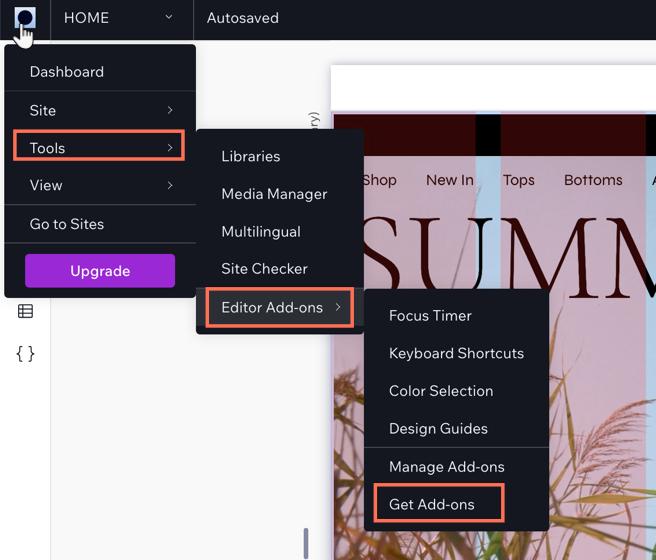
To add the Wix Colorblind Simulator:
Click the Wix Studio icon
 at the top left.
Click Tools.
Click Editor Add-ons.
Click Get Add-ons.
Click Colorblind Simulator.
FAQs
Click a question below to learn more about accessibility:
Why is accessibility important?
Accessibility is crucial for your site as it ensures inclusivity, allowing all people with disabilities to access your site on an equal basis, complying with legal requirements and fulfilling ethical responsibilities.
It also enhances the visitor experience for all, offering better navigation and readability, potentially improving SEO, expanding the audience reach, and positively influencing your brand's image.
Where can I learn more about accessibility?
Wix offers a variety of accessibility tools to help ensure your site is accessible to everyone. Follow our Checklist for Improving Your Site's Accessibility and learn about our Accessibility Wizard and how it can help make your site a more accessible.
What can I do to improve how a page looks for people with color blindness?
Small things can really help improve how a page looks to people with color blindness. You can change your images, adjust your text and font, and change your site colors to ensure good color contrasts.