


Third Party Payment Providers
Using a Different Account with the Same Payment Provider
If you have more than one account with a third-party payment provider, you can switch to your preferred account to accept payments on your Wix site.
If you're not sure which provider account you currently have connected to your Wix site, you can check which provider you have connected and view your current credentials before you switch.
In this article, learn how to:
Viewing your provider credentials
Go to Accept Payments on your site's dashboard.
Click Manage next to the payment provider / method you want to check.
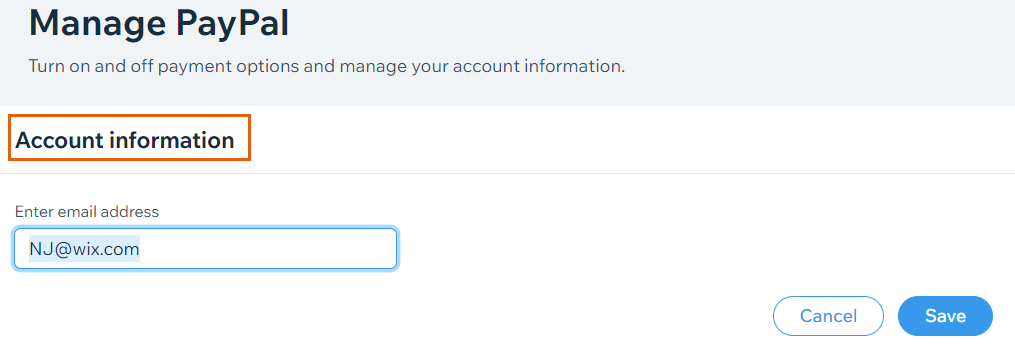
View your current provider credentials in the Account information section.
Switching to a different account
Go to Accept Payments on your site's dashboard.
Click Manage next to the payment provider / method you want to change.

Follow the relevant steps depending on your provider:
PayPal:Enter the email address of your desired account in the Account information section.
Click Save.
Stripe:Click Change account.
Enter your Stripe credentials and click Continue.
Other payment providers:Enter the credentials of your desired account in the Account information section.
Click Save.
FAQs
Click a question below to learn more about accepting payments.
How do I check which payment provider account I have connected to my site?
To check which payment provider you have connected and to view your account credentials, follow the steps to view your credentials.
I'm using Wix Hotels. How do I set up my payments?
Payments for Wix Hotels is managed through the Hotels tab. Learn how to set up payments for Wix Hotels.