top of page

Using the Wix app for Online Programs

Online Programs: Connecting a Group to Your Program in the Wix App

Connect a group to your program using the Wix app. This gives participants a place to discuss their progress and share updates to motivate each other to complete the program. You can connect an existing group or create a new one straight from the app.

To connect a group to your program in the Wix app:

  1. Go to your site in the Wix app.

  2. Tap Manage  at the bottom.

  3. Tap Online Programs.

  4. Tap the More Actions icon  next to the relevant program.

  5. Tap the Edit.

  6. Scroll down to Group and tap Connect a Group.

  7. Choose what you want to do:Connect an existing group to the program: Select a group from the list and tap Done.
    Note: Once a group is linked to the program, anyone who joins your program automatically joins the group.

    Create a new group for the program:Tap Create New Group.
    Enter the group details including the name, cover image, and privacy setting. Learn more about creating a group using the Wix app.
    Tap Done.

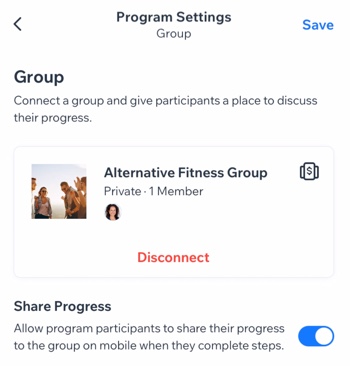
  8. (Optional) Enable the Share Progress toggle to allow participants to share their progress to the group when they complete steps.

  9. Tap Save.

A screenshot of the Program Settings panel with a connected group.

Want to disconnect the group?

If the group is no longer relevant to your program (e.g. the program has ended or you want to add different one), you can remove the group from your program. Tap Disconnect under the group.

Need A Professional Website?
Contact Us 
Today!

Wix Restaurants: Printing Online Orders from Your Dashboard

Wix Restaurants: Compatible Thermal Printers for Online Orders (New)

Wix Restaurants: About Printing Online Orders (New)

Wix Restaurants: Creating Automatic Discounts

Wix Restaurants: Creating a Coupon

Wix Restaurants: Automatically Creating Invoices for Paid Orders

Wix Restaurants: Managing Incoming Orders with the New Wix Restaurants Orders App

Wix Restaurants: Adding a Service Fee to Online Orders

Wix Restaurants: Adding Modifiers

Wix Restaurants: About the Orders Tab

Wix Restaurants: Setting Up Pickup and Delivery in Wix Restaurant Orders (New)

Wix Restaurants: Setting Up Order Scheduling in Wix Restaurant Orders (New)

Wix Restaurants: Preparing Your Menus for Online Ordering

Wix Restaurants: Adding and Setting Up Wix Restaurant Orders (New)

Wix Restaurants: Setting SEO for Wix Menus (New)

Wix Restaurants: Duplicating Your Menu

Wix Restaurants: Translating Your Restaurant Menu

Wix Restaurants: Printing Your Menu

Wix Restaurants: Understanding Prices on Your Menu

Wix Restaurants: Displaying Your Menus on Multiple Site Pages

Wix Restaurants: Customizing the Look of Wix Restaurants Menus (New)

Wix Restaurants: Managing Your Menus in the Wix Menus App (New)

Wix Restaurants: Importing Your Menus to the New Wix Menus App

Wix Restaurants: Setting Up Wix Restaurants Menus (New)

Wix Restaurants: Adding Wix Restaurants Menus

Wix Restaurants: Inviting People to Manage Your Restaurant

Wix Restaurants: Adding and Setting Up a Loyalty Program

Wix Restaurants: Upgrading Your Restaurant Site

Wix Restaurants: About the Differences Between the Old and New Menu Apps

Wix Restaurants: About the Differences Between the Old and New Online Ordering Apps

wix experts
Graphic2Traffic web design
©
bottom of page