


Other music apps
Music Apps: Adding and Setting Up a SoundCloud Player
Share your favorite music from SoundCloud on your site. This customizable player makes it easier than ever to display tracks, playlists and podcasts. Just paste a URL or embed code from SoundCloud into your player and connect.
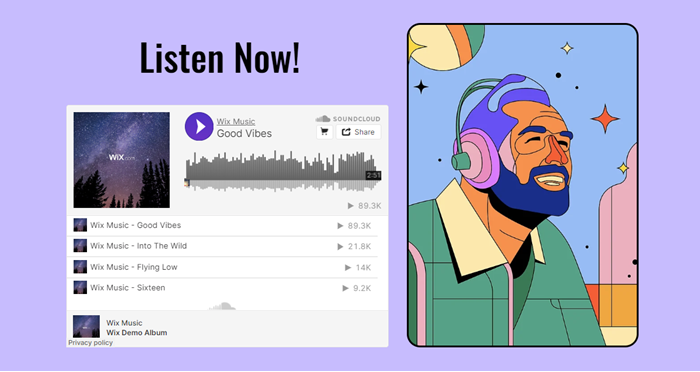
Step 1 | Add the SoundCloud player
First add the SoundCloud app to your site. Afterwards, you can link to your music and customize the player's settings and design.
Wix Editor
Studio Editor
Dashboard
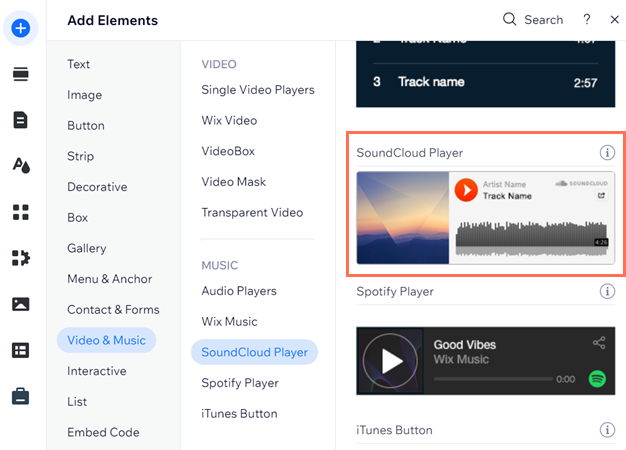
Click Add Elements
 on the left side of the editor.
Click Video & Music.
Click SoundCloud Player.
Drag the player onto your page.
Step 2 | Add the SoundCloud URL or embed code
Next, retrieve the URL or embed code of the track, album or playlist, and add it to the player on your site.
To add a SoundCloud URL or code:
(In your SoundCloud account) Search for the music you want to add.
Click Share.
Click Share or Embed.
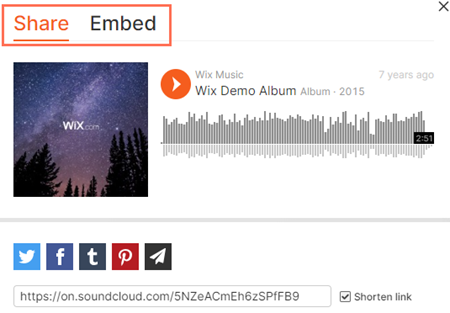
Copy the URL or code.
(In your editor) Click the SoundCloud player.
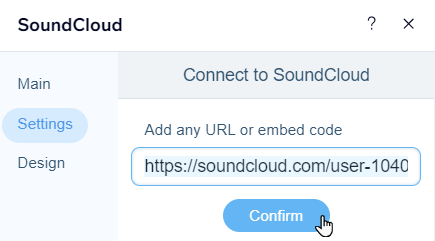
Click Settings.
Paste the URL or code.
Click Confirm.
Step 3 | Set up your player
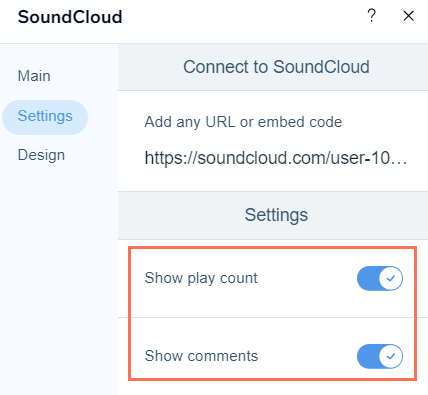
Now it's time to choose what your SoundCloud player shows to visitors. You can display how many times the song has been played and any comments left by SoundCloud users.
To adjust the player's settings:
Click the SoundCloud player in your editor.
Click Settings.
Click the relevant toggle to show or hide the play count and comments.
Step 4 | Design your player
Lastly, customize your SoundCloud player's look to best compliment your site's design.
To customize the player's design:
Click the SoundCloud player in your editor.
Click Settings.
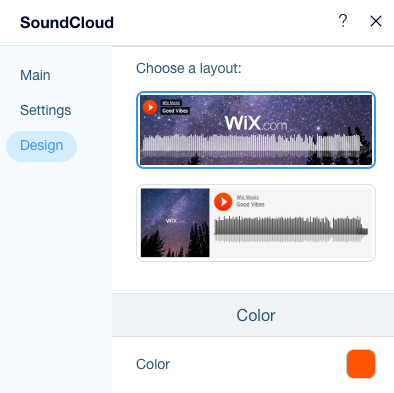
Click Design.
Choose what you want to customize:Choose a layout: Select a layout that works best for you.
Color: Chose a color for the play button of your SoundCloud player.
Troubleshooting SoundCloud player issues
Click an issue below to learn how to solve it:
You see an error message in the editor
You may see the following message on the SoundCloud player in the editor:

To resolve this, make sure you have turned on the "display embed code" option in your permission settings at Soundcloud.com.

Tip: You can test this by entering your Soundcloud track URL in an incognito window on your browser.
Music isn't playing
If you are embedding HTML code to the SoundCloud Player, make sure that autoplay is unchecked in the embed settings at Soundcloud.com:

Learn more about browsers and autoplay.
Still need help?
If the problem persists, contact us and we will be happy to help. Please include the following information:
The name and version of the web browser you're using.
The name and version of your computer's operating system.
A screenshot of your console view using the steps below:Open an incognito window in Google Chrome (Ctrl + Shift + N).
Sign in to Wix and try to open your Editor.
Use the keyboard shortcut Ctrl + Shift + J (on PC) or Cmd + Option + J (on Mac).
Click the Console tab at the top of the panel and refresh the page (F5).
Take a screenshot of this tab.