


Desktop POS Solutions
Desktop POS Solutions: Collecting Payment with the Dashboard Card Reader Solution
After you set up the Dashboard Card Reader, you can accept payment from customers through the Collect Payment button. You'll find a Collect Payment button in various places in your site's dashboard.
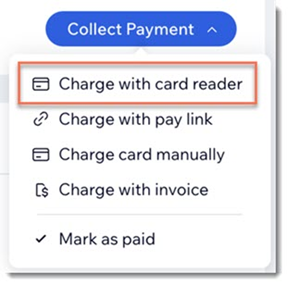
Accepting payment from the Orders tab
Sales made through the following apps appear in the Orders tab in your Wix dashboard:
Wix Stores
Wix Bookings
Wix Restaurants Orders (New)
When you accept payment from the Orders tab, you have the option to add a tip to the order.
To collect payment:
Go to Orders in your site's dashboard.
Select the relevant unpaid order.
(Optional) Add a fee, tip, or discount to the order:Click More Actions.
Select Edit Order.
Select an option:Fee or tip: Click Add Fees & Tips, enter the details, and click Add.
Discount: Click Add Discount, enter the details, and click Add.
Click Collect Payment.
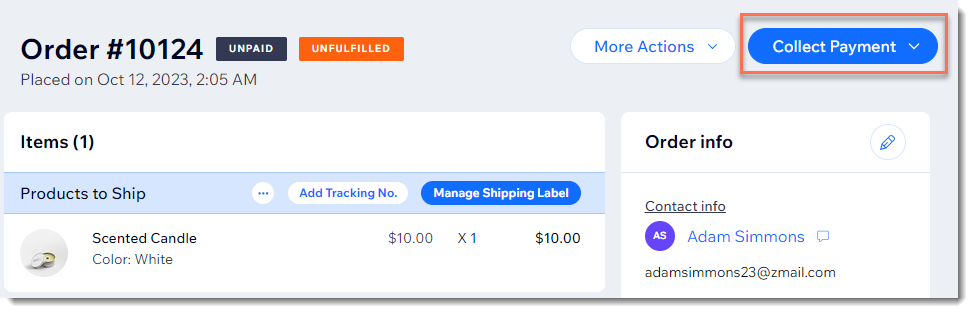
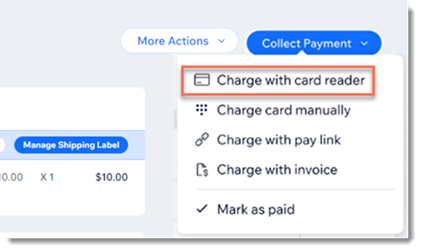
Select Charge with card reader.
Have your customer tap, swipe, or insert their card.
Accepting payment from the Bookings Calendar
While you're managing your scheduling in the Bookings Calendar, you can also access unpaid bookings and collect payments there.
To collect payment:
Go to Booking Calendar in your site's dashboard.
Select the relevant unpaid service:Appointment: Click the relevant appointment in the calendar, and then click Collect Payment.
 Class or course: Select the relevant service, click Manage, then click Collect Payment next to the relevant participant.

Select Charge with card reader.
Have your customer tap, swipe, or insert their card.
Accepting payment from the Contact List
Your site's Contact List is where you'll find the name of any client who interacted with your site. From there you can collect payment for any unpaid Wix Bookings service.
To collect payment:
Go to Contacts in your site's dashboard.
Hover over the relevant contact and click View.
Click the Bookings tab.
Click Collect Payment next to the relevant unpaid service.
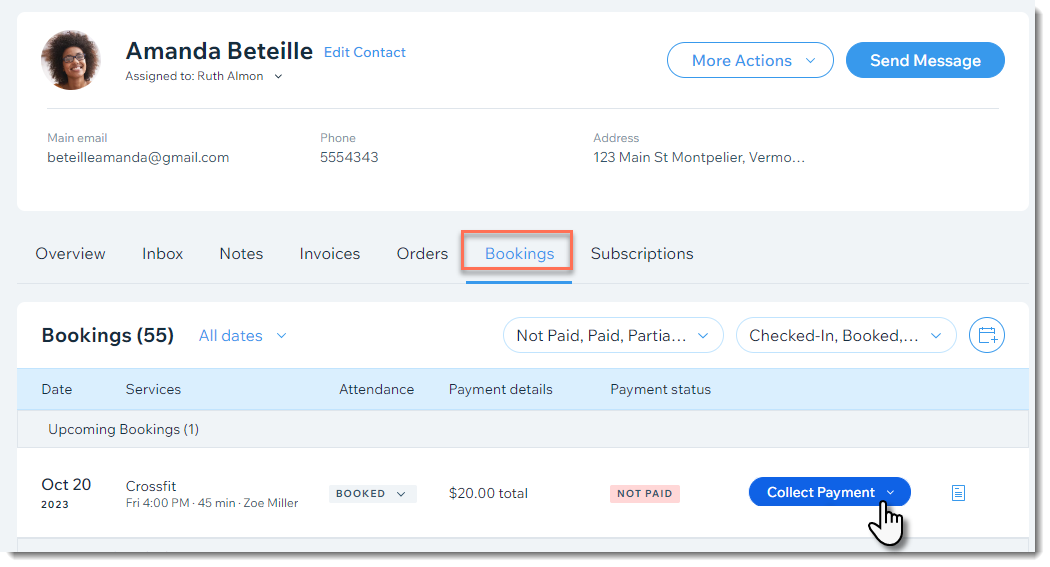
Select Charge with card reader.
Have your customer tap, swipe, or insert their card.
Accepting payment from a custom order
If you use Wix Stores or Wix Bookings, you can also manually create an order. This order can include store products, booking services, or any type of custom item.
After you create the order, it appears in the Orders tab. From there, you can collect payment like you would for any other order.