


Additional Wix Apps
Changing the Display Options of the PDF Viewer App
The PDF Viewer app is your go-to app for showcasing PDF's on your site. You can change how visitors view and interact with your PDFs by modifying their design (e.g., switching the layout and how your document is displayed).
Note:
Currently, it is only possible to download and print pdf's when using the button layouts.
To change the display options of the PDF Viewer app:
Click the PDF Viewer App in your editor.
Click Settings.
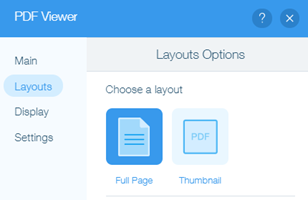
Select the Layouts tab.
Choose a layout option:Full Page: Your PDF is displayed as a full page. Choose which page to display first in the dropdown. Choosing this layout gives you 3 display options to choose from in the Display tab.
Thumbnail: Your PDF is displayed as a thumbnail. Clicking on the thumbnail opens the document in a new tab on your browser. Choosing this layout allows you to customize the button in the Display tab.
Click the Display tab to customize the display settings.
Note: These settings differ depending on the layout that you choose. Select your layout below to learn more:
Full Page layout
The PDF Viewer app offers 3 different display options, each with unique features your site visitors can choose from. Choose the option you want to choose:
Full Viewer: Viewable as a default PDF reader (can be zoomed in on). You can set it so visitors can download, zoom, or print it via the Settings tab.
Note: It's currently not possible to use this display mode on mobile devices. This mode automatically switches to Mini Viewer on mobile.Mini Viewer: Viewable in an iframe. Visitors can browse the file using the arrow buttons. This display option is not downloadable or printable.
One Page: Viewable in an iframe. This option is dedicated to show only one page of the file. This display option is not downloadable or printable.

Thumbnail layout
The thumbnail layout displays your file as a thumbnail icon. You can customize the icon’s design by changing any of the following:
Change Icon: Change the icon to be any other image of your choice via the Media Manager
Thumbnail Icon Size: Scale the size of the icon by dragging the horizontal scroll bar or typing in a numerical value (from 20-150 pixels).
Show File Title: Click Toggle to Show/Hide the title of the file.
Note: Hiding the title will not allow you to edit the options you see below.File Title: Change the title of your file
Title Font and Color: Choose a theme, font, font size, and font color for your title.
Title Color on Hover: Choose what color your title turns to when you hover over it.

Important:
The Full Viewer display option makes the PDF file shareable with anyone via a direct link. This makes the file vulnerable in terms of privacy. Even if the file is on a password protected page, the file can still be shared. However, you can still restrict access to your file. Learn How
How do these display options work on my mobile site?
The Full Viewer only shows the first page of the PDF. Tap it to open the file in the browser's PDF reader in order to see all the pages.
The Mini Viewer shows the file directly on the page. You can browser through pages using the navigation buttons.
The One Page viewer shows the file directly on the page. However, navigation buttons are not available with this display option.