


Wix AI Site-Chat FAQ
Adding and Setting Up Wix AI Site-Chat
Note:
Wix AI Site-Chat is currently available for Wix Editor only.
Wix AI Site-Chat is a customizable on-site chat interface that provides your users with engaging natural conversations that inform them about your products and services. With a straightforward installation process, site visitors can make purchases and access support whenever they need it.
Step 1 | Add AI Site-Chat to your site
Add Wix AI Site-Chat to your site via the Wix App Market in your site's dashboard before placing it in your editor.
Important:
Wix AI Site-Chat cannot work alongside Wix Chat. If you have working hours set for Wix Chat, you will be unable to have the AI Site-Chat on your site.
To add the AI Site-Chat to your site:
Go to the Wix App Market in your site's dashboard.
Search for the Wix AI Site-Chat app in the search bar.
Click Add to Site.

Select Go to Editor.
Click Add Apps
 on the left side of the editor.
Click Manage Apps.
Click Complete Setup next to the Wix AI Site-Chat app.
Step 2 | Configure your AI Site-Chat's settings
Improve the accessibility of your AI Site-Chat by setting its working hours and providing a contact form for your site visitors.
To configure your AI Site-Chat's settings:
Go to the AI Site-Chat in your site's dashboard.
Click the Settings tab.
Choose what you want to set up:
Online chat hours
Wix AI Site-Chat works according to the hours you choose.
In the Online chat hours section, choose what you want to set up:
When the AI Site-Chat is turned on: Select the relevant option:Keep it online 24/7: The AI Site-Chat will stay online indefinitely until you switch it off or change its working hours.
Set custom hours: Click Edit Hours to choose when you want AI Site-Chat to be online:Click the checkboxes for the days you want AI Site-Chat to be online.
Enter the times you want it to work next to each day.
Select your time zone using the drop-down menu.
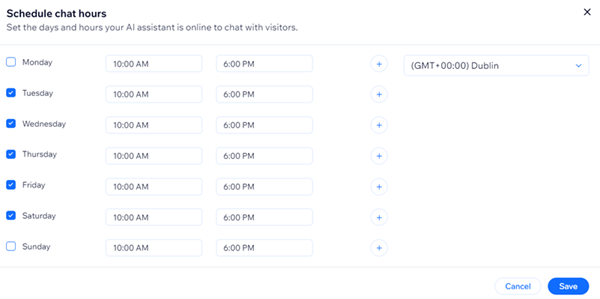
When the AI Site-Chat is offline: Choose what you want to happen when AI Site-Chat is offline:
Show the AI Site-Chat on my site: Select the relevant option:Collect leads with a contact form and let visitors write chat messages.
Hide the contact form but let visitors write chat messages.
Collect leads with a contact form but don’t allow visitors to write chat messages.
Hide the AI Site-Chat on my site: The AI Site-Chat does not appear when chat is offline.
Note:
Remember to click Save Changes once you have configured your online chat hours.
Chat intro message
A welcome message can help your site visitor start a conversation and increase engagement.
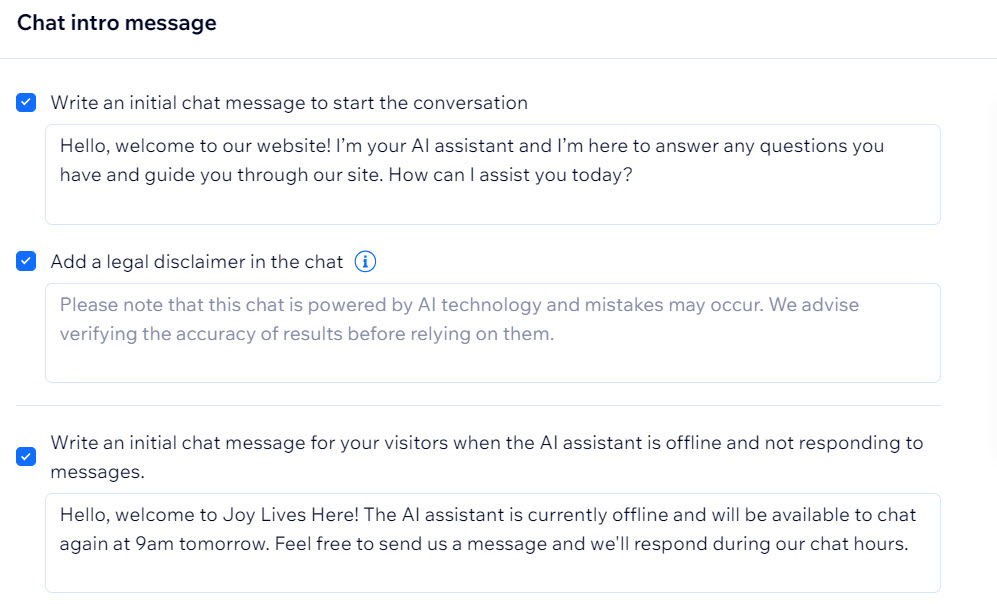
In the Chat intro message section, click the checkbox next to the message type you want to use and enter the message:
Write an initial chat message to start the conversation: Enter your message in the field. We recommend writing a short, inviting message that includes your business name, as if they were entering a real store.
Add a legal disclaimer in the chat: Enter a disclaimer in the field letting site visitors know that the conversation is powered by an AI chat. This helps users understand that mistakes or misunderstandings may occur. The disclaimer will appear once to every site visitor, right after the first welcome message.
Write an initial chat message for your visitors when the AI chat is offline and not responding to messages: Enter a message in the field that site visitors will receive when the AI Site-Chat is offline. We recommend letting users know when it will be back online, and asking them to leave a short message that will be responded to later.
Note:
Remember to click Save Changes once you have entered a chat intro message.
Contact form
Using a contact form is an great way to keep in touch with your site visitors. Once a visitor fills out the form, the information is sent to your inbox and contact list so you never miss a sales lead. The AI Site-Chat will only send the form if it does not recognize the visitor as a contact.
In the Contact form section, select the relevant options:
Send the form to new visitors only in the chat when:The AI chat is unable to answer a user's question: The form is sent to new visitors only when the AI Site-Chat cannot answer the visitor's question.
A user asks to speak to you directly instead of the AI Site-Chat: The form is sent to visitors and you will receive it in your Inbox to respond later.
Choose form fields: The following fields appear on the form by default. The Email field is mandatory, but you can deselect the Name, Phone Number, and Message fields.Name
Email (this field is mandatory)
Phone Number
Message
Note:
Remember to click Save Changes once you have configured your contact form settings.
Step 3 | Activate your AI Site-Chat
Activate the AI Site-Chat to set it live on your site.
Important:
Before setting the AI Site-Chat as active on your site, we highly recommend improving its abilities even further by:
Testing its knowledge of your site in an enclosed environment.
Training it with enhancements or restrictions based on your own knowledge.
To activate the AI Site-Chat:
Click the toggle at the top right of the page.

FAQs
Click a question below to learn more about the AI Site-Chat.
Can I customize the design of the AI Site-Chat?
Yes, you can design and customize the appearance of your AI Site-Chat to reflect your brand's style and voice.
Can I see the interactions between the AI Site-Chat and my site visitors?
Yes, you can monitor interactions by reviewing the chat logs in your Wix dashboard. This allows you to understand common questions and improve the AI Site-Chat's responses.
Is there a way to disable the AI Site-Chat temporarily?
Yes, you can either set custom offline hours in the settings or choose to not show the AI Site-Chat on your site by clicking the toggle at the top right of the dashboard to set it as inactive.
Is there a way to provide feedback on the AI Site-Chat's performance?
Yes, you can provide feedback in the test environment in your dashboard. This helps improve the AI Site-Chat's capabilities and ensures it meets your business needs.
Tip: Regularly update and test the AI Site-Chat to keep it aligned with any changes in your products, services, or business strategies.