top of page

Promoting stores sales

Wix Stores: Managing Your Coupons

Manage your coupons by activating the ones you want to offer customers and deactivating or deleting coupons you don't want to make available.

Note:

If you delete or deactivate a coupon, your customers won't be able to redeem it while checkout out.

Activating or deactivating a coupon

You can save time by creating a coupon once and then reusing it when needed. For example, you can create a Summer Sale Coupon and deactivate it when the sale it over. When summer rolls around again, just click the toggle to activate it.
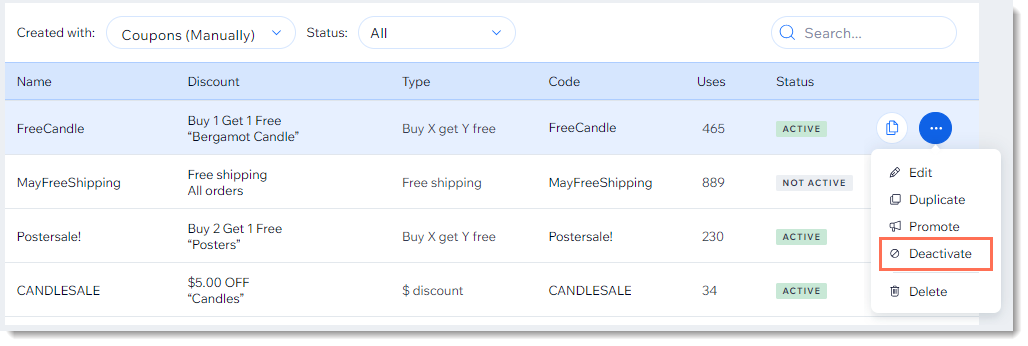
Screenshot of the coupon list in the Wix dashboard with the deactivate coupon option outlined

  1. Go to Coupons in your site's dashboard.

  2. Click the More Actions icon    next to the relevant coupon.

  3. Click Activate or Deactivate.

Deleting a coupon

Keep your Coupons page clean by deleting coupons that can no longer be used.

Note:

Once you delete a coupon, you can't undo this action. You can, however, recreate a coupon with the same details.
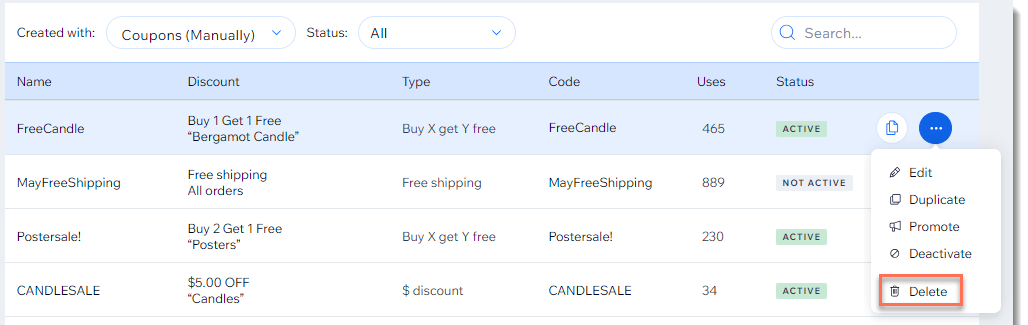
Screenshot of the coupon list in the Wix dashboard with the Delete  option outlined

To delete a coupon:

  1. Go to Coupons in your site's dashboard.

  2. Click the More Actions icon   at the top right of the coupon you want to delete.

  3. Click Delete.

  4. Click Yes, Delete to confirm.

Need A Professional Website?
Contact Us 
Today!

About Wix Payments

Enabling or Disabling a Payment Method on Your Checkout

Accepting Donation Payments

Accepting Payments by Manual Card Entry

Best Practices for Accepting Card Payments

Troubleshooting Issues for Accepting Payments

Setting Up a Grace Period for Subscriptions (e.g. Stores, Pricing Plans, Recurring Invoices)

Understanding Double Charges on Your Customers' Bank Statements

Setting Your Location for Accepting Payments

Email from Wix Regarding Changes to Your Payment Method Settings

Accepting Payments from Your Customers with SCA (PSD2)

Selling CBD on Your Wix Site

Compliance with Local Payment Laws

Accepting Payments in Installments (BNPL)

Accepting Recurring Payments

Adding and Setting Up a Pay Button

Handling Chargebacks from Your Customers

Getting an Overview of Your Payments on Mobile

Getting an Overview of Your Payments

Setting Your Currency for Accepting Payments

Disconnecting a Payment Provider

Changing Your Payment Provider for Accepting Credit Card Payments

Connecting a Payment Provider

Available Payment Providers for Selling CBD on Wix

Setting Up Manual (Offline) Payments

Available Payment Providers in Your Country

Adding Goods / Services that may be Prohibited by Your Payment Provider

Accepting Payments by Credit Card

Using the Accept Payments Tab

Checking for Restricted Products & Services when Setting Up Your Payments

wix experts
Graphic2Traffic web design
©
bottom of page