top of page

Setting up your store

Wix Stores: Displaying Tax and Shipping Info with Product Prices

Make sure customers understand how your site calculates tax and how you charge for shipping by adding a brief message. The messages appear everywhere your product prices are displayed. You can choose whether to display tax info, shipping info, or both.
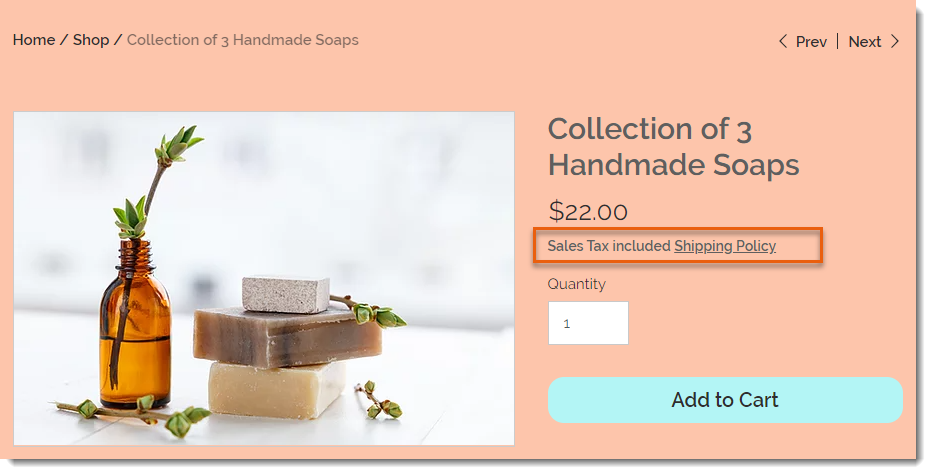
Screenshot of sample product in a Wix store with the shipping & tax info outlined

You can show or hide tax and shipping info from the Item price settings.

Show me how to access the Item price settings

  1. Go to your site's dashboard.

  2. Click Settings.

  3. Select Products & Inventory.

  4. Scroll down to the Price and shipping display.

In this article, learn more about:

Displaying tax messages next to product prices

In some countries, tax is included in the product price while in others, it's added at checkout. Make sure your customers understand when tax is added by displaying a "Sales Tax Included" or "Excluding Sales Tax" message.

  1. Go to the price and shipping settings in your site's dashboard.

  2. Enable the Show if tax is included or not toggle.
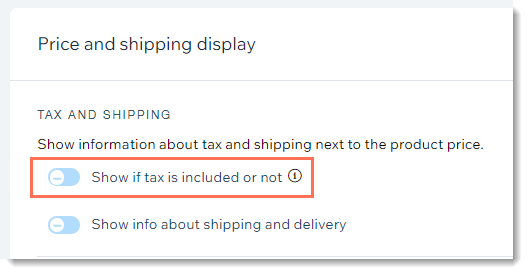
Screenshot of store settings in the dashboard with the tax display toggle outlined

Displaying shipping messages next to product prices

To let customers know your shipping policy, you can either display a short message (e.g. Free Shipping) or create a message that appears in a pop-up.

GIF showing what customers see on a Wix site when you display shipping and tax info

To display shipping info next to product prices:

  1. Go to the price and shipping settings in your site's dashboard.

  2. Enable the Show info about shipping and delivery toggle.
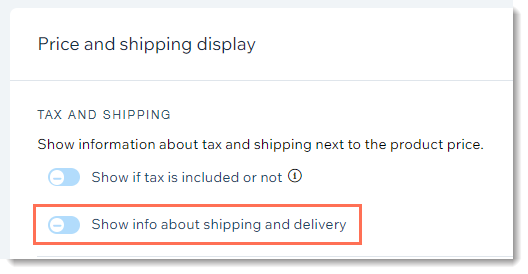
Screenshot of store settings in the dashboard with the shipping & delivery display toggle outlined

  1. Enter a shipping message (maximum 23 characters). This is the text customers see next to product prices.

  2. (Optional) Link the message to a pop-up:Select the Let customers click this text to open a pop-up with more information checkbox.
    Enter a title.
    Enter the shipping and delivery information.

Need A Professional Website?
Contact Us 
Today!

Wix Hotels by HotelRunner: Connecting Booking.com to Your Site

Wix Hotels by Hotelrunner: Changing the ‘Room’ Text on Your Site

Wix Hotels by HotelRunner: Adding Room Types

Wix Hotels by HotelRunner: Creating and Managing Your Tax Categories

Wix Hotels by HotelRunner: Troubleshooting "There Are No Available Rooms" Error

Wix Hotels by HotelRunner: Switching to the New Wix Hotels

Wix Hotels by HotelRunner: Customizing Your Email Templates

Wix Hotels by HotelRunner: Managing Your Reservation Settings

Wix Hotels by HotelRunner: Managing Your Reservations

Wix Hotels by HotelRunner: Managing Your Site Languages

Wix Hotels by HotelRunner: Making Bulk Updates

Wix Hotels by HotelRunner: Setting Your Open Seasons, Pricing and General Info

Wix Hotels by HotelRunner: Managing Prices and Availability with the Inventory Calendar

Wix Hotels by HotelRunner: Creating and Managing Your Cancellation and Deposit Policies

Wix Hotels by HotelRunner: Creating and Managing Your Rate Plans

Wix Hotels by HotelRunner: Adding and Setting up Your Hotel

Wix Hotels by HotelRunner: An Overview

Removing Imported Reservations from Your Wix Hotels Reservation Calendar

Troubleshooting the Wix Hotels Channel Manager

Disconnecting a Channel in the Channel Manager (HotelRunner)

Importing Reservations from an External Calendar (iCal) to Wix Hotels

Exporting Your Reservations from Wix Hotels

Wix Hotels Channel Manager Fees

Checklist for Connecting Wix Hotels to the Channel Manager (HotelRunner)

Connecting Your Hotel to Booking Channels Using the Channel Manager

Connecting Wix Hotels with External Services

Wix Hotels: About the Channel Manager

About the Wix Hotels Checkout Process

Managing Wix Hotels Reservations from the Wix App

Changing the Status of a Hotel Reservation in Wix Hotels

wix experts
Graphic2Traffic web design
©
bottom of page