top of page

Managing store inventory

Wix Stores: Displaying an 'Out of Stock' Notice on a Product

When one of your products is out of stock, an Out of Stock message automatically appears in the Product Gallery and in the Product Page.
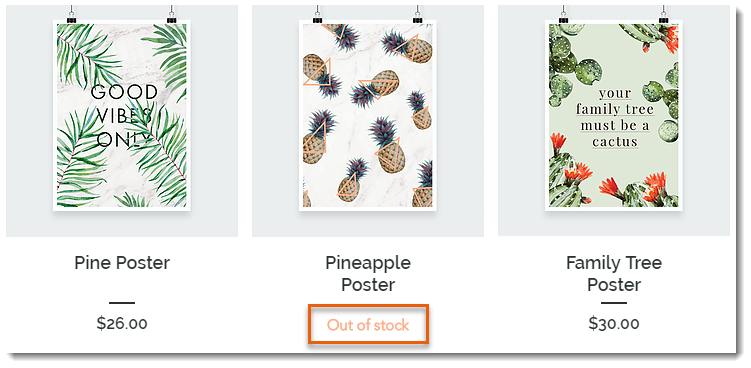
Screenshot of a Product Gallery  where the Add to Cart button text displays Out of Stock instead

Tip:

Instead of the "Out of Stock" message, you can set up back-in-stock notifications. This way, when an item is out of stock, customers see a "Notify When Available" message and can sign up to get an email letting them know when the item is available. Learn more

In this article, learn how to:

Customizing the message in Product Galleries

If you display a button in your product gallery, it changes automatically to an "Out of Stock" message when needed. You can customize the text of the "Out of stock" message.

Wix Editor

Studio Editor

  1. Go to your editor.

  2. Go to the page with the gallery you want to customize.

  3. Click the gallery on your page.

  4. Click Settings .

  5. Edit the text:Click the Text tab.
    Edit the "Out of Stock" text.

Customizing the message in the Product Page

When a product is out of stock, the Add to Cart button in the Product Page automatically changes to an Out of Stock button. The color and font of this button cannot be edited, but you can edit the message text.
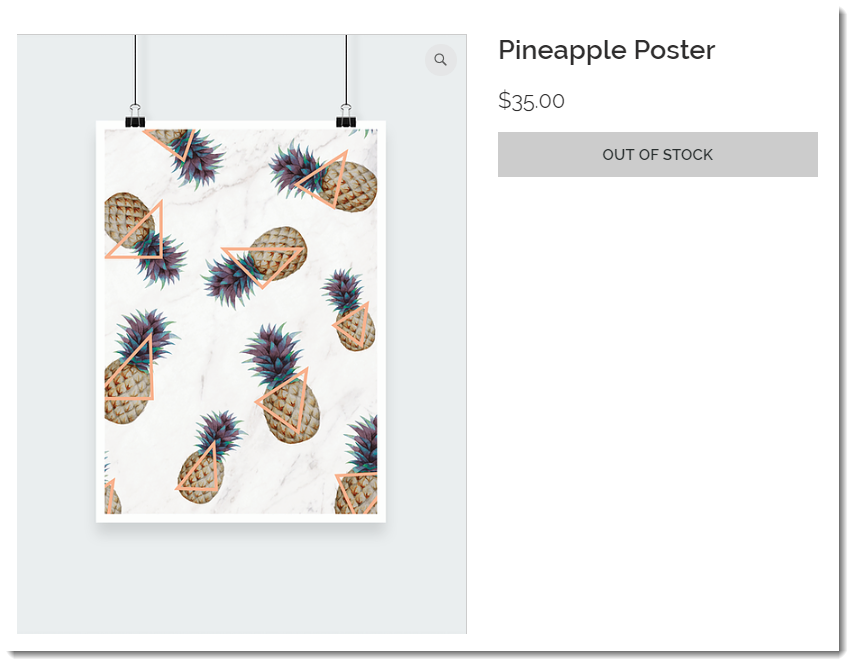
Screenshot of the Product Page where the Add to Cart button text displays Out of Stock instead

To customize the "Out of stock" message in the Product Page:

Wix Editor

Studio Editor

  1. Go to your editor.

  2. Go to your Product page:Click Pages & Menu  on the left side of the editor.
    Click Store Pages.
    Click Product Page.

  3. Click the Product Page element on your page.

  4. Click the Text tab.

  5. Edit the "Out of Stock Message" text.

Need A Professional Website?
Contact Us 
Today!

Online Programs: Managing Your Sections and Steps

Online Programs: Adding Sections and Steps to Your Program

Online Programs: Editing Your Program Settings

Online Programs: Creating a New Program

Online Programs: Adding and Setting Up Online Programs

Online Programs: An Overview

Wix Art Store: Available Print Sizes

Wix Art Store: Order A Print Product Availability

Wix Art Store: Printing and Shipping Issues in the Wix Art Store

Wix Art Store: Image Quality Web Ready vs. Original File

Wix Art Store: Test Ordering Your Printed Merchandise in Wix Art Store

Wix Art Store: Creating Special Offers in Your Art Store

Wix Art Store: Setting Up Wix Art Store to Sell Digital Images

Wix Art Store: Setting Up Wix Art Store to Sell Digital Images and Prints

Wix Art Store: Withdrawing Your Earnings in the Wix Art Store

Wix Art Store: Changing Your Currency in Wix Art Store

Wix Art Store: Setting Prices in Your Wix Art Store

Wix Art Store: Choosing What Types of Files to Sell

Wix Art Store: No Longer Available in the App Market

Wix Art Store: About the Wix Art Store

Wix Photo Albums: Reordering the Products in Your Photo Album Store

Wix Photo Albums: Editing the 'Buy Now' Button

Wix Photo Albums: Viewing Available Print Sizes

Wix Photo Albums: Adding Watermarks to Your Photos

Wix Photo Albums: Setting Prices in the Wix Photo Albums Store

Wix Photo Albums: Withdrawing Your Earnings in the Wix Photo Albums Store

Wix Photo Albums: Test Ordering Your Printed Merchandise in the Wix Photo Album Store

Wix Photo Albums: Store Image Quality Web Ready vs. Original File

Wix Photo Albums: Selecting a Payment Method in Wix Photo Albums Store

Wix Photo Albums: Changing Your Currency in the Wix Photo Albums Store

wix experts
Graphic2Traffic web design
©
bottom of page