top of page

Managing store inventory

Wix Stores: Displaying an 'Out of Stock' Notice on a Product

When one of your products is out of stock, an Out of Stock message automatically appears in the Product Gallery and in the Product Page.

Screenshot of a Product Gallery  where the Add to Cart button text displays Out of Stock instead

Tip:

Instead of the "Out of Stock" message, you can set up back-in-stock notifications. This way, when an item is out of stock, customers see a "Notify When Available" message and can sign up to get an email letting them know when the item is available. Learn more

In this article, learn how to:

Customizing the message in Product Galleries

If you display a button in your product gallery, it changes automatically to an "Out of Stock" message when needed. You can customize the text of the "Out of stock" message.

Wix Editor

Studio Editor

  1. Go to your editor.

  2. Go to the page with the gallery you want to customize.

  3. Click the gallery on your page.

  4. Click Settings .

  5. Edit the text:Click the Text tab.
    Edit the "Out of Stock" text.

Customizing the message in the Product Page

When a product is out of stock, the Add to Cart button in the Product Page automatically changes to an Out of Stock button. The color and font of this button cannot be edited, but you can edit the message text.
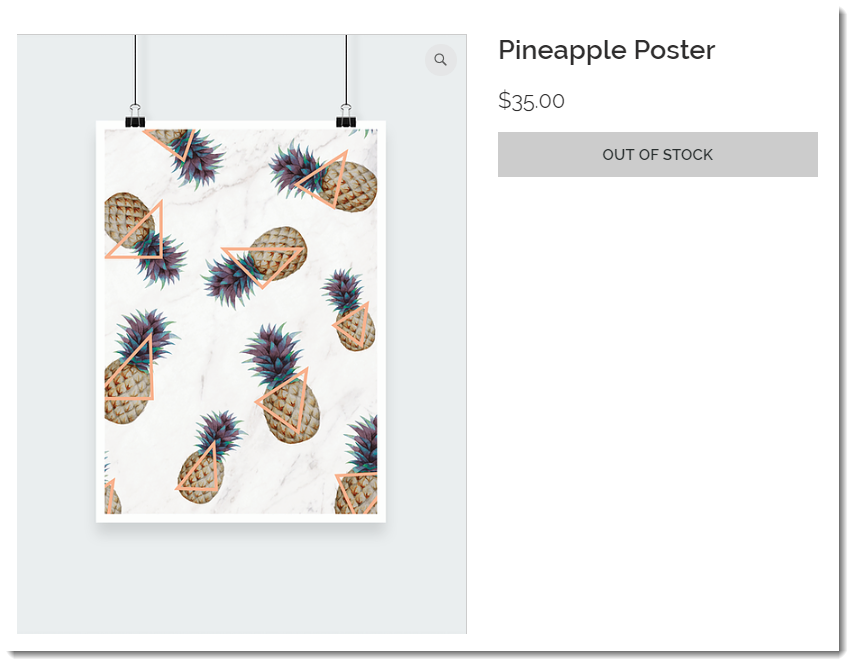
Screenshot of the Product Page where the Add to Cart button text displays Out of Stock instead

To customize the "Out of stock" message in the Product Page:

Wix Editor

Studio Editor

  1. Go to your editor.

  2. Go to your Product page:Click Pages & Menu  on the left side of the editor.
    Click Store Pages.
    Click Product Page.

  3. Click the Product Page element on your page.

  4. Click the Text tab.

  5. Edit the "Out of Stock Message" text.

Need A Professional Website?
Contact Us 
Today!

Connecting 2Checkout as a Payment Provider

Requesting Additional Payment Providers & Methods

Using a Different Account with the Same Payment Provider

Wix Payments: About Chargeback Fees

Wix Payments: About Suspicious Payments

Wix Payments: About the 'Liability Shift'

About Reserve Funds in Your Wix Payments Account

Wix Payments: Covering a Negative Balance

Adding Funds to Cover Refunds in Your Wix Payments Account

Wix Payments: Failed Payout

Working with Grouped Payment Methods in Wix Payments

Webinar: Chargebacks - Best Practices, Expert Tips & Tools

Wix Payments: Getting a 1099-K Form

Wix Payments: PCI Compliance

Wix Payments: Account Has Been Closed

Wix Payments: Pandemic Driven Sales Rules

Accessing the Wix Payments Dashboard After Disconnecting Your Account

Connecting Giropay as a Payment Method (Through Wix Payments)

Wix Payments: Adding iDeal as a Payment Method

Connecting Pay Now by Klarna as a Payment Method (Through Wix Payments)

Understanding Your Chargeback Ratio

Chargebacks in Wix Payments

Wix Payments: Declined Payment Due to Suspected Fraud

Wix Payments: Declined Payment Due to Suspected Fraud

Wix Payments: Transaction Declined Reasons

Wix Payments: Understanding Your Payments Table

Wix Payments: Refunding Customers

Wix Payments: Understanding Your Monthly Fees Invoice

Wix Payments: Viewing Your Settlement Report

Wix Payments: Changing Your Payout Schedule

wix experts
Graphic2Traffic web design
©
bottom of page