top of page

Designing your store

Wix Stores: Customizing the Quick View in the Product Gallery

Quick view allows customers to view product details in a popup, without leaving your shop page. You can customize the quick view colors and fonts, as well as the "Quick View" and "Add to Cart" buttons.
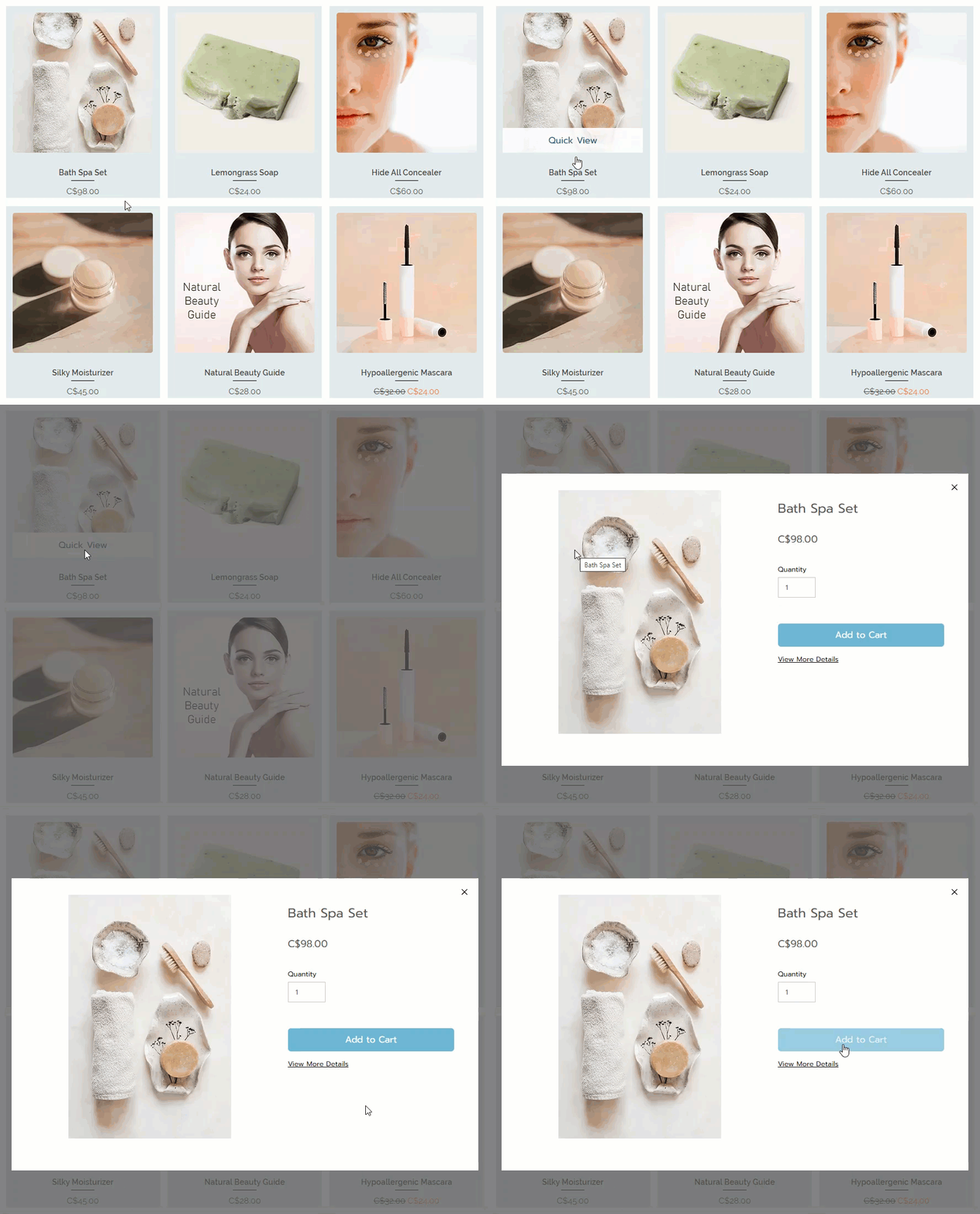
Screenshot of a sample Grid Gallery in a Wix store

In this article, learn more about:

Enable or disable Quick View

You can add Quick View to any product gallery or to the Category page.

Important:

If the Add to Cart button is enabled and placed on top of the product image, the Quick View button won't be displayed. To customize the Add to Cart button placement, go to the Layout tab.

To enable or disable Quick View:

  1. Click the relevant Product Gallery or the Category Page in your editor.

  2. Click the Settings icon .

  3. Click the Display tab.

  4. Click the checkbox next to Quick View button to enable or disable it.

Customize the Quick View button

When Quick View is enabled and a customer on desktop hovers with their mouse over a product, the Quick View button appears. You can customize the button's colors, opacity, and font.
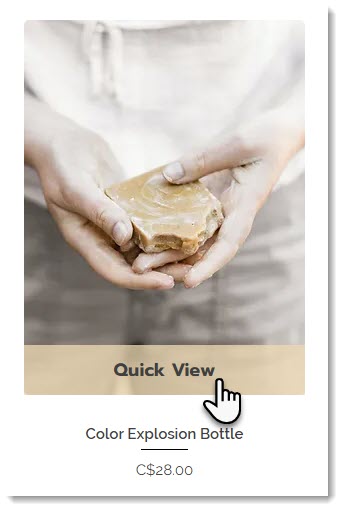
Screenshot of a product in a Wix store with the Quick View enabled

To customize the Quick View button:

  1. Click the relevant Product Gallery or the Category Page in your editor.

  2. Click the Settings icon .

  3. Click the Design tab.

  4. Select Quick View button.

  5. Customize the button using the available options.

Customizing the Quick View window

After a customer clicks the Quick View button, the Quick View window opens. You can customize the design of this window, so it matches your store's look and feel.

To customize the quick view:

  1. Click the relevant Product Gallery or the Category Page in your editor.

  2. Click the Settings icon .

  3. Click the Quick View tab.

  4. Customize the Quick View using the available options.

Need A Professional Website?
Contact Us 
Today!

Accepting Payments: An Overview

Third-Party App: Adobe Express for Wix by Adobe

Third-Party App: Image Zoom by Widgetic

Third-Party App: Calculator Builder by Lumifish LABS

Third-Party App: Blocky IP & Country Blocker by Effective Apps

Third-Party Apps: Design Elements Apps

Third-Party App: Google Reviews by Elfsight

Third-Party App: Customer Reviews by Write a Customer Review

Third-Party App: Contact Management/CRM by vcita Inc.

Third-Party App: 123 Form Builder & Payments by 123FormBuilder

Third-Party Apps: Communications Apps

Third-Party App: Cookiebot™ for Wix by Usercentrics

Recommended Apps for Musicians

Third-Party App: Weglot Translate by Weglot

Third-Party Apps: Media and Content Apps

Third-Party App: Boom Event Calendar by BoomTech

Third-Party App: Cap Rate Calculator by Allioo.com

Third-Party App: Nash: All-in-1 Local Delivery by Nash Technologies Inc

Third-Party Apps: Hotel & Airbnbs Map

Third-Party App: Events Calendar by inlight Labs

Third-Party Apps: Services and Events Apps

Third-Party App: Mailchimp by Intuit Mailchimp

Third-Party App: ReConvert Upsell and Cross Sell by ReConvert

Third-Party App: Visitor Analytics by Visitor Analytics

Third-Party App: Site Booster by AppSharp

Third-Party App: rankingCoach SEO by rankingCoach

Third-Party App: Rabbit SEO by SEO Tools

Third-Party App: Mailchimp Integration by PoCo

Third-Party App: Mailchimp Forms by MailMunch

Third-Party App: GetTraffic by Infolinks Media

wix experts
Graphic2Traffic web design
©
bottom of page