


Promoting stores sales
Wix Stores: Creating a Coupon With a Minimum Order Amount
Creating a coupon with a minimum order amount in Wix Stores allows you to offer discounts to customers who spend over a specified amount, such as "buy over $100, get 20% off." This helps you encourage larger purchases, increasing your overall sales. For example, if a customer is close to spending $100, they might add an extra item to their cart to qualify for the discount, boosting your revenue
Note:
This option is available for $ discount coupons, % discount coupons and free shipping coupons.
Creating a coupon with a minimum order amount
Go to Coupons in your site's dashboard.
Click +New Coupon.
Select a coupon type:$ Discount
% Discount
Free Shipping
Enter the coupon code in the Coupon Code field.
Note: This is the code customers enter.Enter the name of the coupon in the Coupon Name field.
Note: Appears in the Coupons tab and on the Cart Page.Enter the coupon details (There are no coupon details for free shipping coupons).
Select Minimum order subtotal from the Apply to drop-down.
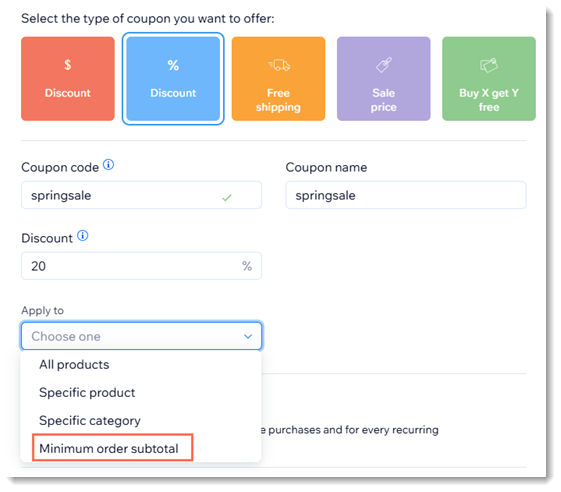
Enter the minimum amount.
(Optional) Select the Include subscriptions checkbox to apply this coupon to product subscriptions.
Note: Applies to every cycle (e.g. every month of a monthly subscription). Make sure the coupon value isn't greater than the subscription price.Set the validity of the coupon in the Valid between field:Enter the start date.
Enter the end date, or select the Don't set an end date checkbox.
(Optional) Select the checkboxes next to the limits you want to apply:Limit the total number of uses for this coupon: Enter the total number of times the coupon can be used.
Tip: Multiple purchases by the same customer are counted individually.
Limit to one use per customer: Each customer can use the coupon only once.
Click Create Coupon.
What's next?
Go to Email Marketing to send an email campaign with a coupon.
FAQs
Click a question below to learn more about coupons.
How are coupons applied to product subscriptions?
When you select the Include subscriptions checkbox, and a customer uses a coupon to purchase a subscription, the discount applies each cycle.
This means that if a customer buys a monthly subscription that lasts 12 months, the customer gets a discount for each of the 12 purchases.
For purchases with the manual payment method, when does the number of available coupons update?
If you limited your coupon use to a set number (e.g. available for the first 100 shoppers), every time a coupon is used, it's counted.
When a customer pays you offline, the coupon count is updated once you mark the order as paid.
Can I automatically send coupons by email to customers who perform an action?
Yes, use Wix Automations to automatically send coupons by email. You can set up a system that detects when a customer completes a predefined action, such as making a purchase or signing up for a newsletter and they will receive a coupon.
Where can I learn more about coupons?
Check out the full course in Wix Learn on driving traffic to your store or skip to the video on creating and sending coupons.