top of page

Setting up Retail POS sales

Wix Retail POS: Setting Up Text Receipts

Important:

  • This article is about Wix Retail POS tablet for brick & mortar businesses.

  • For info on using POS on a mobile device, click here.

Save paper by providing customers with receipts via text message (SMS). After you enable this option, you'll be able to select it at checkout.
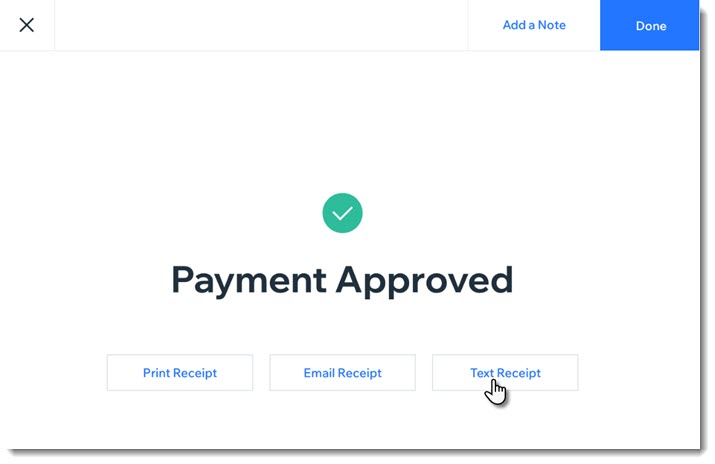
Screenshot of the screen you see after payment for a sale was approved. The screen show a text receipt option

Enabling text receipts

To display the text message receipt option at checkout, you must first enable text receipts.

To enable text receipts:

  1. Open the POS tablet.

  2. Tap the Menu icon  at the bottom left.

  3. Tap Settings.

  4. Tap Receipt on the left menu.

  5. Enable the Enable text receipts toggle.

FAQs

Click a question below to learn more about text receipts.

How do I enter phone numbers correctly?

Enter your customer's phone number, starting with the country code, then the area code, and the actual number. For US and Canadian numbers, enter 1 as the country code, as in the example below:

Screenshot of the field where you enter the phone number and the Text Receipt button

How can I send or resend a text receipt at a later date?

  1. Open the POS tablet.

  2. Tap Sales History from the bottom bar.

  3. Tap the relevant sale to select it.

  4. Tap Actions.

  5. Select Text Receipt.

  6. Enter the phone number and tap Text Receipt.

Need A Professional Website?
Contact Us 
Today!

Connecting 2Checkout as a Payment Provider

Requesting Additional Payment Providers & Methods

Using a Different Account with the Same Payment Provider

Wix Payments: About Chargeback Fees

Wix Payments: About Suspicious Payments

Wix Payments: About the 'Liability Shift'

About Reserve Funds in Your Wix Payments Account

Wix Payments: Covering a Negative Balance

Adding Funds to Cover Refunds in Your Wix Payments Account

Wix Payments: Failed Payout

Working with Grouped Payment Methods in Wix Payments

Webinar: Chargebacks - Best Practices, Expert Tips & Tools

Wix Payments: Getting a 1099-K Form

Wix Payments: PCI Compliance

Wix Payments: Account Has Been Closed

Wix Payments: Pandemic Driven Sales Rules

Accessing the Wix Payments Dashboard After Disconnecting Your Account

Connecting Giropay as a Payment Method (Through Wix Payments)

Wix Payments: Adding iDeal as a Payment Method

Connecting Pay Now by Klarna as a Payment Method (Through Wix Payments)

Understanding Your Chargeback Ratio

Chargebacks in Wix Payments

Wix Payments: Declined Payment Due to Suspected Fraud

Wix Payments: Declined Payment Due to Suspected Fraud

Wix Payments: Transaction Declined Reasons

Wix Payments: Understanding Your Payments Table

Wix Payments: Refunding Customers

Wix Payments: Understanding Your Monthly Fees Invoice

Wix Payments: Viewing Your Settlement Report

Wix Payments: Changing Your Payout Schedule

wix experts
Graphic2Traffic web design
©
bottom of page