top of page

Setting up Retail POS sales

Wix Retail POS: Selling Virtual Gift Cards

Important:

  • This article is about Wix Retail POS tablet for brick & mortar businesses.

  • For info on using POS on a mobile device, click here.

Sell virtual gift cards on your website and let customers use them to purchase products or services online and at your point of sale.

Notes:

  • You cannot refund the purchase of the gift card itself or orders paid for by gift card.

  • You can exchange orders paid for with a gift card only when the price of the exchanged products is the same (i.e. the customer isn't refunded or charged).

Set up a gift card option

Start by creating your virtual gift card. You can create a Wix gift card right from your Wix dashboard. You can also create gift cards using the Gifted app.

Physical (plastic) gift cards:

Learn how to order physical (plastic) gift cards and sell them in your store.

Enabling gift cards at a POS

Enable gift cards so you select them as a payment option during checkout.

To enable gift cards:

  1. Open the POS tablet.

  2. Tap the Menu icon  at the bottom left.

  3. Tap Settings.

  4. Tap Payment.

  5. Click the Accept Gift Cards toggle to enable it.
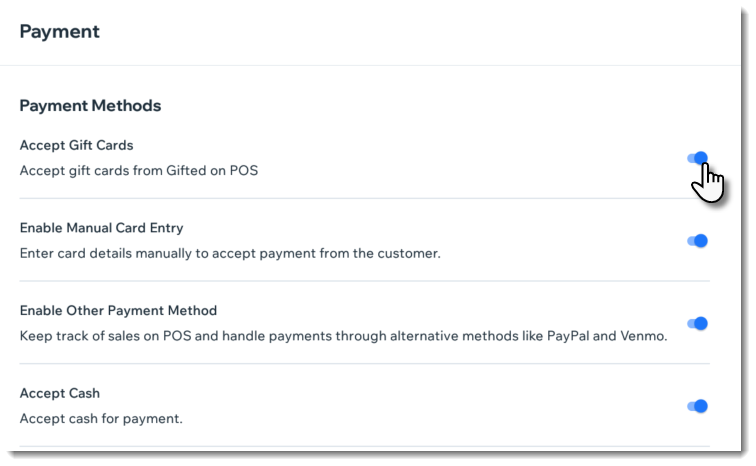
Screenshot of the payment settings screen in Wix Retail POS with the accept gift card option outlined

Accepting payment by gift card

Let customers redeem their gift cards while making a purchase.

Tip:

Gift card codes are not case sensitive.

To redeem a gift card at checkout:

  1. Open the POS tablet.

  2. Tap Checkout on the bottom bar.

  3. Process the sale and proceed to checkout.

  4. Select Gift Card under Select Payment Method.

  5. Enter or scan the gift card code and tap Apply.
    Tip: Only Gifted app codes can be scanned.

  6. (If the gift card didn't cover the entire purchase) Click Add Payment and process the balance using another payment method, such as cash or a credit card.
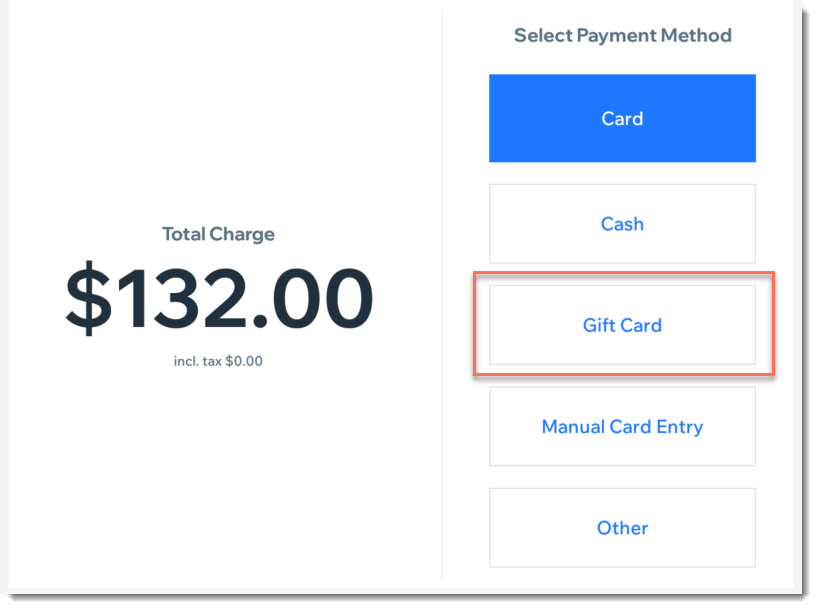
Screenshot of the payment screen in Wix Retail POS with the gift card option outlined

Checking a gift card balance

Customers may want to check how much money is left in their gift card before deciding on a purchase. You can check this for them on the POS tablet.

To check a gift card balance:

  1. Open the POS tablet.

  2. Tap Checkout on the bottom bar.

  3. Tap Gift Cards on the left.

  4. Tap Check Gift Card Balance.

  5. Select an option:Enter the code manually.
    Enter or scan the gift card code.
    Tip: Only Gifted app codes can be scanned.
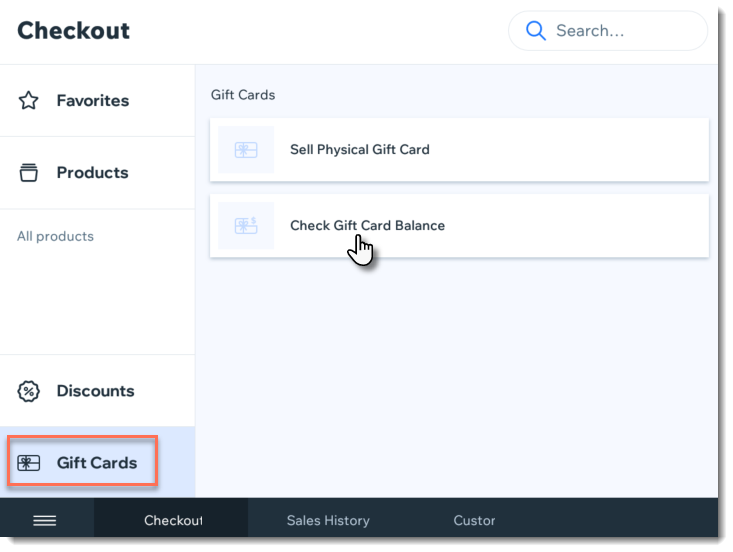
Screenshot of the Gift Card tab in the Wix Retail POS

Need A Professional Website?
Contact Us 
Today!

Wix Hotels by HotelRunner: Connecting Booking.com to Your Site

Wix Hotels by Hotelrunner: Changing the ‘Room’ Text on Your Site

Wix Hotels by HotelRunner: Adding Room Types

Wix Hotels by HotelRunner: Creating and Managing Your Tax Categories

Wix Hotels by HotelRunner: Troubleshooting "There Are No Available Rooms" Error

Wix Hotels by HotelRunner: Switching to the New Wix Hotels

Wix Hotels by HotelRunner: Customizing Your Email Templates

Wix Hotels by HotelRunner: Managing Your Reservation Settings

Wix Hotels by HotelRunner: Managing Your Reservations

Wix Hotels by HotelRunner: Managing Your Site Languages

Wix Hotels by HotelRunner: Making Bulk Updates

Wix Hotels by HotelRunner: Setting Your Open Seasons, Pricing and General Info

Wix Hotels by HotelRunner: Managing Prices and Availability with the Inventory Calendar

Wix Hotels by HotelRunner: Creating and Managing Your Cancellation and Deposit Policies

Wix Hotels by HotelRunner: Creating and Managing Your Rate Plans

Wix Hotels by HotelRunner: Adding and Setting up Your Hotel

Wix Hotels by HotelRunner: An Overview

Removing Imported Reservations from Your Wix Hotels Reservation Calendar

Troubleshooting the Wix Hotels Channel Manager

Disconnecting a Channel in the Channel Manager (HotelRunner)

Importing Reservations from an External Calendar (iCal) to Wix Hotels

Exporting Your Reservations from Wix Hotels

Wix Hotels Channel Manager Fees

Checklist for Connecting Wix Hotels to the Channel Manager (HotelRunner)

Connecting Your Hotel to Booking Channels Using the Channel Manager

Connecting Wix Hotels with External Services

Wix Hotels: About the Channel Manager

About the Wix Hotels Checkout Process

Managing Wix Hotels Reservations from the Wix App

Changing the Status of a Hotel Reservation in Wix Hotels

wix experts
Graphic2Traffic web design
©
bottom of page