


Creating Wix Restaurants menus
Wix Restaurants: Understanding Prices on Your Menu
Control the way prices look on your menu. The appearance of your prices depends on the regional format you choose, as well as the app you're using (i.e. Menus, Restaurant Orders).
Understanding how prices are displayed
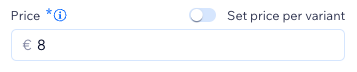
You can customize both on your menu to align with your restaurant business needs. Once you add a menu item and enter a price for it, the numerical value appears on the menu as you typed it. The way the price looks depends on the format you choose and the specific app you're using (Menus or the Restaurant Orders app). If you offer some items for free, you can decide how they look. You can also hide the prices and currency from your menu.
The price format details aspects like the number of digits for the price's fractional part and the currency character used to separate it. For instance, the pattern for US dollars shows that the '$' symbol comes before the price number. You can customize how your price looks on the menu by changing your site's regional settings.

Note:
This is the case in the new Menus app, and not in the new Restaurant Orders app. The Menus page shows the prices as typed in the dashboard, while Restaurant Orders pads prices with 2 decimal points.
Example of how prices appear on your site
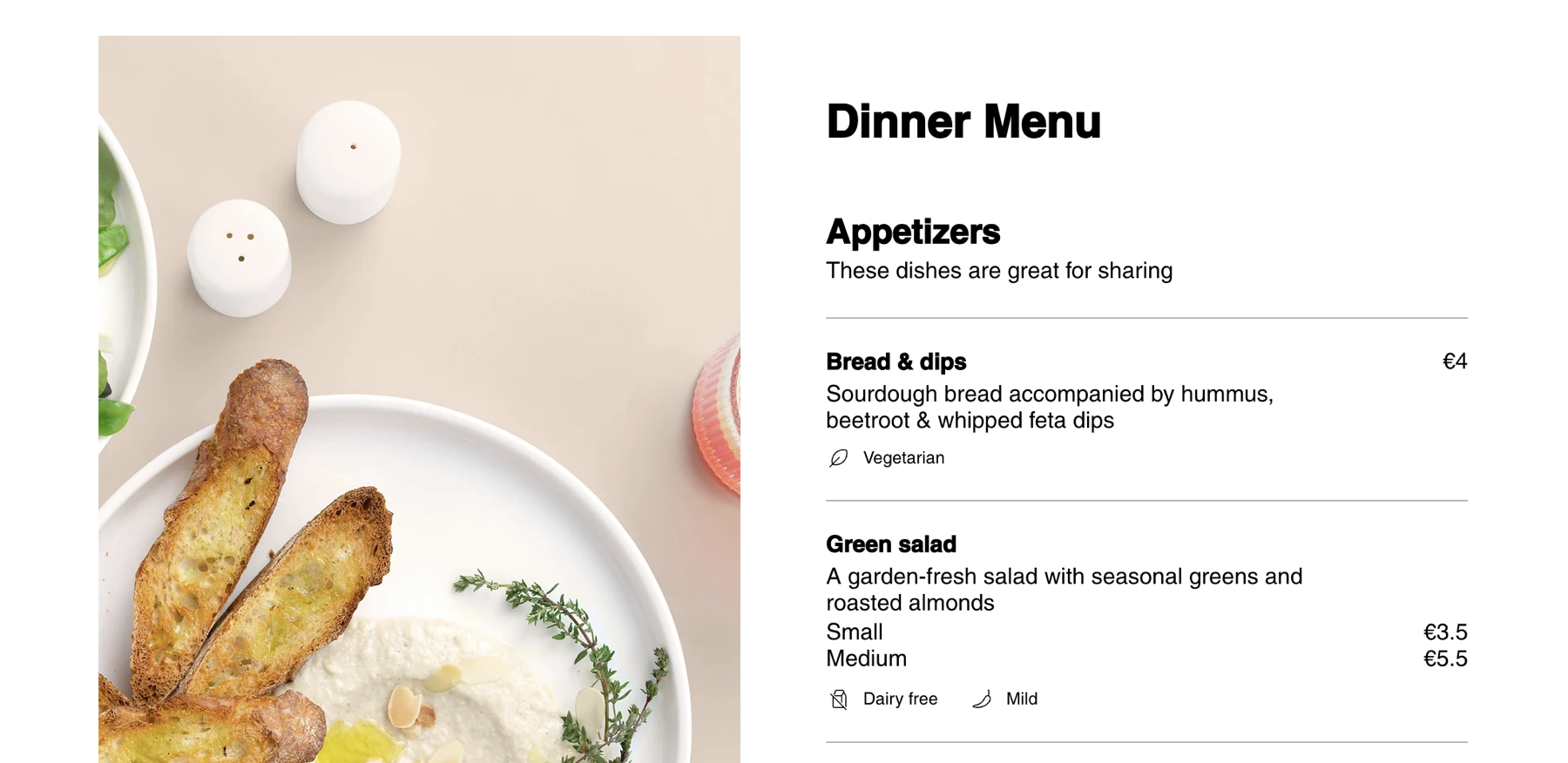
The example below shows regional settings set to Germany and currency set to Euros. See how the prices look in Menus vs. Online Orders.
Hiding prices and currencies for menu items
Hide prices or currency in your editors' elements panel, offering you the flexibility to create a clean and minimalist menu design. This feature is ideal for running promotions, exclusive events, or emphasizing the aesthetic appeal of your menu without displaying pricing information.
Wix Editor
Studio Editor
Go to your menu page in your editor.
Click the Menus (New) app on the page.
Click the Widget Elements icon
 .
.Deselect the checkbox next to Currency.
Deselect the checkbox next to Price.

Show or hide the price for items listed as 0.00
You can set this rule to all sections and menus, or select specific sections.
Wix Editor
Studio Editor
Go to your menu page in your editor.
Click the Menus (New) app on the page.
Click the Settings icon
 .
.Select the relevant option under Price options.
