top of page

Taking online orders

Wix Restaurants: Changing the Pickup Hours for Orders

Important:

Set what times are convenient for customers to pick up their orders. You can set pickup during open hours or set specific hours that work with your schedule. For example, setting a pickup time starting at 12pm ensures customers arrive for their lunch orders at lunchtime.

To change restaurant pickup hours:

  1. Go to Order Settings in your site's dashboard.

  2. Click the Pickup tab.

  3. Hover over the Hours field and click Edit to change your pickup hours.

  4. Choose how you want to set your pickup hours:Opening Hours: Pickup is available during your restaurant's opening hours.

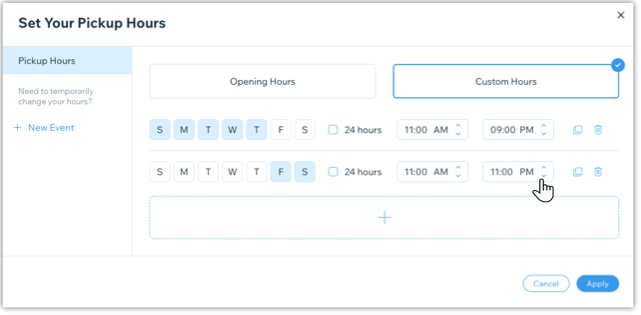
    Custom Hours: Set specific days and hours where pickup is available:Select the days.

    Select or deselect the 24 hours checkbox:Selected: Customers can pick up their orders at any time.
    Deselected: You set specific hours when customers pickup their orders.
    (Optional) Click the Add + icon to add another day and/or time range. For example you could set one pickup window for Monday - Thursday from 9AM-5PM and another for Friday - Saturday from 9AM-11PM.

  5. Click Apply.

  6. Click Save at the top right.

A screenshot of setting your pickup hours.

Note:

You can also enable or disable the toggle  in the Pickup tab to temporarily disable the pickup option for your restaurant. If disabled, customers cannot go to your restaurant to pick up orders.

Need A Professional Website?
Contact Us 
Today!

Wix Hotels by HotelRunner: Connecting Booking.com to Your Site

Wix Hotels by Hotelrunner: Changing the ‘Room’ Text on Your Site

Wix Hotels by HotelRunner: Adding Room Types

Wix Hotels by HotelRunner: Creating and Managing Your Tax Categories

Wix Hotels by HotelRunner: Troubleshooting "There Are No Available Rooms" Error

Wix Hotels by HotelRunner: Switching to the New Wix Hotels

Wix Hotels by HotelRunner: Customizing Your Email Templates

Wix Hotels by HotelRunner: Managing Your Reservation Settings

Wix Hotels by HotelRunner: Managing Your Reservations

Wix Hotels by HotelRunner: Managing Your Site Languages

Wix Hotels by HotelRunner: Making Bulk Updates

Wix Hotels by HotelRunner: Setting Your Open Seasons, Pricing and General Info

Wix Hotels by HotelRunner: Managing Prices and Availability with the Inventory Calendar

Wix Hotels by HotelRunner: Creating and Managing Your Cancellation and Deposit Policies

Wix Hotels by HotelRunner: Creating and Managing Your Rate Plans

Wix Hotels by HotelRunner: Adding and Setting up Your Hotel

Wix Hotels by HotelRunner: An Overview

Removing Imported Reservations from Your Wix Hotels Reservation Calendar

Troubleshooting the Wix Hotels Channel Manager

Disconnecting a Channel in the Channel Manager (HotelRunner)

Importing Reservations from an External Calendar (iCal) to Wix Hotels

Exporting Your Reservations from Wix Hotels

Wix Hotels Channel Manager Fees

Checklist for Connecting Wix Hotels to the Channel Manager (HotelRunner)

Connecting Your Hotel to Booking Channels Using the Channel Manager

Connecting Wix Hotels with External Services

Wix Hotels: About the Channel Manager

About the Wix Hotels Checkout Process

Managing Wix Hotels Reservations from the Wix App

Changing the Status of a Hotel Reservation in Wix Hotels

wix experts
Graphic2Traffic web design
©
bottom of page