top of page

Selling with Photo Albums Store

Wix Photo Albums: Adding Watermarks to Your Photos

Important:

Wix Photo Albums Store is not available to all users. As of February 2023, it is no longer possible to add Wix Photo Albums Store to your site. As an alternative, you can add Wix Stores to your site and connect it to Printful to sell your photos.

Watermarks help to protect your images from theft. Add watermarks to your photos or thumbnails at any time. You can choose to upload your own watermark so your own branding is attached to your images.

Note:

Watermarks are automatically removed when images are purchased or downloaded in high resolution.
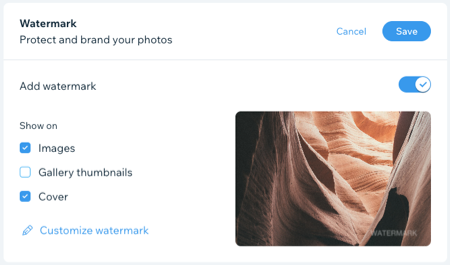
A screenshot of the Manage Album Settings page where you add a watermark.

To add a watermark:

  1. Go to Photo Albums in your site's dashboard.

  2. Click Manage Album next to the relevant album.

  3. Click the drop-down in the Watermark section to expand it.

  4. Enable the Add watermark toggle.

  5. Select the Images, Gallery thumbnails or Cover checkboxes to choose where your watermark is displayed.

  6. (Optional) Click Customize watermark and choose how you'd like your watermark to look:Click Upload Watermark to upload an image file from your computer.
    Drag the Opacity slider to change the transparency of the watermark.
    Drag the Size slider to change the watermark's size.
    Use the Position grid to set where on an image your watermark appears.

  7. Click Save.

Need A Professional Website?
Contact Us 
Today!

Wix Hotels by HotelRunner: Connecting Booking.com to Your Site

Wix Hotels by Hotelrunner: Changing the ‘Room’ Text on Your Site

Wix Hotels by HotelRunner: Adding Room Types

Wix Hotels by HotelRunner: Creating and Managing Your Tax Categories

Wix Hotels by HotelRunner: Troubleshooting "There Are No Available Rooms" Error

Wix Hotels by HotelRunner: Switching to the New Wix Hotels

Wix Hotels by HotelRunner: Customizing Your Email Templates

Wix Hotels by HotelRunner: Managing Your Reservation Settings

Wix Hotels by HotelRunner: Managing Your Reservations

Wix Hotels by HotelRunner: Managing Your Site Languages

Wix Hotels by HotelRunner: Making Bulk Updates

Wix Hotels by HotelRunner: Setting Your Open Seasons, Pricing and General Info

Wix Hotels by HotelRunner: Managing Prices and Availability with the Inventory Calendar

Wix Hotels by HotelRunner: Creating and Managing Your Cancellation and Deposit Policies

Wix Hotels by HotelRunner: Creating and Managing Your Rate Plans

Wix Hotels by HotelRunner: Adding and Setting up Your Hotel

Wix Hotels by HotelRunner: An Overview

Removing Imported Reservations from Your Wix Hotels Reservation Calendar

Troubleshooting the Wix Hotels Channel Manager

Disconnecting a Channel in the Channel Manager (HotelRunner)

Importing Reservations from an External Calendar (iCal) to Wix Hotels

Exporting Your Reservations from Wix Hotels

Wix Hotels Channel Manager Fees

Checklist for Connecting Wix Hotels to the Channel Manager (HotelRunner)

Connecting Your Hotel to Booking Channels Using the Channel Manager

Connecting Wix Hotels with External Services

Wix Hotels: About the Channel Manager

About the Wix Hotels Checkout Process

Managing Wix Hotels Reservations from the Wix App

Changing the Status of a Hotel Reservation in Wix Hotels

wix experts
Graphic2Traffic web design
©
bottom of page